DocsAccount
Email notifications
Choose which emails VidNext sends you — video updates, problems, credit balance, tips and news.
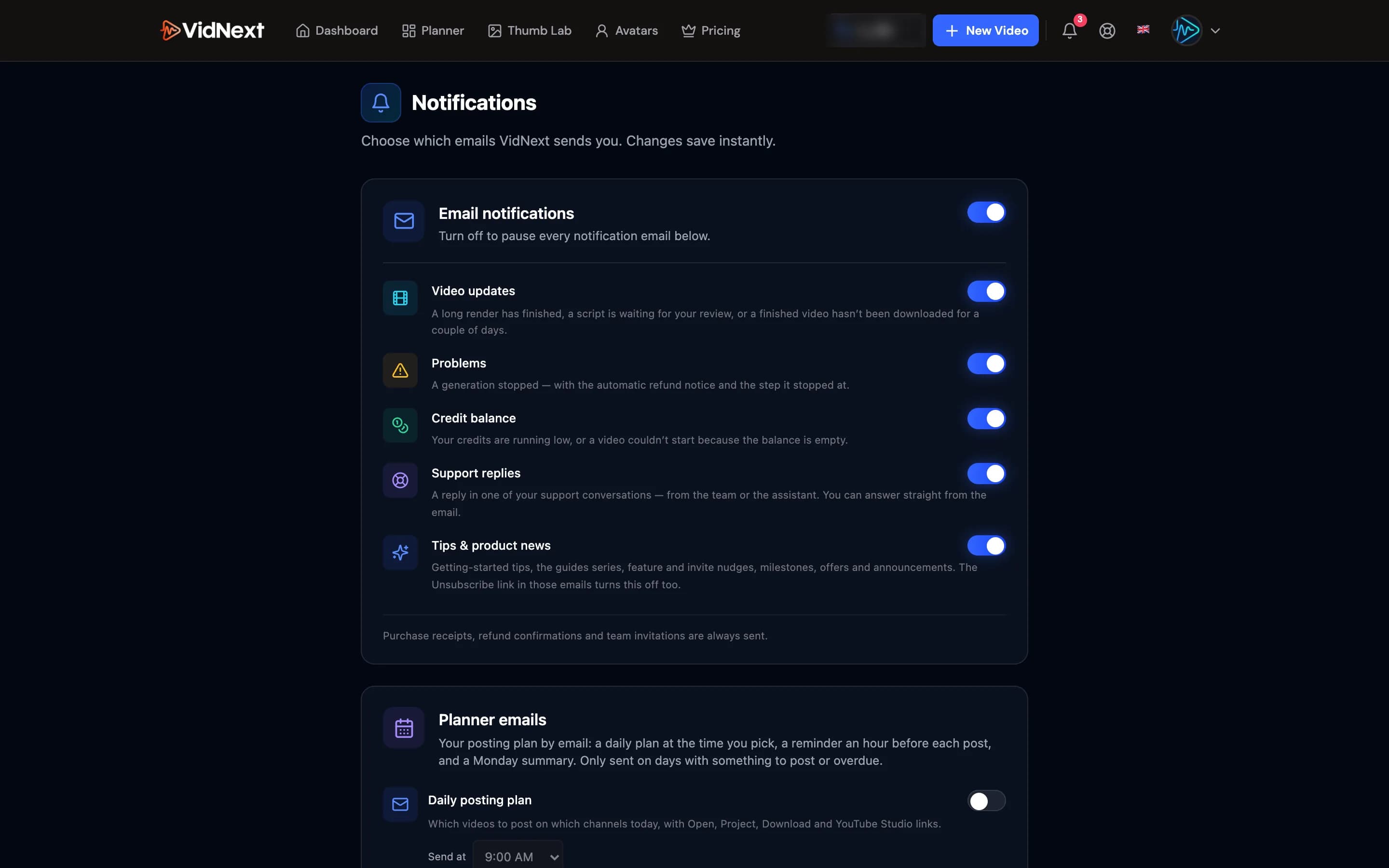
VidNext emails you about the things that happen while you're away from the tab: a long render finishing, a script waiting for your review, a generation that stopped, a credit balance running low. Every one of those is a toggle in Settings → Notifications (open the account menu in the top-right corner and pick Notifications Show me in the app ↗, or the Notification Settings link at the bottom of the bell menu). Changes save instantly.
The toggles
Email notifications Show me in the app ↗ is the master switch — turn it off to pause every notification email below.
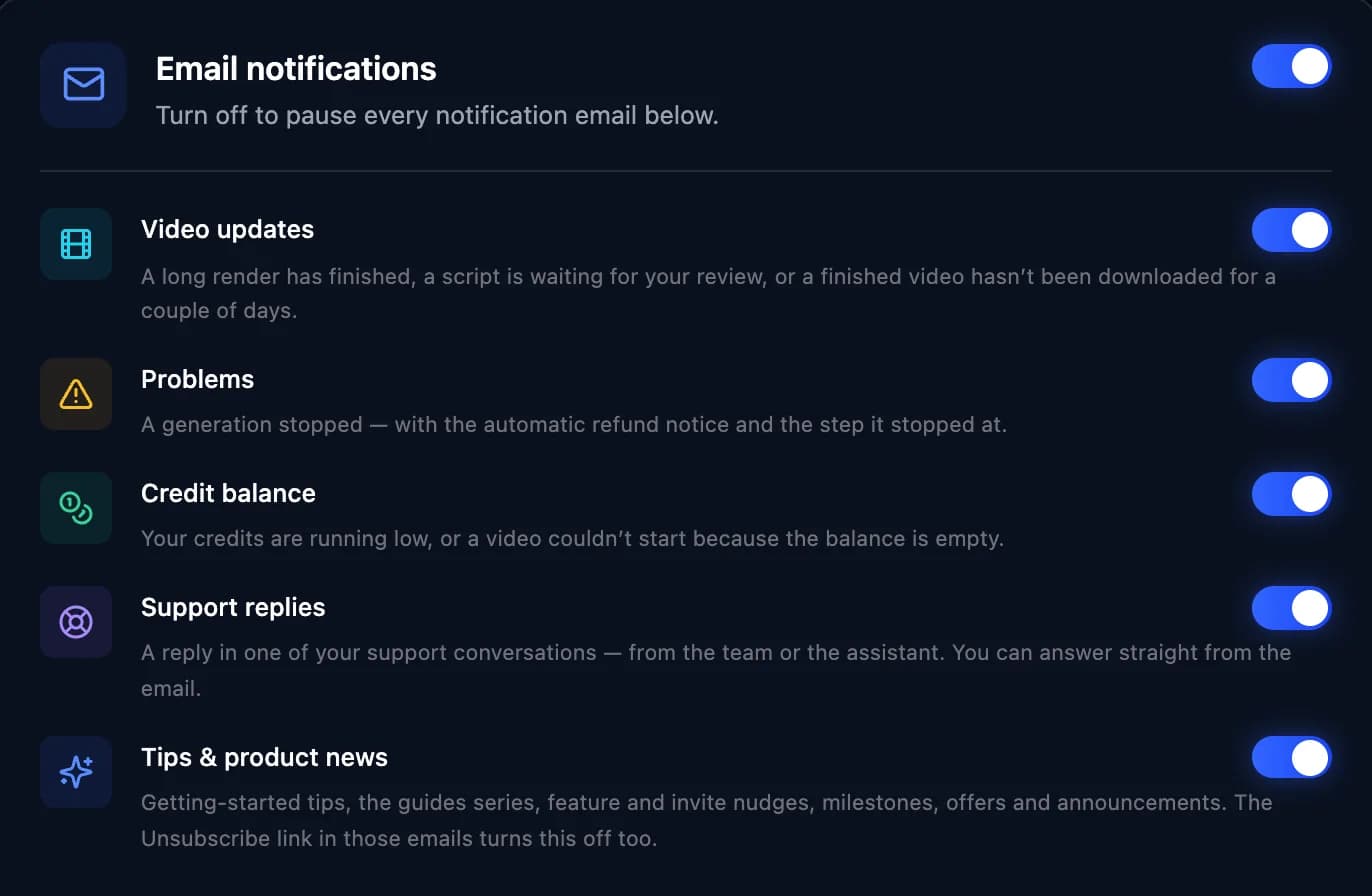
| Toggle | What it covers |
|---|---|
| Video updates | A long render has finished, a script is waiting for your review (when Review script before generating is on), or a video finished a couple of days ago and you haven't been back to download it. A waiting script gets one email, not a daily reminder, and the download reminder comes only once — for the first video left waiting. |
| Problems | A generation stopped — the email names the step it stopped at and confirms the held credits were refunded automatically. |
| Credit balance | Your credits are running low, or a video couldn't start because the balance is empty. If you're trying VidNext with a promo code: your credits have arrived. On any trial — a promo code's or one from our team: your trial ends in two days, or it has ended. |
| Support replies | A reply in one of your support conversations — from the team or the assistant — and messages the team starts. A reply you already read in the app isn't emailed, and several replies close together come as one email. You can answer straight from the email. A message the team sends to many people at once also needs Tips & product news on. |
| Tips & product news | Getting-started tips, the guides series (one short how-to every few days after your first export), feature and invite nudges, milestone notes, offers and announcements. During a promo-code trial: a few ideas for a first video if you haven't started one, and what to try next once one is done. |
Purchase receipts, refund confirmations, plan renewal reminders (about a week before a plan renews) and team invitations are always sent — they're part of your account record, not notifications.
Planner emails
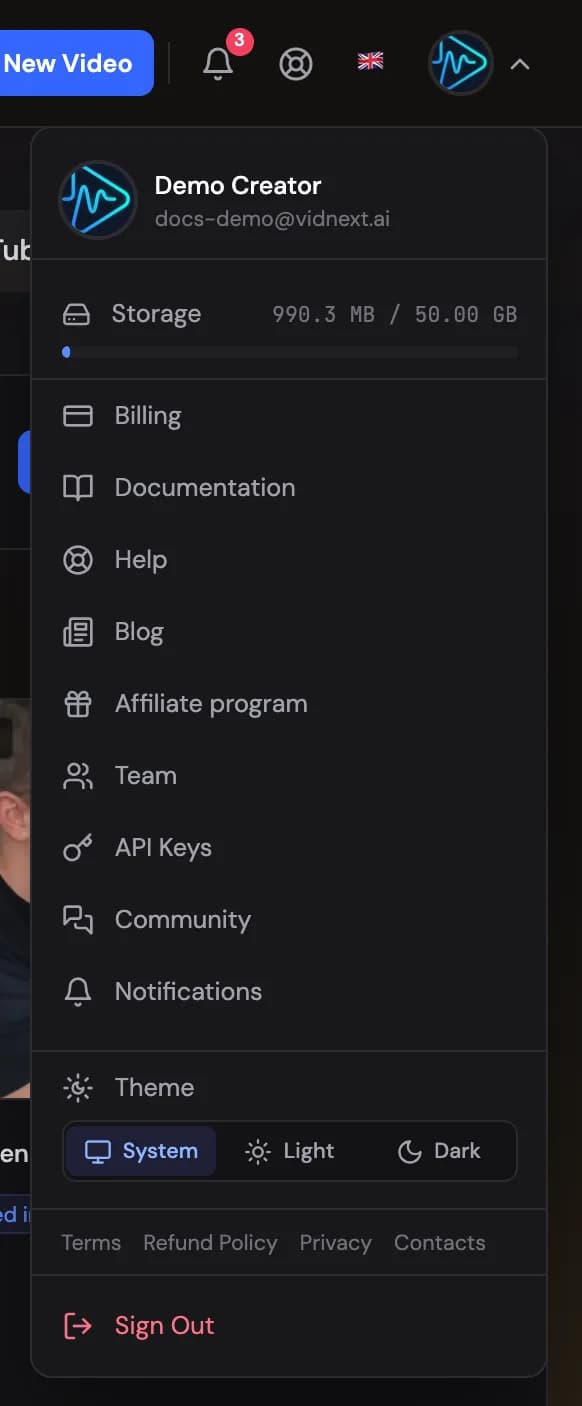
If you use the Channel Planner, the Planner emails card on the same page holds three more toggles — the Daily posting plan Show me in the app ↗, the 1-hour reminder before each post and the Weekly summary on Mondays. They're off until you switch them on (here or with Email me my plan Show me in the app ↗ in the calendar toolbar), they follow your browser's timezone, and Send a test email shows the format immediately.
What the emails contain
Emails about a specific video name it by its generated YouTube title when one exists, and say "your video" otherwise — never your full prompt. Either way, the Open the project button takes you straight to that project's page, where Resume picks up a stopped generation from the failed step.
Unsubscribe links
Tips, guides and news emails carry an Unsubscribe link in the footer. It switches off Tips & product news only — video, problem and credit notices keep arriving until you turn them off on the settings page. Service notices link to Manage notification settings instead, which opens the same page.
Ran into trouble with an email you didn't expect? Reply to it — a founder reads every message.
Messages on the site
News and offers also show up on the site itself: a slim bar at the top of the page and, now and then, a small window. They aren't emails, so the toggles above don't change them. Close the bar with ✕ — when you're signed in, that counts on all your devices. Close a window with ✕, Esc or Maybe later. They don't appear in the video editor, at checkout or on the sign-in pages.