DocsVidNext API
Connect an AI agent (MCP)
Step by step — connect Claude Code, Claude Desktop, Cursor, VS Code or n8n to VidNext, check that it works, and what to say to your agent.
The VidNext MCP server lets an AI agent make videos for you. It finds your presets, voices and themes by itself, starts videos and checks on them — you just say what you want.
- Address:
https://api.vidnext.ai/mcp(Streamable HTTP) - Key: your API key in the
Authorization: Bearerheader — the same keys and permissions as REST.
The quick way: let your AI do it
Make a key first (step 1 below). Then press Copy instructions for your AI Show me in the app ↗ in Settings → VidNext API → Connect — or copy them here — and paste them into your AI:
- Claude Code connects VidNext by itself and checks that it works.
- Claude Desktop, ChatGPT and other chat apps walk you through the steps for your app.
Your key isn't in the text: the AI asks for it when it needs it, and is told never to repeat it back.
Connect the VidNext MCP server for me, then check that it works.

VidNext makes videos from a prompt. Its MCP server lets you make and check videos with my VidNext account.
- Server: https://api.vidnext.ai/mcp (Streamable HTTP)
- Auth: the header "Authorization: Bearer <KEY>", where <KEY> is my VidNext API key (it starts with vn_live_). Ask me for it when you need it, or I can put it in the environment variable VIDNEXT_API_KEY. Never repeat it back, and write it nowhere except the MCP settings.

Set it up in the app I use. If you can run commands and edit files, do it yourself; otherwise walk me through it one step at a time. Keep any servers already in those files.
- Claude Code: run  claude mcp add --transport http --scope user vidnext https://api.vidnext.ai/mcp --header "Authorization: Bearer <KEY>"  — then  claude mcp list  must show "vidnext: https://api.vidnext.ai/mcp (HTTP) - ✔ Connected". Ask me to start a new Claude Code session so the tools load.
- Claude Desktop: in claude_desktop_config.json (Mac: ~/Library/Application Support/Claude/, Windows: %APPDATA%\Claude\) add under "mcpServers": "vidnext": {"command": "npx", "args": ["-y", "mcp-remote", "https://api.vidnext.ai/mcp", "--header", "Authorization:${AUTH_HEADER}"], "env": {"AUTH_HEADER": "Bearer <KEY>"}}. It needs Node.js 18 or newer. Then quit Claude completely and open it again.
- Cursor: in ~/.cursor/mcp.json add under "mcpServers": "vidnext": {"url": "https://api.vidnext.ai/mcp", "headers": {"Authorization": "Bearer <KEY>"}}. Then restart Cursor.
- VS Code 1.140 or newer: in ~/.copilot/mcp-config.json add under "mcpServers": "vidnext": {"type": "http", "url": "https://api.vidnext.ai/mcp", "headers": {"Authorization": "Bearer <KEY>"}}. Then MCP: List Servers → vidnext → Start Server.
- n8n: in the AI Agent node add an MCP Client Tool: Endpoint https://api.vidnext.ai/mcp, Server Transport "HTTP Streamable", Authentication "Bearer Auth" with the key alone as the Bearer Token.
- ChatGPT can't send an API key to an MCP server yet — tell me so.

When it works, call get_account and tell me my balance. After that I can ask you for videos, for example "Make a VidNext video about … with my <preset name> preset". A video takes 30–60 minutes: start it with create_video, give me its id, and check it later with get_video.

Full guide: https://docs.vidnext.ai/docs/api/mcp
Step by step
Make a key
Settings → VidNext API → New key Show me in the app ↗. Name it after the app it's for — "Claude Code", "n8n" — so you can see what uses it, give it a daily limit, and replace it on its own. Copy the key when it appears: it's shown once. The same window has the Claude Code command with your key already in it.
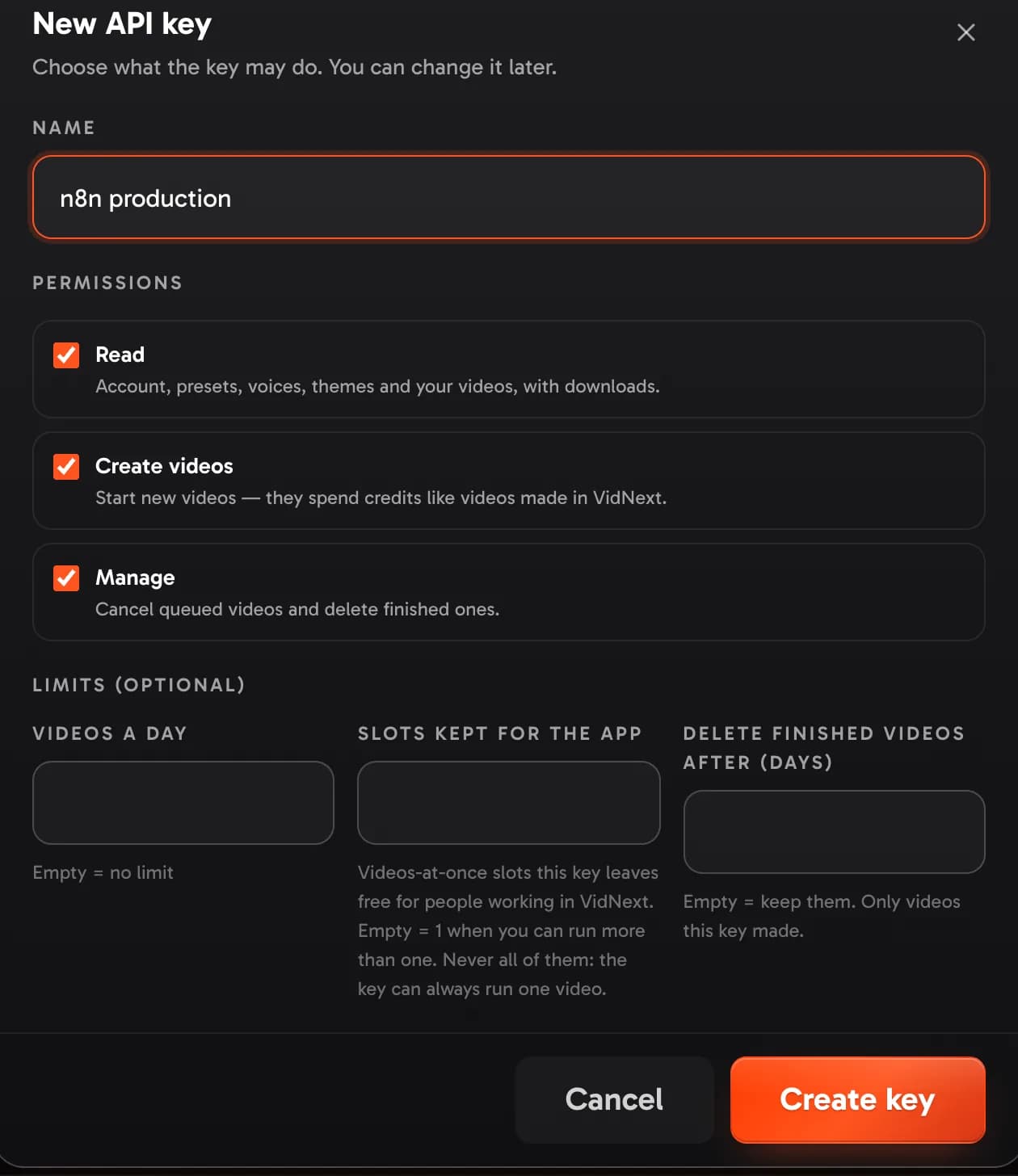
Copy the setup for your app
Settings → VidNext API → Connect Show me in the app ↗: pick your app Show me in the app ↗ and copy its setup. Put your key where it says YOUR_API_KEY.
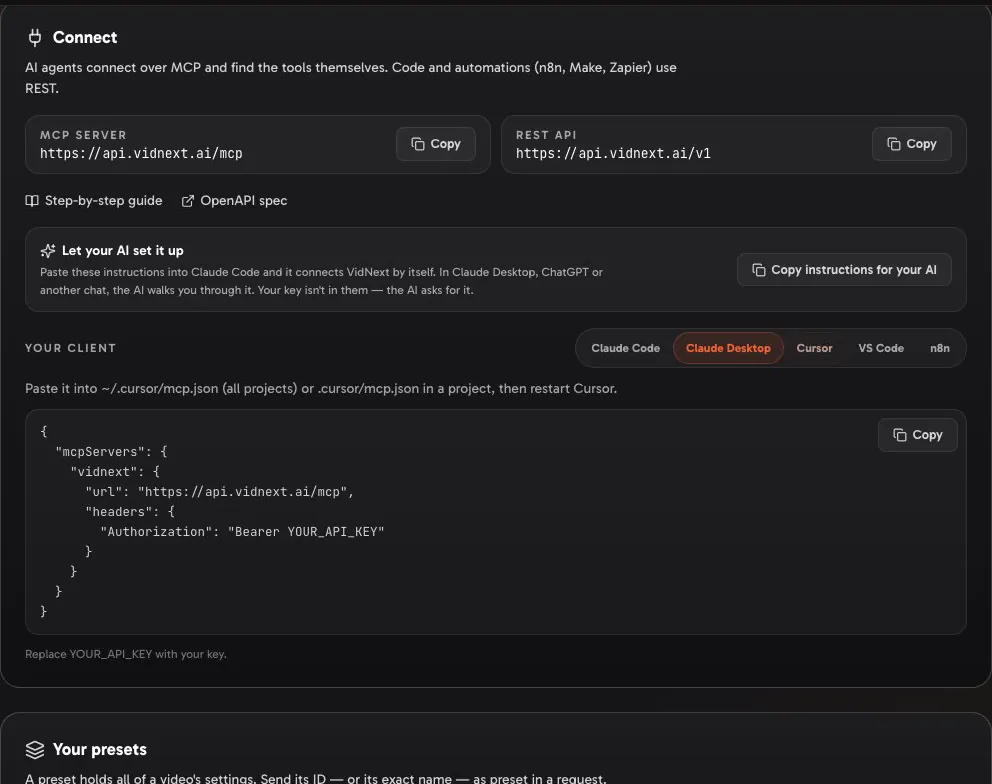
Add it to your app
Run it in a terminal:
claude mcp add --transport http --scope user vidnext https://api.vidnext.ai/mcp --header "Authorization: Bearer YOUR_API_KEY"--scope user makes VidNext work in every folder, not only the one you ran it in. Check it:
claude mcp listvidnext: https://api.vidnext.ai/mcp (HTTP) - ✔ ConnectedInside Claude Code, /mcp shows it with its tools.
- To keep the key out of the command, put it in an environment variable
VIDNEXT_API_KEYand write the header in single quotes:--header 'Authorization: Bearer ${VIDNEXT_API_KEY}'. - To remove it:
claude mcp remove vidnext -s user.
Check that it works
Ask your agent: "What's my VidNext balance?" It answers with your balance and plan. If it can't reach VidNext, see If it doesn't connect.
Ask for a video
- "Make a VidNext video about the history of the Hanseatic League with my Documentary EN preset, 10 minutes, in Ukrainian, with automatic thumbnails."
- "Use this text as the narration, word for word: …"
- "Which of my videos from today are ready? Give me their download links."
A video takes 30–60 minutes, so the agent gets its id at once and checks later — ask it, or connect a webhook to hear back without asking.
ChatGPT and claude.ai
ChatGPT can't send an API key to an MCP server: signing in with your VidNext account in one click is coming. In claude.ai, the custom connector with Request headers (see Claude Desktop above) works where your account offers it.
Tools
| Tool | Does |
|---|---|
get_account | Balance, plan, videos at once, today's API videos |
get_options | Everything a video can choose — languages, formats, themes, styles, music, default preset |
list_presets, list_voices, list_channels | The long lists, for picking IDs |
estimate_video | The price and settings of a video, without creating it |
create_video | Starts a video — every option of Create a video, plus request_id for safe retries |
get_video, list_videos | Status, progress, and the links when ready |
cancel_video, delete_video | Cancel a queued video, delete a finished one |
Errors come back to the agent with a code it can act on (for example unknown_theme_mode with the field), so it can fix the request itself.
If it doesn't connect
Keep your key safe
Give every app its own key: you can see what each one did, cap it with Videos a day, and replace or revoke one without touching the others. If a key leaks, here is what to do.