DocsCreating videos
AI-generated images
When and how VidNext generates imagery for scenes that real footage can't cover.
Some scenes describe visuals that no real footage exists for — a specific historical moment, an abstract concept, a stylized illustration of an idea. For those, VidNext generates images.
How it works
When Generated Images Show me in the app ↗ is enabled in your scene mix, the video plan marks suitable scenes and image prompts are derived from the scene's content, your video's subject, and the selected style pack — so generated imagery matches the look of the rest of the video. Generated images get the same motion treatment as searched images (Ken Burns, pans, zooms) so they feel like footage, not slides.
Graphics that hold more than one picture — a two-sided comparison, for example — get one generated image per picture, each written for its own subject. Generated images also step in when a picture search finds nothing, so a graphic is never left with an empty panel; real people, brands and logos are the exception and are never invented. For a real person, the search also looks for their own photos from any event; when none fits, the scene shows its design without the picture or its narration as on-screen text.
Controlling usage
-
Adjust the scene mix Show me in the app ↗ on the create page to use more or less AI imagery — or disable it entirely with the scene-type toggles.
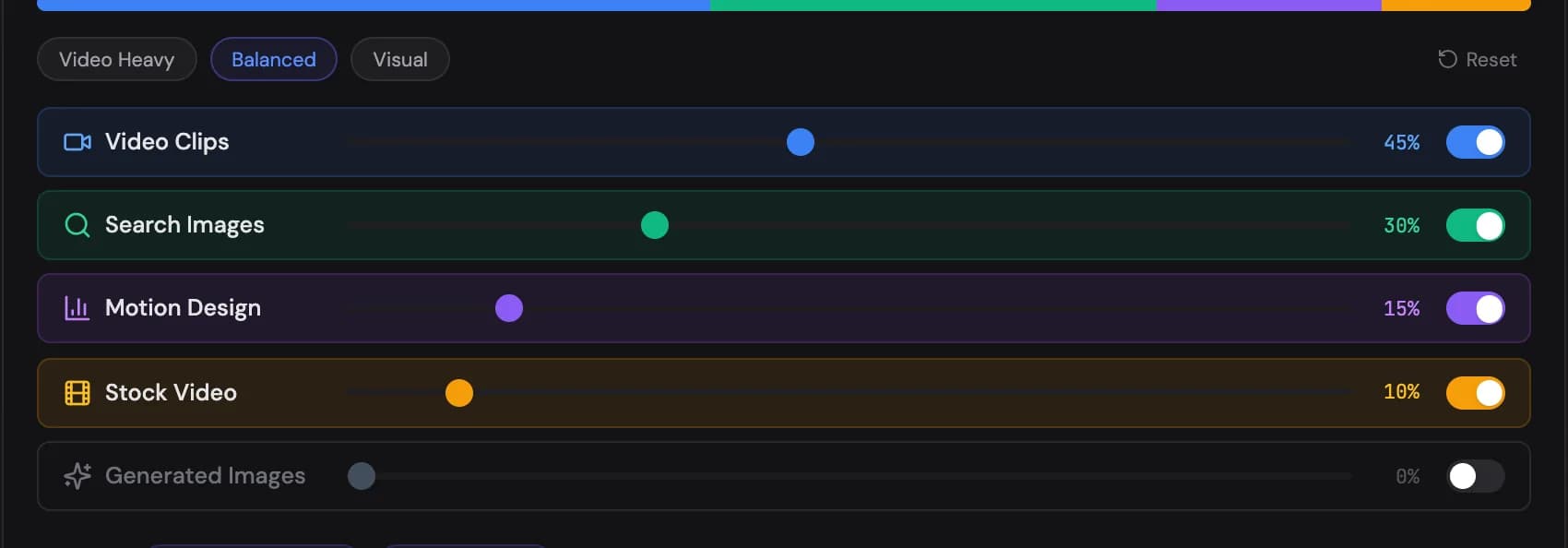
Generated Images is one of the five scene types in the content mix. -
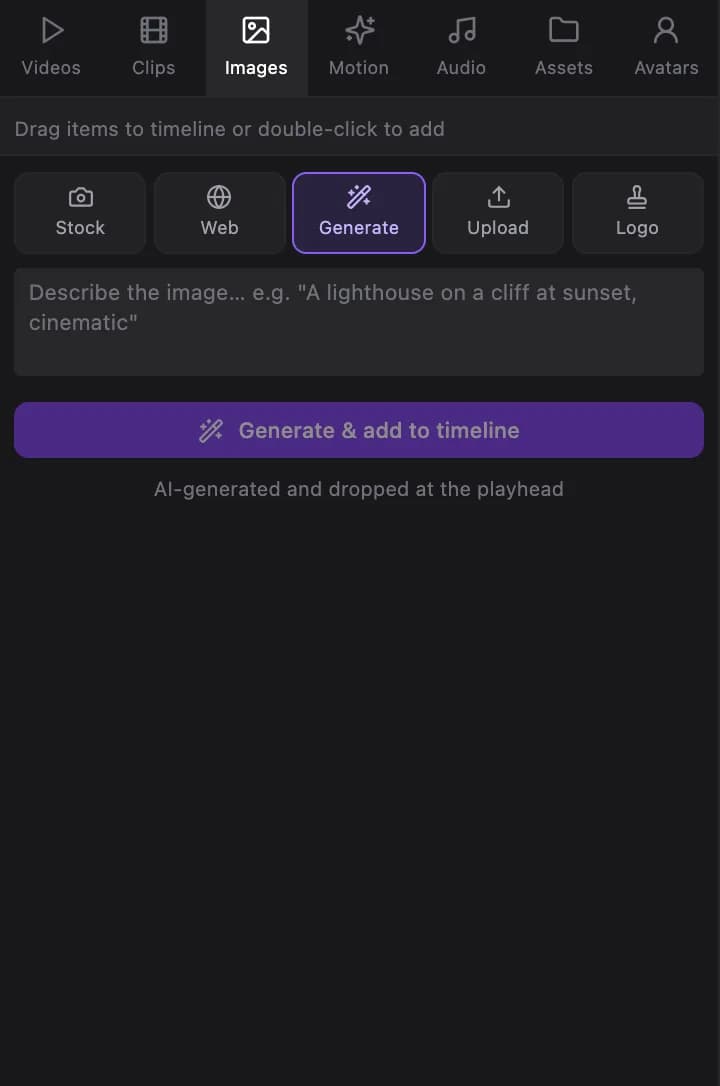
In the editor, any image scene can be regenerated with a new prompt Show me in the app ↗, replaced with a stock or web image, or swapped for an upload. The editor's image browser also has a Generate tab Show me in the app ↗ that creates a new AI image at the playhead in about 30 seconds.
More coming soon
This page will grow with style-pack-specific examples and prompt tips. For hands-on control today, see the media browser in the editor guide.