DocsChannel Planner
Channel Planner
A posting calendar for all your channels, AI-filled channel profiles, an AI Idea Studio, a pipeline board, planner emails and YouTube stats — in one place.
The Channel Planner (the Planner tab Show me in the app ↗ in the top navigation) is mission control for running one or many channels: every scheduled post on one calendar, a profile for each channel that the AI can fill in for you, an Idea Studio that plans a month of videos for a channel in a few clicks, a pipeline board from idea to posted, emails that tell you what to post today, and YouTube stats to see what works. Four tabs at the top of every planner page — Calendar Show me in the app ↗, Board, Stats and Channels (with how many channels you run) — switch between those views, and stay in the same place on every tab; the Board tab keeps the channel you were looking at selected. When a tour video is available, How the Planner works Show me in the app ↗ sits next to the Channel Planner heading on every tab and plays it.
The calendar
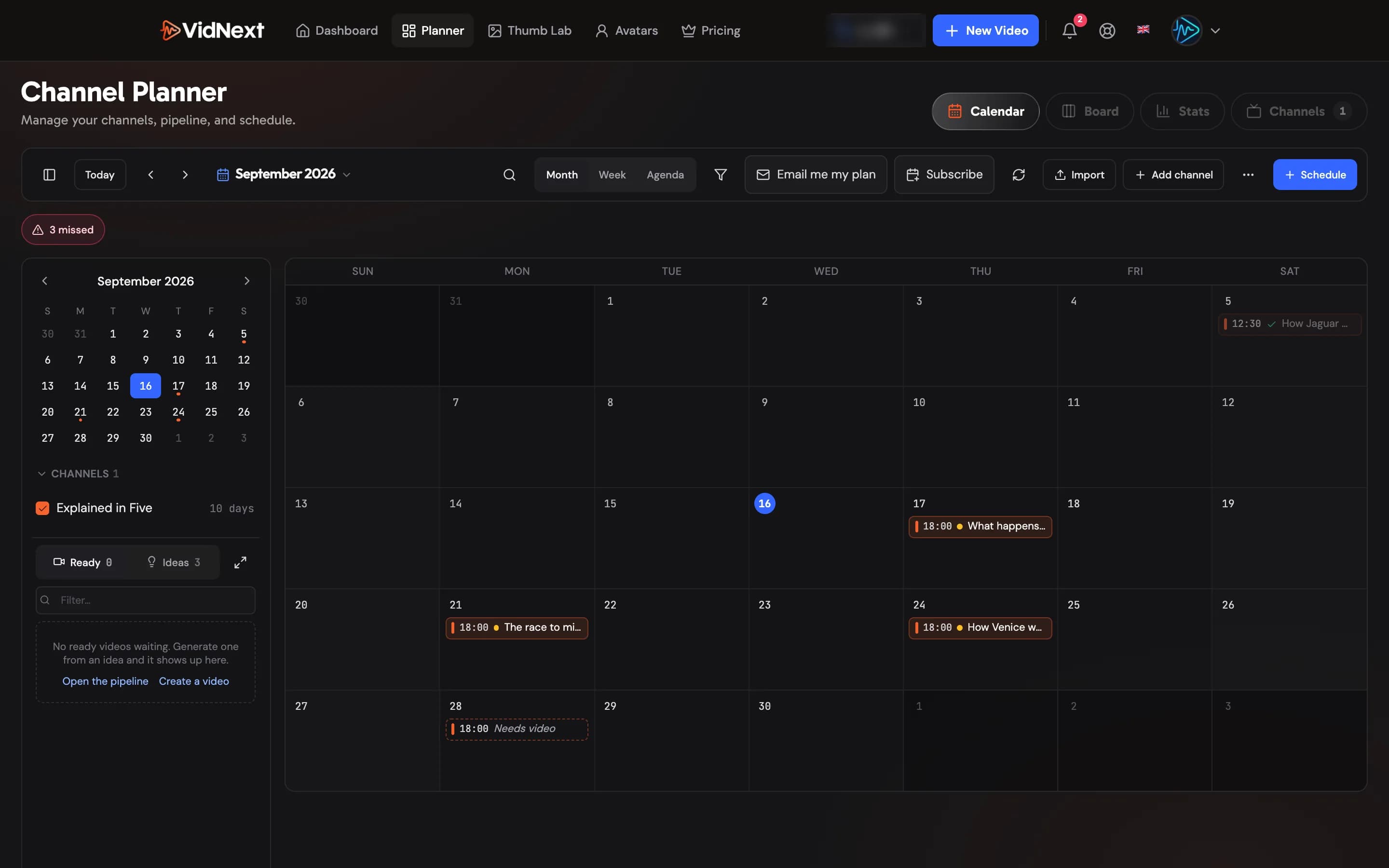
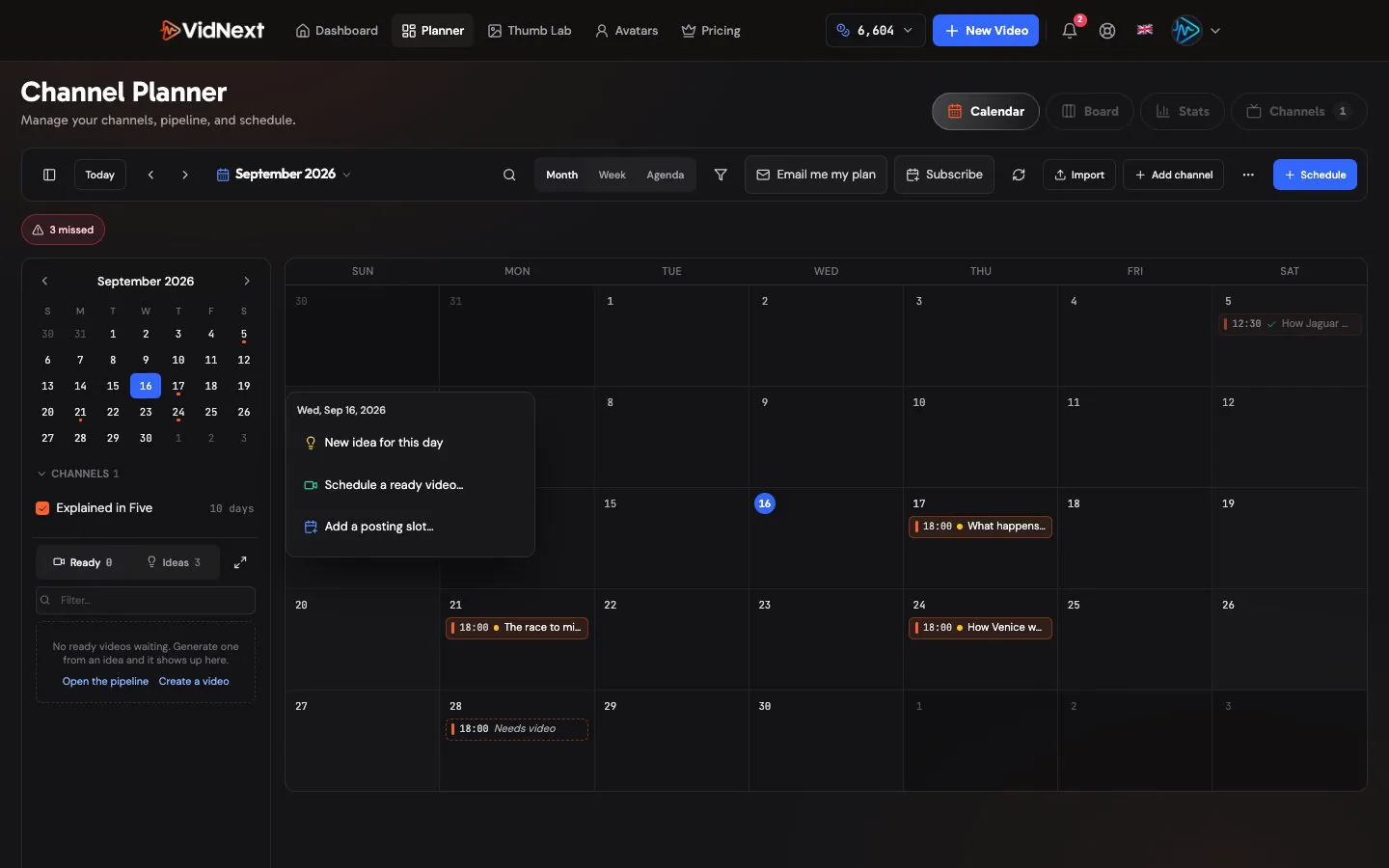
The Planner opens on a calendar Show me in the app ↗ of all your channels. Every scheduled post is an event in its channel's colour; the legend Show me in the app ↗ on the left lets you hide or show channels, and the chips above the grid tell you at a glance what needs attention — Missed, Post now, Today, Needs video, Empty slots this week and Ready to schedule.
Switch between Month, Week and Agenda with the buttons in the toolbar Show me in the app ↗ (or press M, W, A; T jumps to today, ←/→ move one range, N opens the scheduler, Esc closes the panel). On a phone the Agenda view is the default and the details open as a sheet from the bottom.

Posting times belong to the channel: you set them Show me in the app ↗ in the channel's own timezone (say 12:00 New York for a US audience), and the calendar shows them in your local time, noting the channel time whenever the two differ.
Working with a post
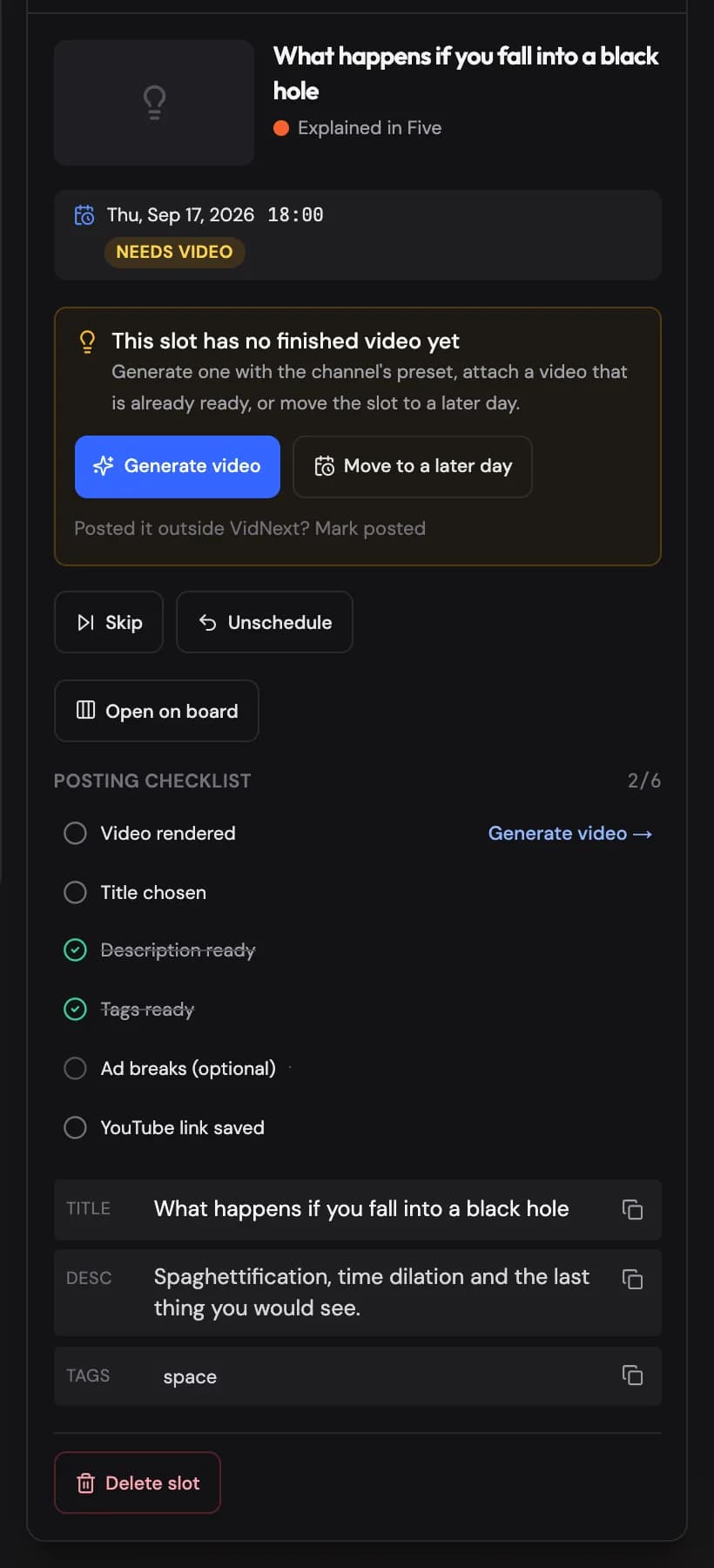
Click any event to open its panel Show me in the app ↗: the thumbnail, the channel, the exact time, the video's state and everything you need to publish it — the posting checklist (rendered, title, description, tags, ad breaks, URL saved), the YouTube kit with copy buttons for the title variants, description and tags, and the actions: Mark posted (paste the published URL), Skip, Unschedule, Reschedule, Delete slot, Open project, Download and Open channel.
To move a post, drag it to another day (Week view also lets you drop it straight onto one of that channel's empty slots); on a touch screen use Move… Show me in the app ↗ and tap the new day. If the channel already has a post at that time you'll see That time is already taken and can pick another time.
A slot marked Needs video holds an idea that has no finished video yet, so the panel offers what actually gets it out the door: Generate video Show me in the app ↗ (one click, with the channel's preset — or your default preset when the channel has none — the post shows as Processing and switches to Scheduled by itself when the render finishes), Attach a ready video (swap in one of the channel's finished, unscheduled videos — the idea goes back to the tray), or Move to a later day. If you produced the video elsewhere, Posted it outside VidNext? Show me in the app ↗ reveals Mark posted.
The ready tray
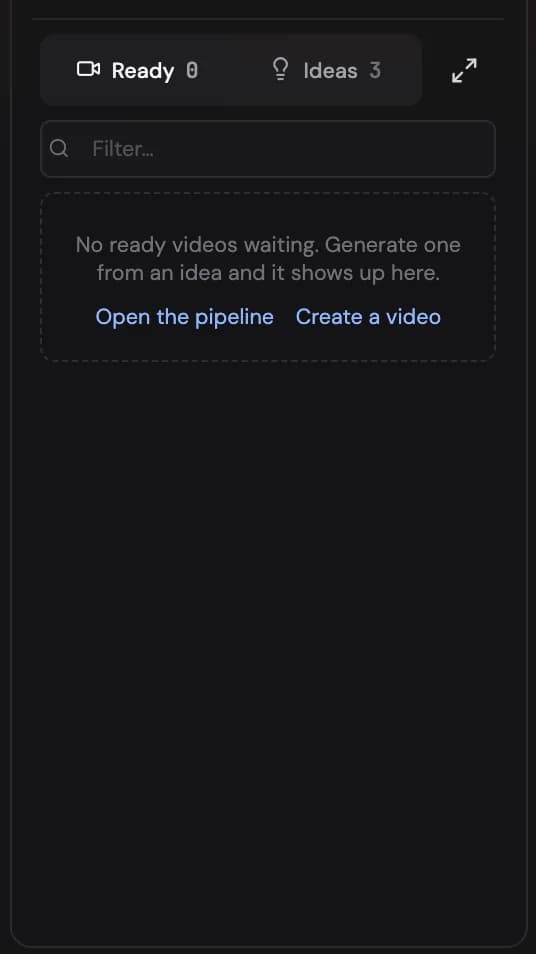
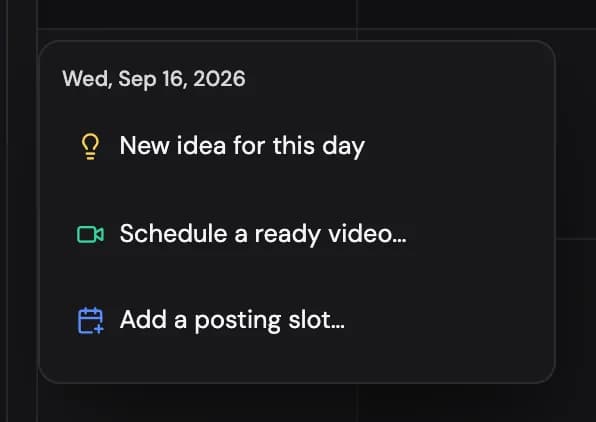
Finished videos that aren't scheduled yet — and ideas you still want to place — wait in the Ready tray Show me in the app ↗ in the sidebar (the expand button opens the full list in a wide panel). Drag one onto a day (or tap Place Show me in the app ↗ and then a day) and it lands in that channel's slot for the day: an open slot if there is one, otherwise a new slot at the channel's usual posting time (from its Schedule), the next configured time when that one is taken, and if every time is taken you're asked to pick one — a badge shows the time while you drag, and the confirmation offers Change time. Moving an existing post keeps its time. Empty slots show as dashed Open slot events until something is placed in them; an empty slot's panel lets you assign a ready video Show me in the app ↗ or schedule an idea. New ideas don't have to start on the board: click a day and choose New idea for this day Show me in the app ↗ to create one and schedule it in one go (or Add to tray only), and New ideas… in the toolbar's ⋯ menu opens the Idea Studio.
Adding and editing a channel
Add channel Show me in the app ↗ (on the calendar, or on the Channels tab) opens the channel editor — a panel with six sections you can fill in any order:
-
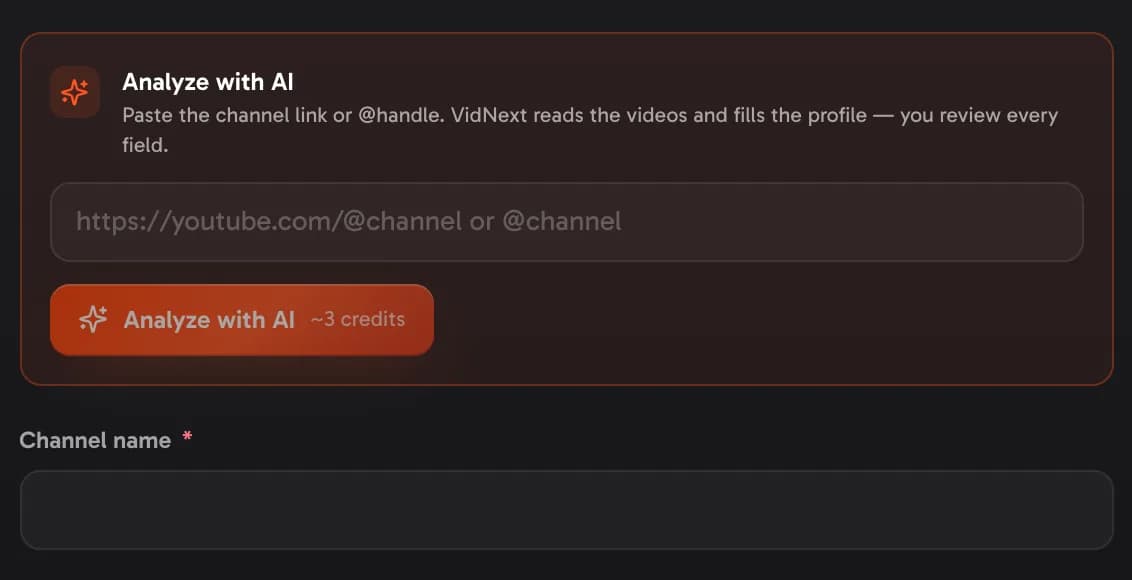
Basics — paste the channel's YouTube URL or @handle Show me in the app ↗ and press Analyze with AI: the name, avatar, subscriber count, niche and a first draft of the whole profile are filled from the channel's public videos. Fields filled by the AI are marked so you can keep or undo each one. The Subscribers field Show me in the app ↗ feeds competitor scoring — type your count, or leave it empty for a brand-new channel and the planner assumes 0 (a channel with no public count yet is marked New channel after the analysis). Pick the channel's colour, default video preset Show me in the app ↗ and status here too. Under the preset picker, a Planner prompt panel Show me in the app ↗ shows the version of the preset's prompt that one-click generation uses — the planned idea's topic stands in as
{{Main Idea}}and is prepared automatically the first time it's needed; you can edit that version (it must keep an idea placeholder; up to 37,000 characters, with a counter under the text, and a longer text is never cut: you shorten it before you save) or reset it to automatic at any time, and none of it changes how the preset behaves on the create page — and a Default thumbnail style: a project created from this channel opens its Thumbnails tab with that style already selected (and any thumbnail run that doesn't name a style uses it). Leave it empty to choose a style per project; the styles themselves are managed on the Thumbnails page.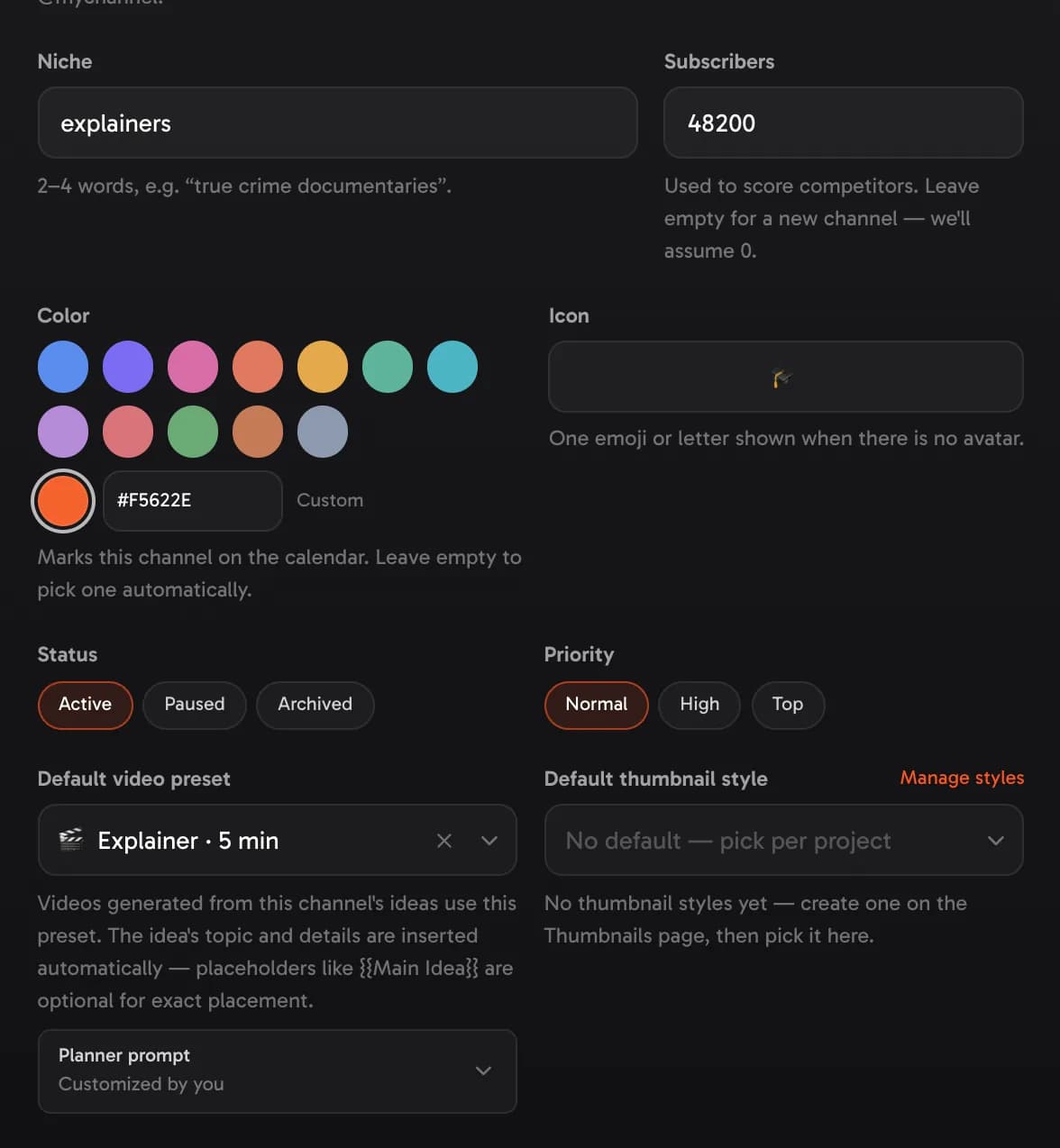
Basics: subscribers, colour, default video preset and the planner prompt. -
Branding — your logo on this channel's videos. Upload logo Show me in the app ↗ takes a PNG, JPG, WebP or SVG file up to 5 MB (a PNG with a transparent background looks best); Replace Show me in the app ↗ and Remove Show me in the app ↗ sit next to it. A preview Show me in the app ↗ shows the logo on a video frame and on a Short. Corner and size are set separately for Videos and Shorts Show me in the app ↗: pick a corner Show me in the app ↗ and a size Show me in the app ↗ from 5 to 30 % — a wide wordmark gets wider rather than bigger, so every logo looks about equally heavy. Opacity Show me in the app ↗ (20–100 %) and Fade in at the start Show me in the app ↗ apply to both. Show the logo in new videos Show me in the app ↗ decides whether the channel's new videos get it: the create page starts from it — there you can switch the logo off, change its corner, size, opacity and fade-in, or use another logo for one video — and videos that Autopilot or one-click generation start follow it, unless their preset was saved with a logo choice of its own.
In the video the logo sits above everything — captions included — from the first frame to the last, and fades out with the picture at the end. A logo in a bottom corner moves up above bottom captions (a top one moves down below top captions), and on Shorts it keeps clear of YouTube's buttons. A presenter window or corner text that would share the logo's corner moves to another corner, and titles along the logo's edge sit just below it (just above it, for a logo in a bottom corner). Replacing or removing the logo never changes videos that are already made, and any video can get a different logo, corner or size later in the editor.
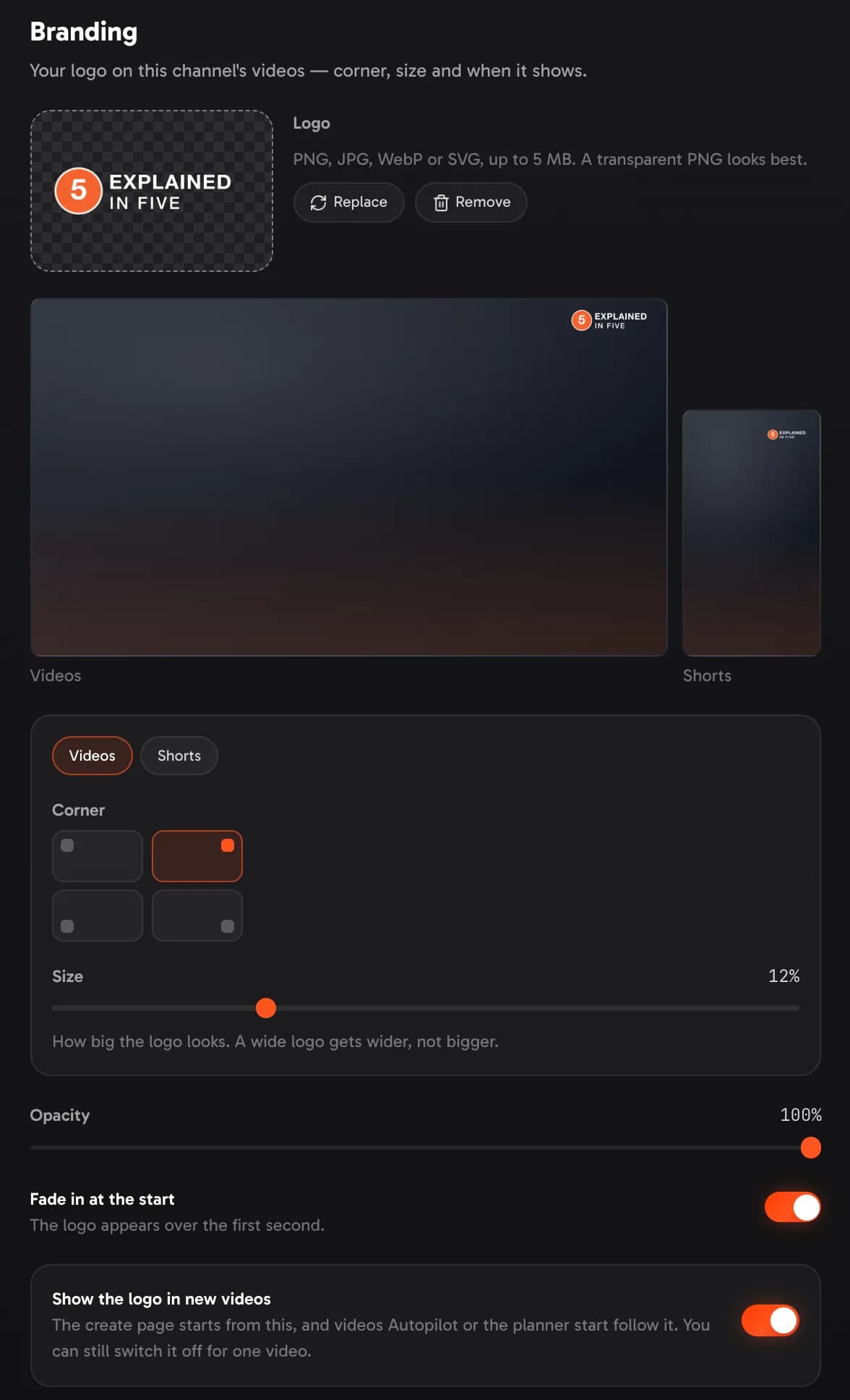
Branding: the logo with a preview on a video and a Short, corner and size for each format, opacity, fade-in and the switch for new videos. -
Audience & Geo Show me in the app ↗ — who watches (age, interests, what they're looking for), which countries they're in, the content language and the tone of voice.
-
Content strategy — content pillars Show me in the app ↗, formats, keywords, topics to avoid and your goals (monetization, target subscribers and views, video length, uploads per week).
-
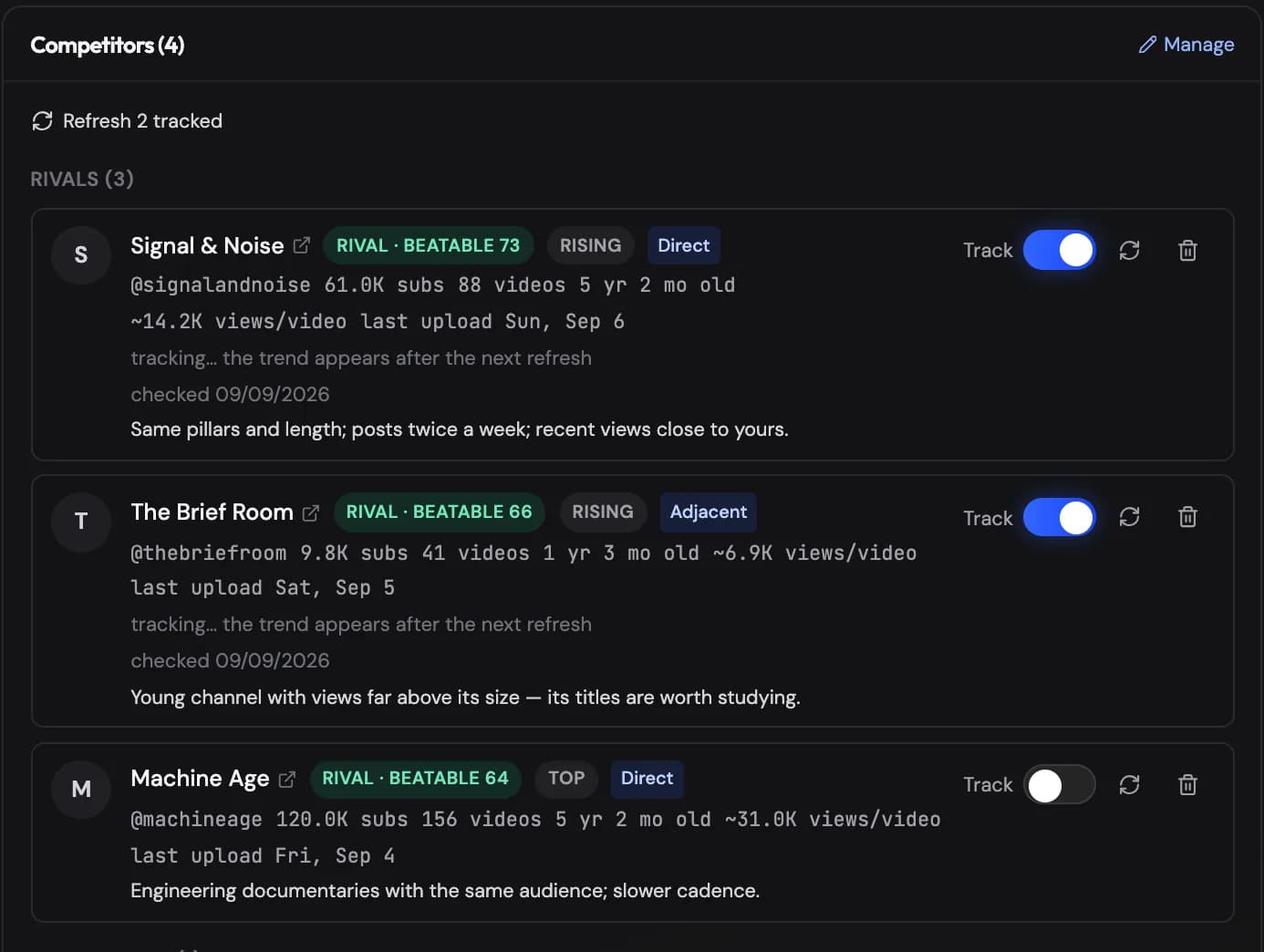
Competitors — Find with AI Show me in the app ↗ searches YouTube for channels your viewers also watch and sorts them into three groups: Top of the market (the largest channels in your space), Rising fast (young channels already pulling real views, or small channels whose recent videos pull views far above their size) and More channels found (everything else the searches surfaced, most relevant first). Cards show the logo, subscribers, video count, channel age, average views, last upload and views per subscriber, and the name links straight to the channel on YouTube; Load details Show me in the app ↗ fetches those figures for channels in the third group (they move up to Top or Rising when the numbers fit), Find more runs a fresh set of search phrases and adds channels that weren't listed yet, and you can always Add by URL. Every channel also gets a role relative to your channel, and the panel opens with a Your position line (your subscribers and average views, then how many channels are beatable now, catchable, worth learning from, or benchmarks) with a role filter Show me in the app ↗. Rival channels sit between 0.2× and 20× your subscriber count — and the band always reaches at least 10,000 subscribers, so a brand-new channel still gets rivals instead of a page of benchmarks — and carry a beatability score (0–100) — how realistic it is to overtake them, from the size gap, their weak spots (low views per subscriber, no upload in 60+ days, your videos already out-viewing theirs) and how close their content is to yours: Beatable (45+), Catchable (30–44, with an estimate of the months it would take at your recent growth) or Uphill. Fast-growing channels outside that band are marked Learn from; anything more than 20× your size is a Benchmark — study their titles, formats and cadence instead of racing them. Hover a role to see the reasons behind it. Rivals and learn-from channels are tracked by default when you add them; benchmarks are not. Tick the ones you want Show me in the app ↗. Every search is kept: Previous searches Show me in the app ↗ in the Competitors section lets you reopen any earlier run and add more channels from it, and Find more continues from what those runs already covered. Switch on Track Show me in the app ↗ for a competitor and the planner reads its numbers and latest uploads right away (the first check starts the moment you add or track a channel, so the list fills within seconds), then re-reads them every few days — the card shows how its subscribers and views moved over the last 30 days, the channel's Overview tab lists Recent uploads from tracked competitors (last 30 days, with a Refresh button and the time of the last check) with a Breakout mark on videos that did far better than that channel's usual, and the Monday weekly summary email calls those breakouts out.
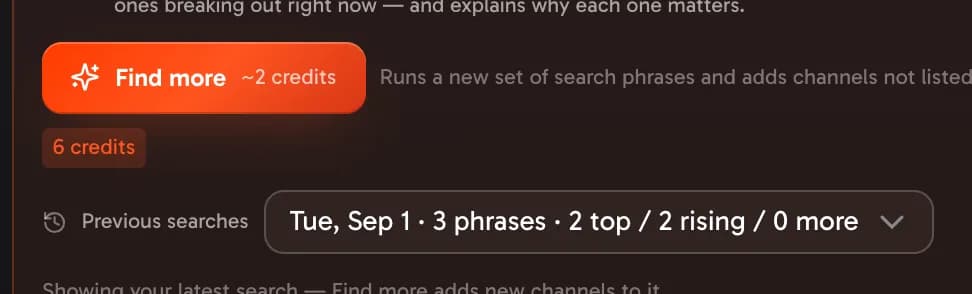
Competitors: Find with AI, previous searches and the role filter. -
Schedule — posting days Show me in the app ↗, one or more posting times, and the channel's timezone. When the audience's main countries are set, the editor suggests the matching posting timezone (say New York for a US audience) with a one-click Use Show me in the app ↗ — and a channel created with Analyze with AI gets it applied automatically, marked like any other AI-filled field so you can undo it. A preview Show me in the app ↗ shows the next seven slots in the channel's time and in yours.
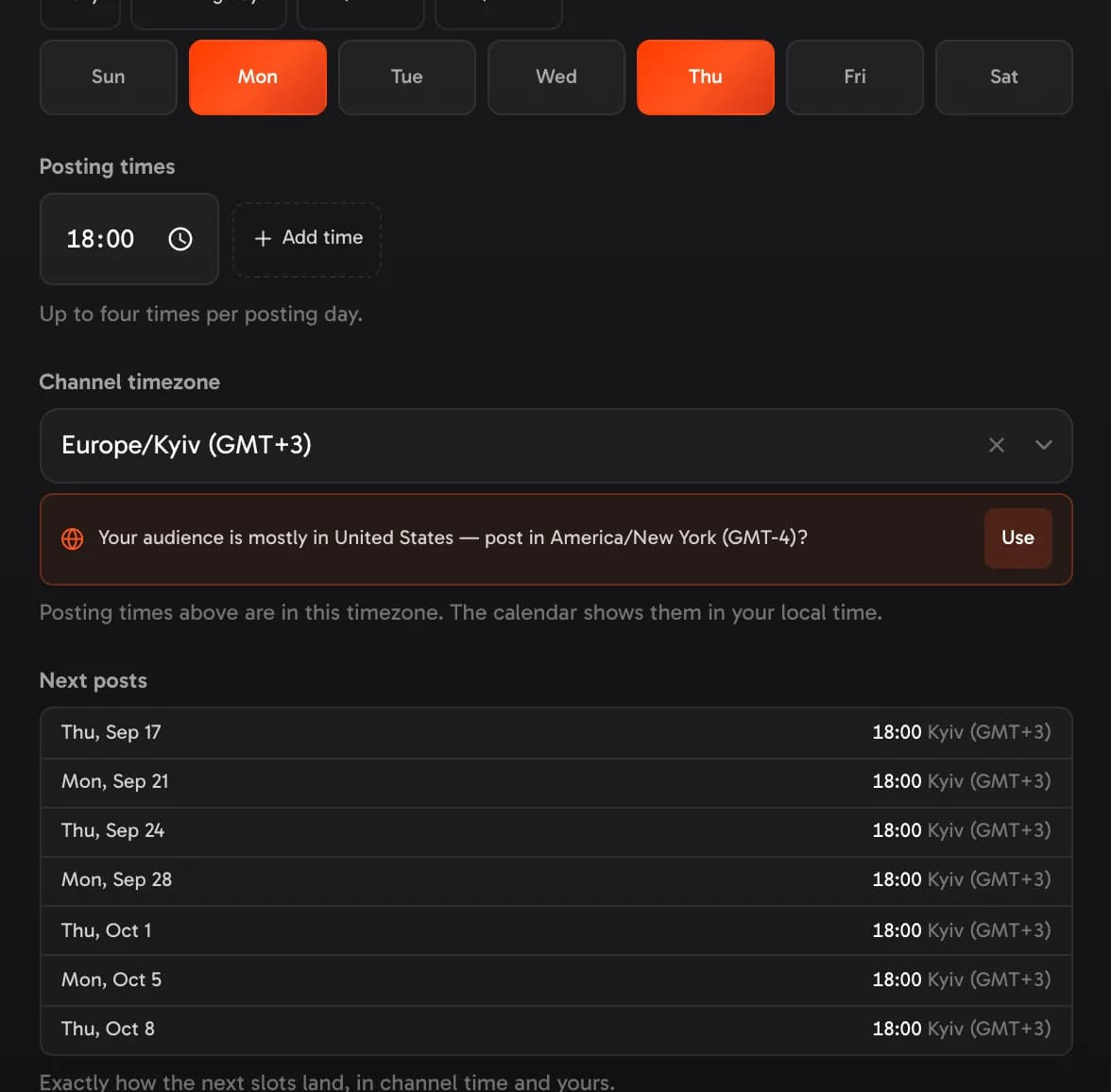
Schedule: posting days, times, timezone and the next slots.
AI actions use credits; the estimate is shown on the button before you run one, and re-opening an analysis you already ran is free.
The same editor opens from Settings Show me in the app ↗ on the channel page and from the pipeline board, so you can change any section later.
The channel page
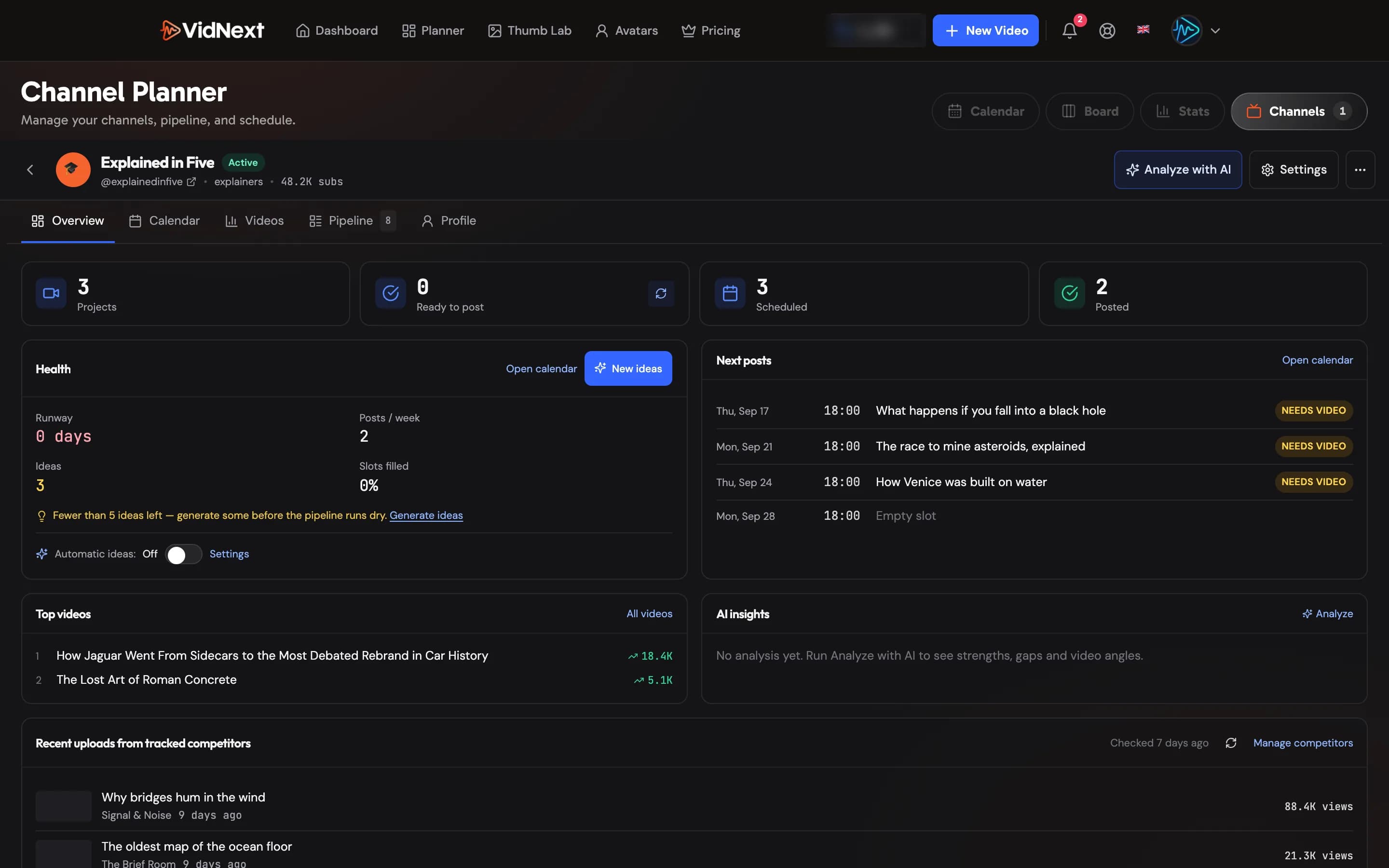
Each channel has its own page with tabs: Overview Show me in the app ↗ (health, runway, next posts, top videos and the AI's insights on the channel), Calendar (this channel's posts, with Generate slots, Auto-fill and Clear & regenerate), Videos (YouTube stats with deep research and comments), Pipeline (this channel's ideas and ready videos) and Profile (everything from the editor, with the competitor list and the brand kit for thumbnails — the brand kit shows the channel's logo from Branding, with Change in Branding Show me in the app ↗).
A team owner, or a team lead VidNext set up for your company, can open their members' channels from Team → Projects, read-only: the Overview and Videos tabs, without anything that changes the channel or uses credits. See Opening a member's channel.
Idea Studio
New ideas Show me in the app ↗ — on the Board toolbar, on a channel's Overview and Pipeline tabs, and in the calendar's ⋯ menu — opens the Idea Studio: one panel with three tabs, Generate with AI, Write one and Paste a list.
Generate with AI
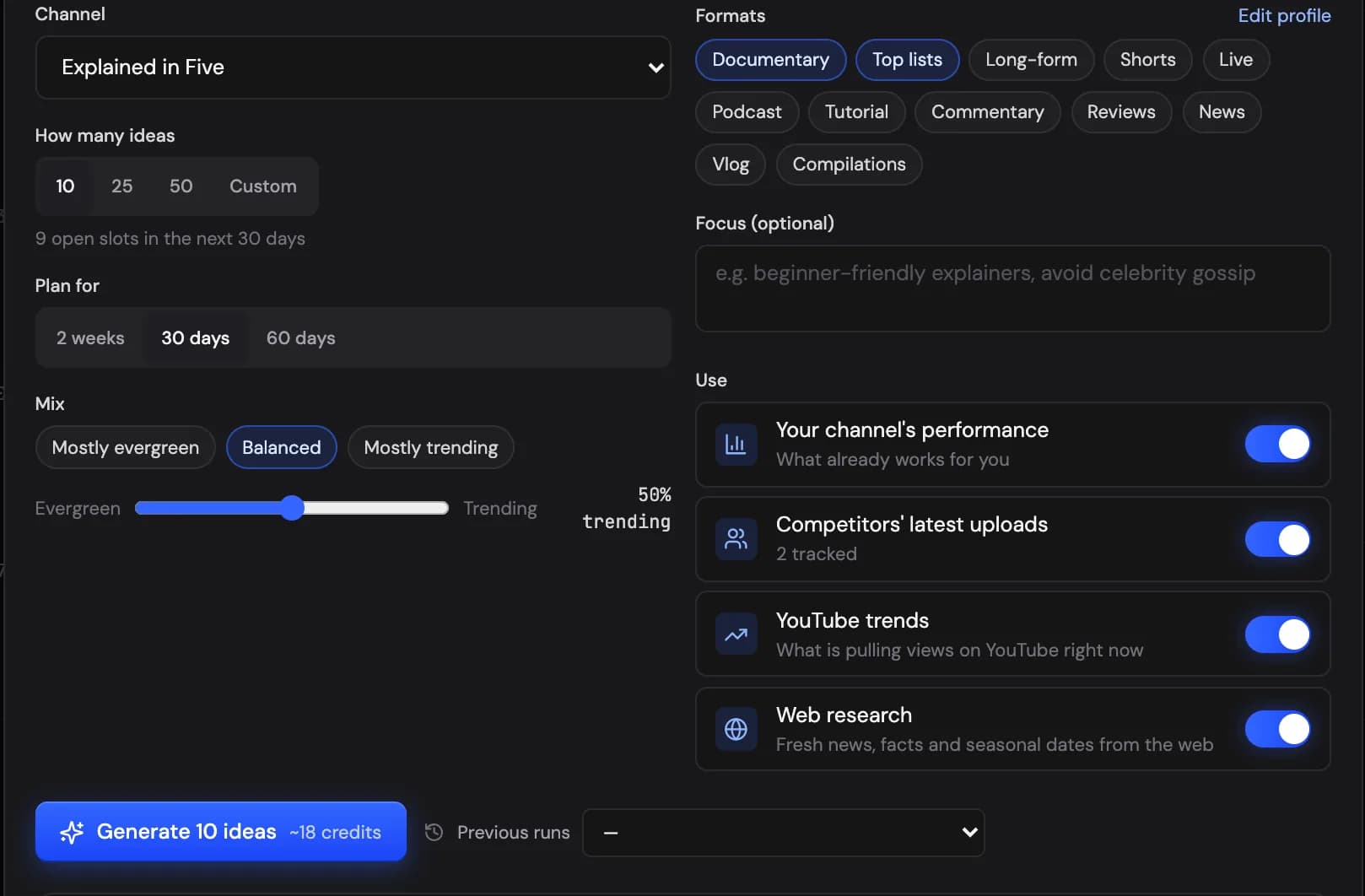
Pick the channel and how many ideas you want Show me in the app ↗ — 10, 25, 50 or any number up to 100 (the studio suggests a number from the empty slots in your horizon) — then the horizon (2 weeks, 30 or 60 days), the mix between evergreen and trending topics, the formats from the channel profile, and an optional focus ("beginner-friendly explainers", "avoid celebrity gossip"). Under Use Show me in the app ↗, choose what the AI looks at:
- Your channel's performance — what already works for you, from the channel's own videos.
- Competitors' latest uploads — the last 30 days from the competitors on the channel profile, with their breakouts flagged.
- YouTube trends — live searches for what is pulling views in the niche right now (the last 24–48 hours when the mix leans trending, otherwise this week).
- Web news and research — fresh news, facts and the seasonal calendar (holidays, events and dates inside your horizon for the audience countries).
The credit estimate is on the button Show me in the app ↗ before you run. Generation works in the background: the panel shows each step with its numbers — competitors read, videos checked, breakouts, searches — you can close it, and the bell tells you when the ideas are ready. Previous runs Show me in the app ↗ reopens any earlier run.
Reviewing ideas
Every idea is a card Show me in the app ↗: the title, the hook, format and length, its kind (Trend, News, Evergreen, Sequel, Competitor gap, Seasonal or Audience request), a "why now" backed by links to the videos and pages it is based on, a score (with fit, trend and opportunity underneath), a publish by date when the idea is timely, tags, a thumbnail concept and alternative titles.
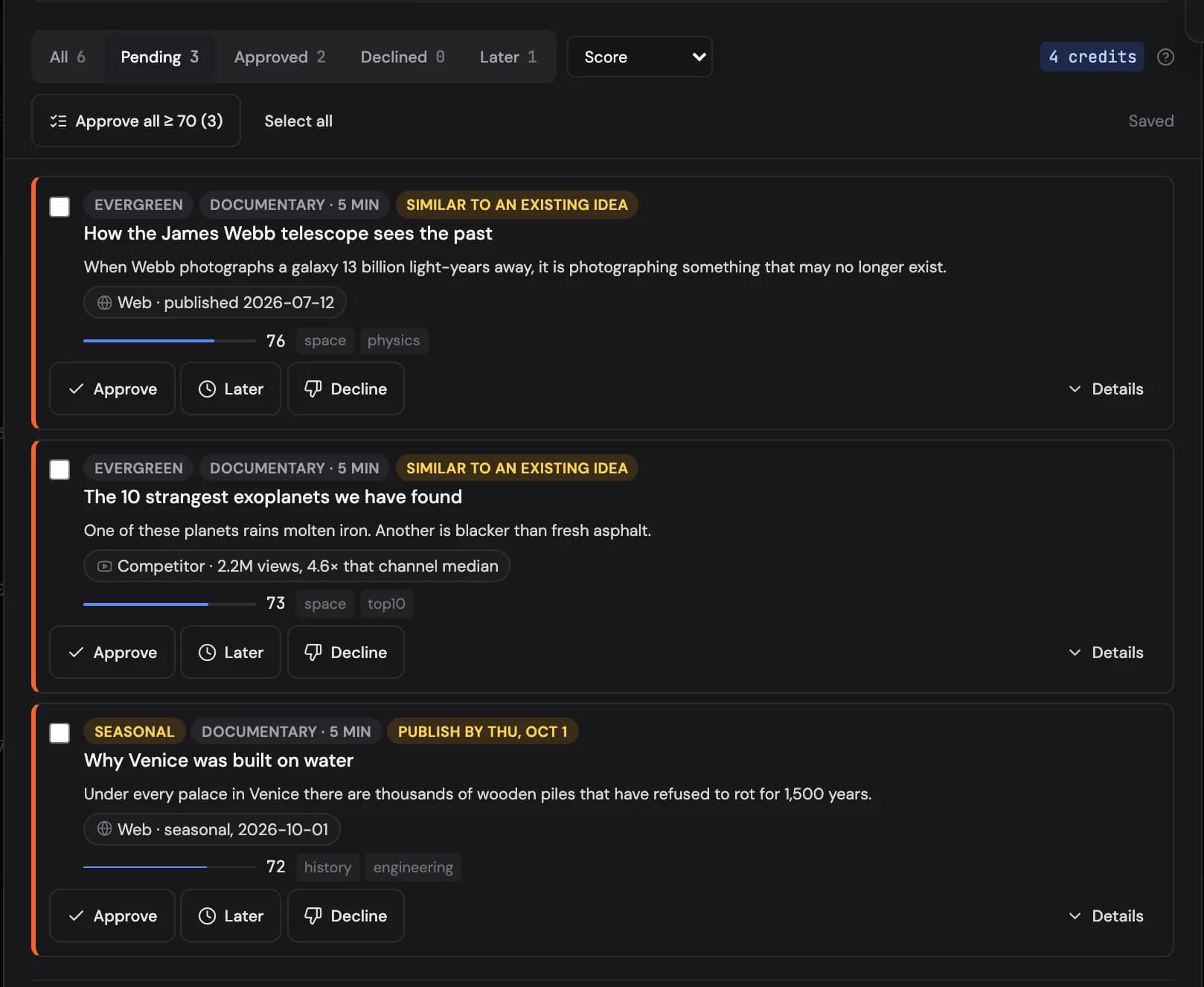
Approve Show me in the app ↗, Decline (with an optional reason) or save an idea for Later — A, D and L on the keyboard move through the list; J/K step between cards and E opens the details. Filter by decision, sort by score or publish date, Approve all ≥ 70 Show me in the app ↗ in one click or Select all and decide in bulk. Generate more Show me in the app ↗ continues from your decisions — approved ideas set the direction, and a declined idea is never proposed again for that channel. Saved for later Show me in the app ↗ is reachable from the studio whenever you want to come back to them.
Adding them
When you're done, Add to Ideas Show me in the app ↗ puts the approved ideas into the channel's Ideas column, or Add & schedule also places them into the channel's empty slots inside the horizon — timely ideas before their publish-by date, the rest by score — and the summary tells you what happened ("12 scheduled · 8 in Ideas"). Each idea keeps its brief (hook, angle, key points, facts and sources), and that brief is used when you generate the video from its card.
Automatic ideas
Switch on Automatic ideas Show me in the app ↗ for a channel — daily (a few ideas at the time you choose, in the channel's timezone) or weekly (a batch on a weekday), with the same mix, formats and focus — and fresh ideas arrive as pending: a Review count appears on the New ideas button and on the channel's Overview, and the Monday weekly summary lists them. The automation pauses itself when your credits run out and resumes once you have credits again — a new month of your plan or a top-up.
Write one or paste a list
The Write one tab Show me in the app ↗ adds a single idea with a title, description and priority; Paste a list takes one idea per line (or blank-line-separated, straight from a spreadsheet).
The pipeline board
Content moves across a kanban board Show me in the app ↗: Ideas → Processing → Ready → Scheduled → Posted.
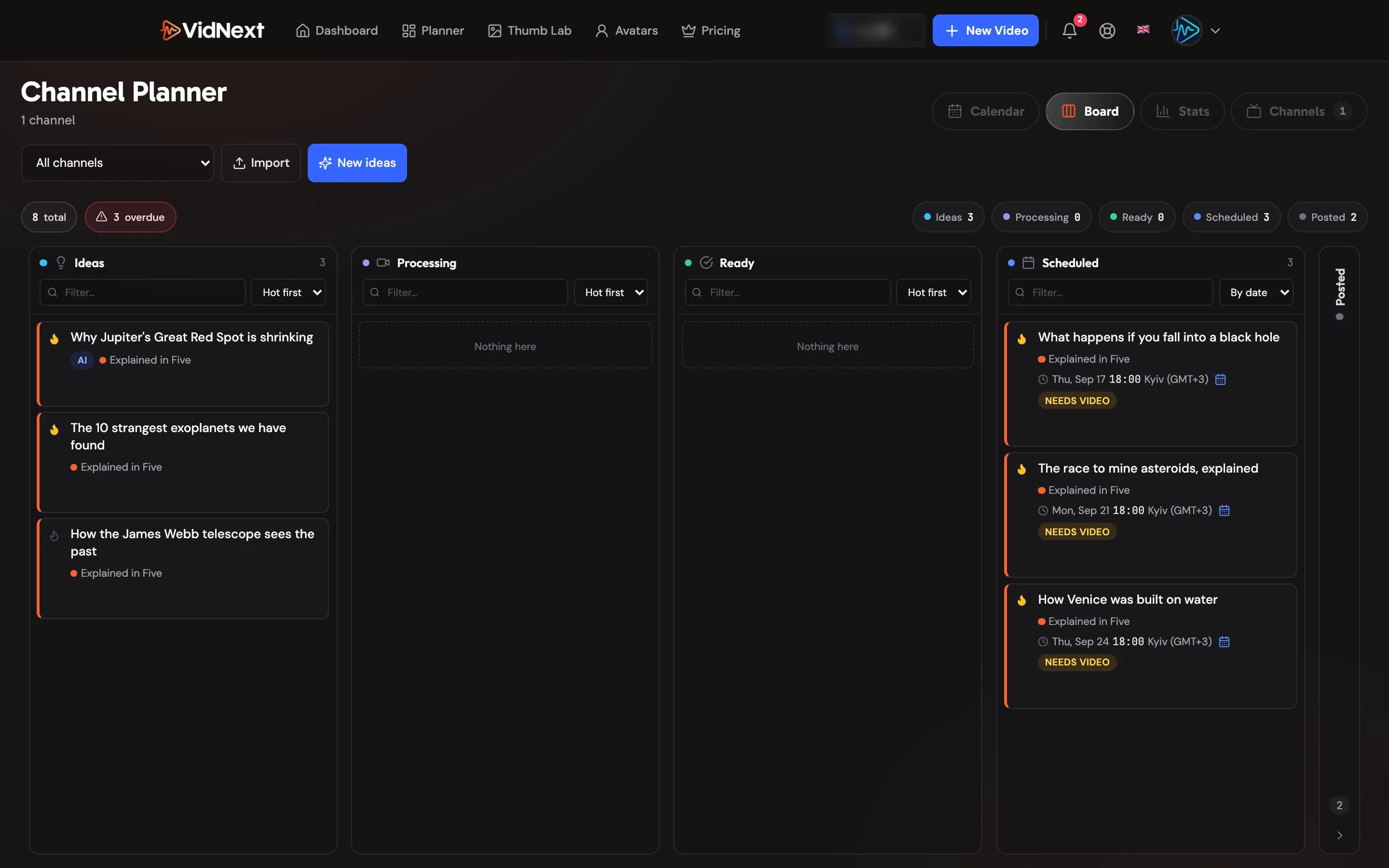
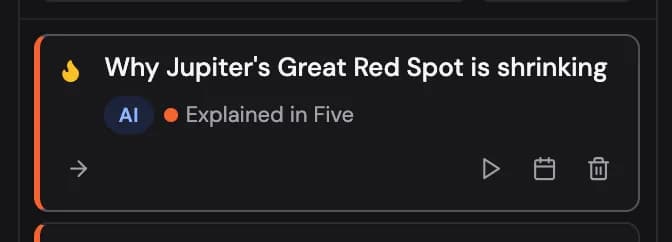
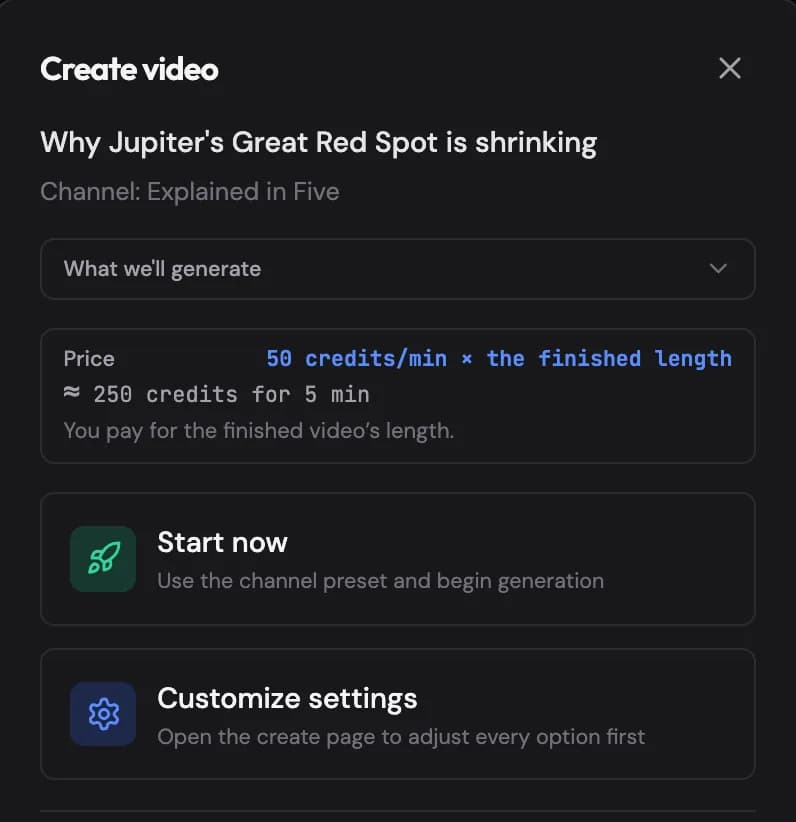
Ideas land in the Ideas column from the Idea Studio — AI-generated ideas carry an AI badge and open with their brief. From the card you can generate the video Show me in the app ↗ (using the channel's preset, or your default preset when it has none), schedule it, or delete it. One-click generation works with any preset — no setup needed: the idea's topic and details (title, description or the AI brief with its hook, angle, key points and facts) are merged into the preset's prompt automatically, and the What we'll generate preview Show me in the app ↗ in the dialog shows the exact result before you start. The video gets everything the preset keeps, including its story images and — when the preset has thumbnails on — its thumbnails. The dialog also shows the price Show me in the app ↗ — the preset's price per minute × the planned length (thumbnails from the preset are charged on top) — and, before your first video priced per minute, how that pricing works. Prefer full control? Customize settings Show me in the app ↗ opens the create page with that same prompt filled in, ready to edit — the video uses exactly the text you leave there. Scheduled cards show the posting time in the channel's timezone (and yours, when it differs) with an Open in calendar link Show me in the app ↗ that jumps straight to that event; the event panel on the calendar links back with Open on board.
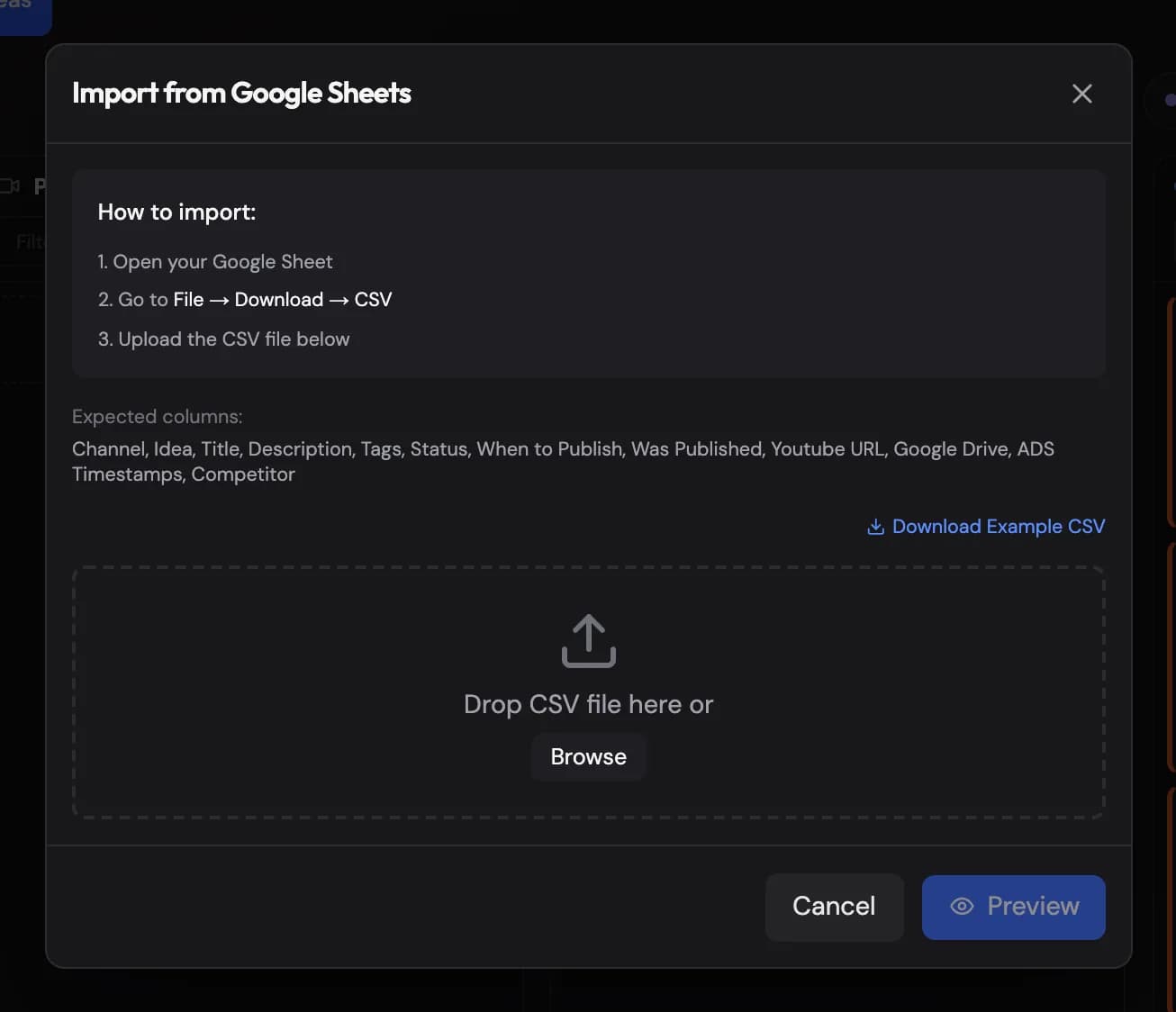
Already keep a content calendar in Google Sheets? Import it as a CSV Show me in the app ↗ — a template with the expected columns is provided. Imported posts show up on the calendar too, even without a slot.
Planner emails
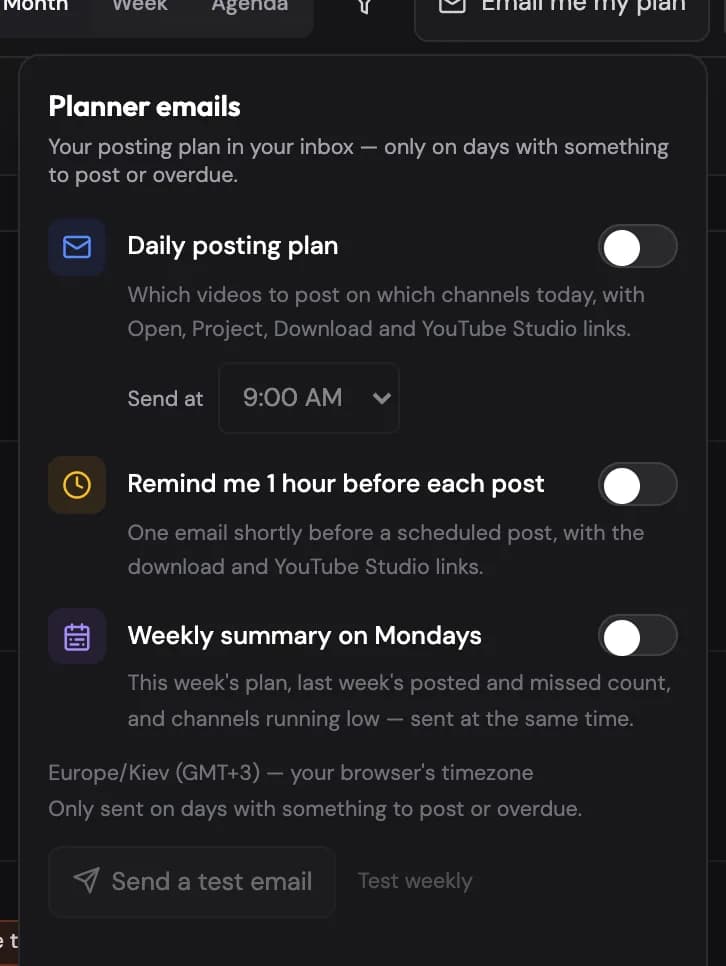
Click Email me my plan Show me in the app ↗ in the calendar toolbar (or open Settings → Notifications → Planner emails) to switch on any of three emails, all sent in your timezone:
- Daily posting plan Show me in the app ↗ — at the time you choose, one email listing which videos to post on which channels today, each with Open, Project, Download and YouTube Studio links, plus anything overdue and a look at tomorrow. It's only sent on days with something to post or overdue.
- Remind me 1 hour before each post Show me in the app ↗ — a short reminder with the same links shortly before a post is due.
- Weekly summary on Mondays Show me in the app ↗ — this week's plan, last week's posted and missed posts, channels that are running out of ready videos or ideas, breakouts from your tracked competitors, and new AI ideas waiting for your review.
Send a test email Show me in the app ↗ shows you the format right away. The same summaries appear in the bell menu Show me in the app ↗.
Calendar subscription
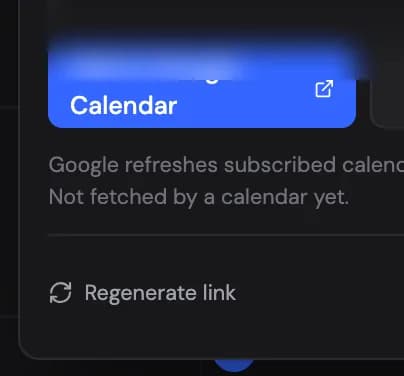
Subscribe Show me in the app ↗ in the toolbar gives you a private calendar link. Add it to Google Calendar Show me in the app ↗, Apple Calendar or Outlook and your posting plan shows up next to your other events, each post linking back to the planner and the project. Calendar apps refresh subscribed calendars every few hours; Regenerate link Show me in the app ↗ invalidates the old link if you ever share it by mistake.
The Channels page
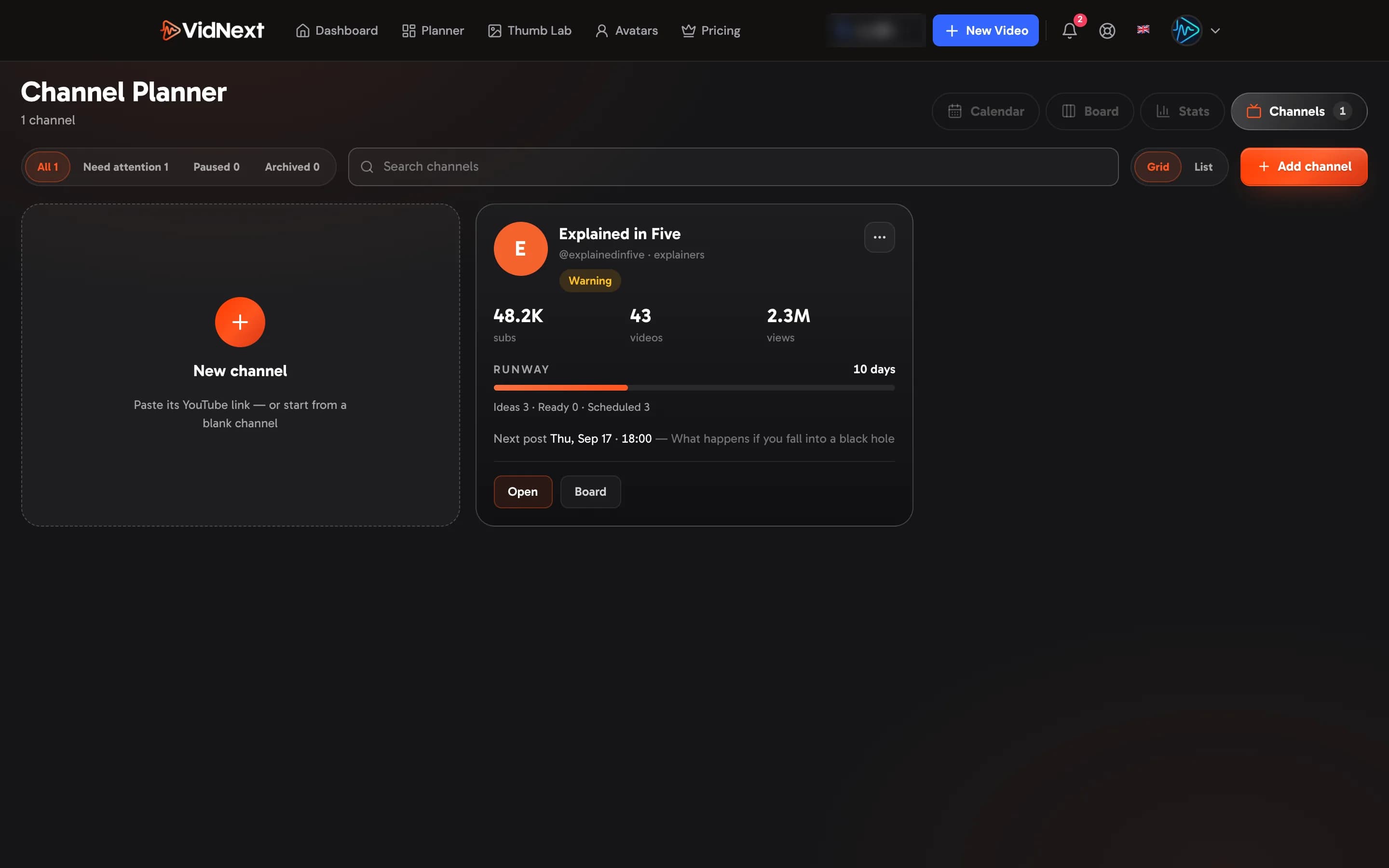
The Channels tab Show me in the app ↗ is the library of every channel you run Show me in the app ↗. Show Show me in the app ↗ all of them, the ones that need attention (a Critical or Warning health badge), the paused ones or the archived ones — each with its count — and Search channels Show me in the app ↗ by name, handle or niche. On a wide screen, Grid / List Show me in the app ↗ switches between cards and a table; VidNext remembers your choice.
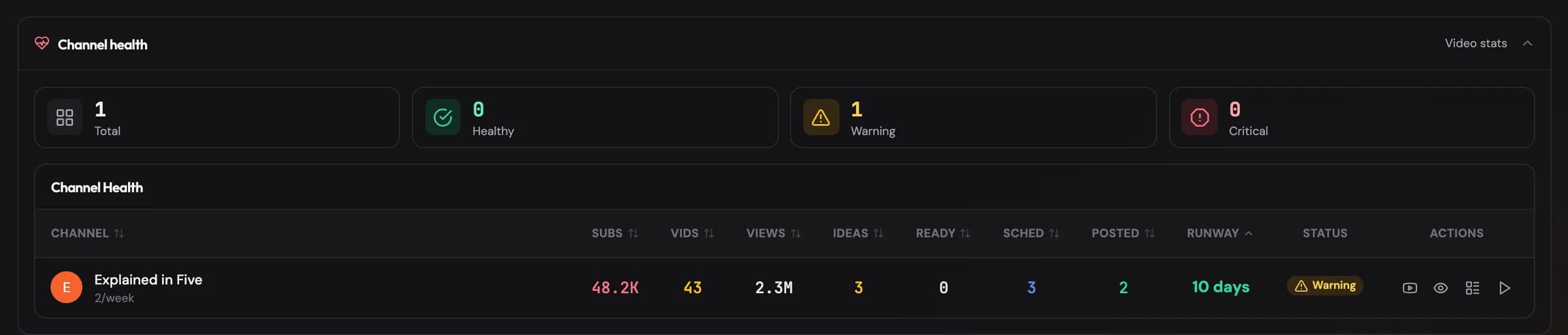
Each card shows the channel's picture, name, handle and niche, its subscribers, videos and views, the runway — days of content queued, as a bar that turns amber at a week and red at three days — the ideas, ready videos and scheduled posts, and the next scheduled post. Open Show me in the app ↗ goes to the channel page and Board Show me in the app ↗ to its pipeline board. Channels that need attention sort first.
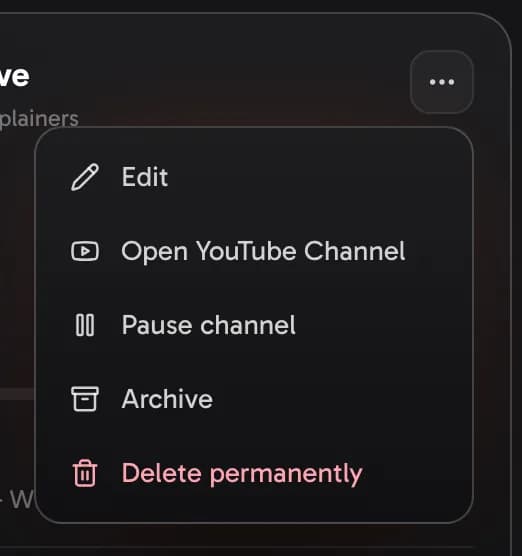
The first tile, New channel Show me in the app ↗, and Add channel Show me in the app ↗ open the channel editor. Each card's ⋯ menu Show me in the app ↗ has the rest: Edit Show me in the app ↗ opens the editor right there, Open on YouTube Show me in the app ↗, Pause channel or Make channel active Show me in the app ↗, Archive Show me in the app ↗ (the channel disappears from the planner but keeps its videos and history; Restore Show me in the app ↗ under the Archived filter brings it back) and Delete permanently Show me in the app ↗ (its schedule, ideas and competitor list are removed; projects stay in your account). Archive and Delete ask first.
Channel health and runway
Under the calendar, the Channel Health table Show me in the app ↗ shows each channel's subscribers, videos, and views alongside your production state: ideas, ready videos, scheduled slots — and runway, how many days of content you have queued. A red Critical badge means you're out of ready videos.
YouTube stats tracking
The Planner also tracks real YouTube performance for your channels: the Video Stats Monitor Show me in the app ↗ collects view data on a schedule, and the stats grid ranks tracked videos with views-per-hour badges so you can spot which topics outperform — and feed that back into your next ideas.
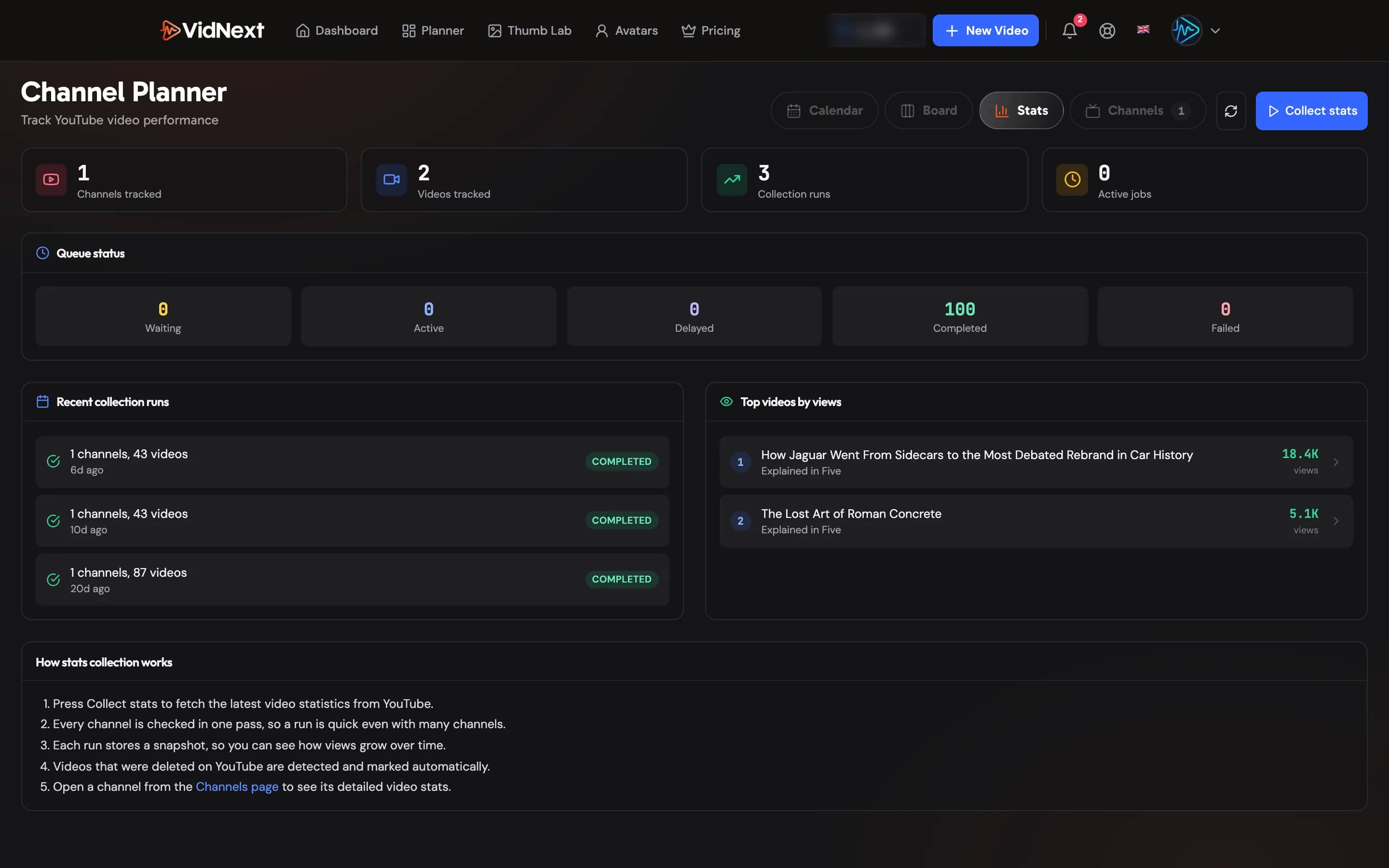

How often videos are checked. Fresh uploads are where the hour-by-hour numbers matter, so the newest videos on each channel are checked around the clock, while the full channel — every older video, subscriber count, deleted-video detection — refreshes once a day. If you haven't opened VidNext in a while, collection slows down for your channels and catches up automatically the next time you come back. Collect now Show me in the app ↗ on the Stats page always does a full refresh immediately.
How much history is kept. A new point is recorded whenever something actually moves — views, likes, comments, the title or the thumbnail — so a flat stretch simply has no points in it and the chart draws straight through. The last 30 days keep every collection; beyond that each video keeps one point per day. Videos tracked Show me in the app ↗ counts the videos being followed, not the number of measurements taken.
The fastest loop: run the Idea Studio for the month → approve what fits → Add & schedule Show me in the app ↗ → generate each video from its card when its day comes near. The stats grid shows which of them outperformed, and the next run learns from it.