DocsPresets & styles
Style packs
One-click coherent looks — eight packs covering the major content niches.
Style packs give a video one coherent visual identity — palette, typography, motion design, template choices and scene transitions — in a single click. Pick one Show me in the app ↗ on the create page (Design & Background step); everything below it can still be tweaked, and once you change a design choice, the pack shows as "Customized".
The eight packs
| Pack | Look | Made for |
|---|---|---|
| Documentary | Archival grit, evidence-driven storytelling | history, true crime, biography, investigation, science |
| Modern Minimal | Clean surfaces, glass, effortless motion | product, business, explainer, education, finance |
| Tech Futuristic | HUD precision, neon data, mission control | tech, AI, gaming, space, crypto |
| Energetic | Bold slabs, punch-ins, beat-driven cuts | sports, fitness, motivation, countdowns, hype reviews |
| Editorial News | Newsroom clarity, broadcast authority | news, politics, business analysis, current events |
| Cinematic Film | Trailer-grade drama, golden accents | storytelling, movies, luxury, travel, brand films |
| Retro Vintage | CRT glow, VHS warmth, analog memory | nostalgia, gaming history, music retrospectives, decades recaps |
| Bold Pop | Pop-art punch, comic energy, gradient shine | entertainment, pop culture, rankings, reactions, celebrity |

On Auto, VidNext picks the pack that best fits your prompt.
Transitions per pack
Each pack brings its own set of scene transitions. They appear right under the packs in the Transitions block Show me in the app ↗, as live previews of what your video will use, and you can change them there with Customize (see Transitions). Changing a pack's transitions keeps its colours and fonts: the block says Custom set and offers Reset to the pack's set Show me in the app ↗.
| Pack | Transitions |
|---|---|
| Documentary | Luma Fade, Dissolve, Fade to Black, Light Leak, Blur Dissolve, Film Burn |
| Modern Minimal | Dissolve, Blur Dissolve, Slide, Shine Sweep, Iris, Ripple |
| Tech Futuristic | Blur Dissolve, Glitch, Pixel Dissolve, Cross Zoom, Whip Pan, X-Ray Flash, TV Off |
| Energetic | Whip Pan, Zoom Punch, Push Cut, Spin Zoom, Impact Cut, Flash, X-Ray Flash |
| Editorial News | Push Cut, Wipe, Slide, Flash, Dissolve, Shine Sweep |
| Cinematic Film | Luma Fade, Dissolve, Crosswarp, Fade to Black, Light Leak, Burn, Ripple |
| Retro Vintage | Dissolve, Light Leak, Film Burn, Iris, Clock Wipe, Paper Tear, Page Turn, TV Off |
| Bold Pop | Zoom Punch, Spin Zoom, Push Cut, Flash, Shine Sweep, Cube, Circle Wipe, Wheel Spin |
Every one of the 30 transitions belongs to at least one pack. Energetic and Bold Pop put a transition on every cut; the other packs use Professional pacing — hard cuts on most scene changes, a quiet pass now and then, and the bolder transitions on chapter breaks, mood shifts and reveals.
Film grade
Independently of the pack, an optional analog finish can be applied over the whole video: Film, Dusty, VHS, Texture, or Analog, each with adjustable intensity. In the editor it lives as an element on the Effects track — delete it or hide the track to export clean.
A Music video preset also remembers its overlay choices Show me in the app ↗ — equalizer, lyrics and title card styles, colours, placement and footage dim — so every clip of a series starts with the same look.
Your own presets
Style packs are about look; My Presets Show me in the app ↗ (on the create page) save your entire setup — voice, music and the ending, scene mix, sources, design, your story images, the thumbnail settings and the logo, everything. Save a preset Show me in the app ↗ per channel or per series, set a default, and each new video starts one click away from your house style.
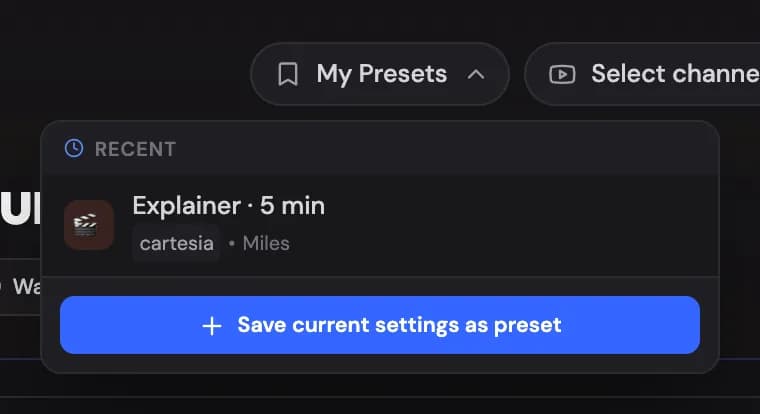
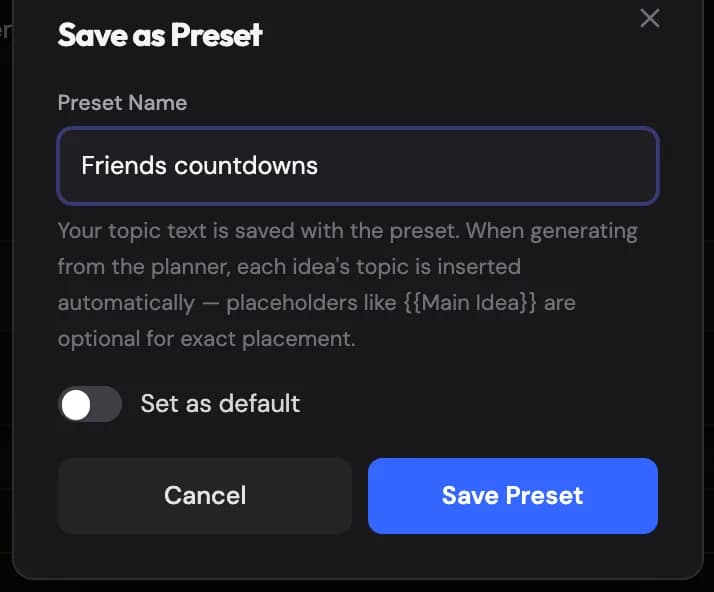
Every video remembers the preset it was made with: Project settings Show me in the app ↗ on its project page names it and says whether you changed the settings before creating. If your team owner shares presets, the My Presets menu also has a Team group. Use a team preset as it is, or Copy to my presets Show me in the app ↗ to get your own copy that you can change (see Teams).
More coming soon
This page will grow with frame examples from each pack.
When AI Avatars are enabled for your account, a preset also remembers the chosen avatar, its presence level and the allowed layouts (see AI avatar presenter). A preset saved without access stores no avatar.
A preset saved while story images are attached keeps its own copy of them — the pictures, their descriptions, how each one is used, their design and their order. Load the preset and they're back; every video made from it gets them, including videos started from the Channel Planner or by Autopilot. Editing or removing an image on the create page changes only the video you're making — the preset keeps its images until you save the preset again. A preset saved without story images leaves the ones you attached in place.
A preset also remembers the thumbnail setup: whether thumbnails are on, the style, your instruction, the reference images and Use my prompt exactly.
It remembers the logo too — the Logo pill Show me in the app ↗ and its panel: whether the logo is on, which logo (your channel's, or one you uploaded just for the video) and the corner, size, opacity and fade-in you changed. Load the preset and the logo is back the way you saved it, whichever channel you pick. What you left untouched keeps following the channel: a preset saved without switching the logo on or off follows each channel's Show the logo in new videos, and an unchanged corner or size is the channel's own. Videos started from the Channel Planner or by Autopilot with the preset get the same logo. A preset saved before presets kept the logo leaves the Logo pill as it is.