DocsGetting started
Create your first video
A step-by-step walkthrough from text prompt to finished, downloadable video.
This walkthrough takes you from an empty prompt box to a downloadable video. Total hands-on time is a few minutes; generation itself runs unattended for roughly 30–60 minutes for a 10–15 minute video.
Describe your video
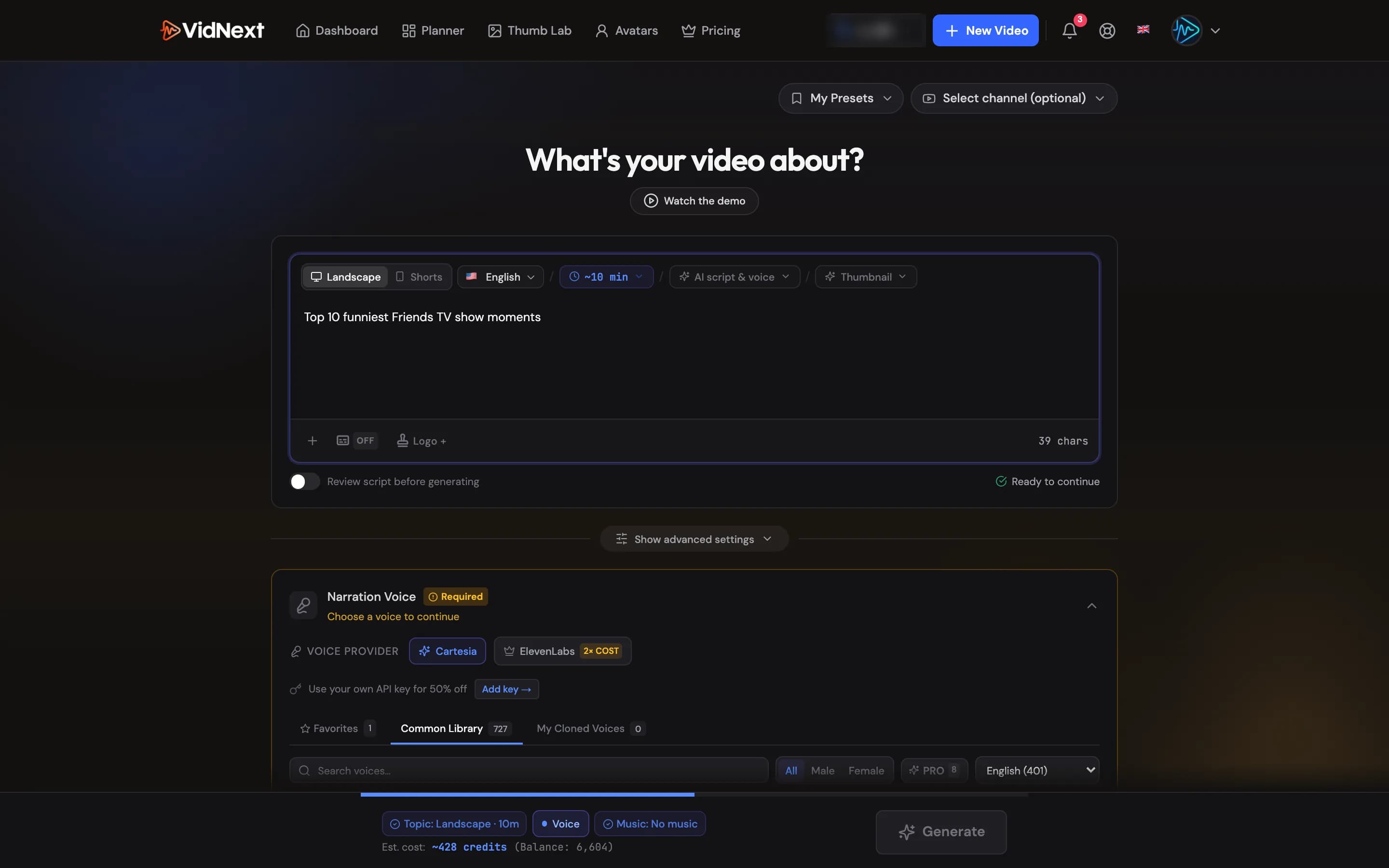
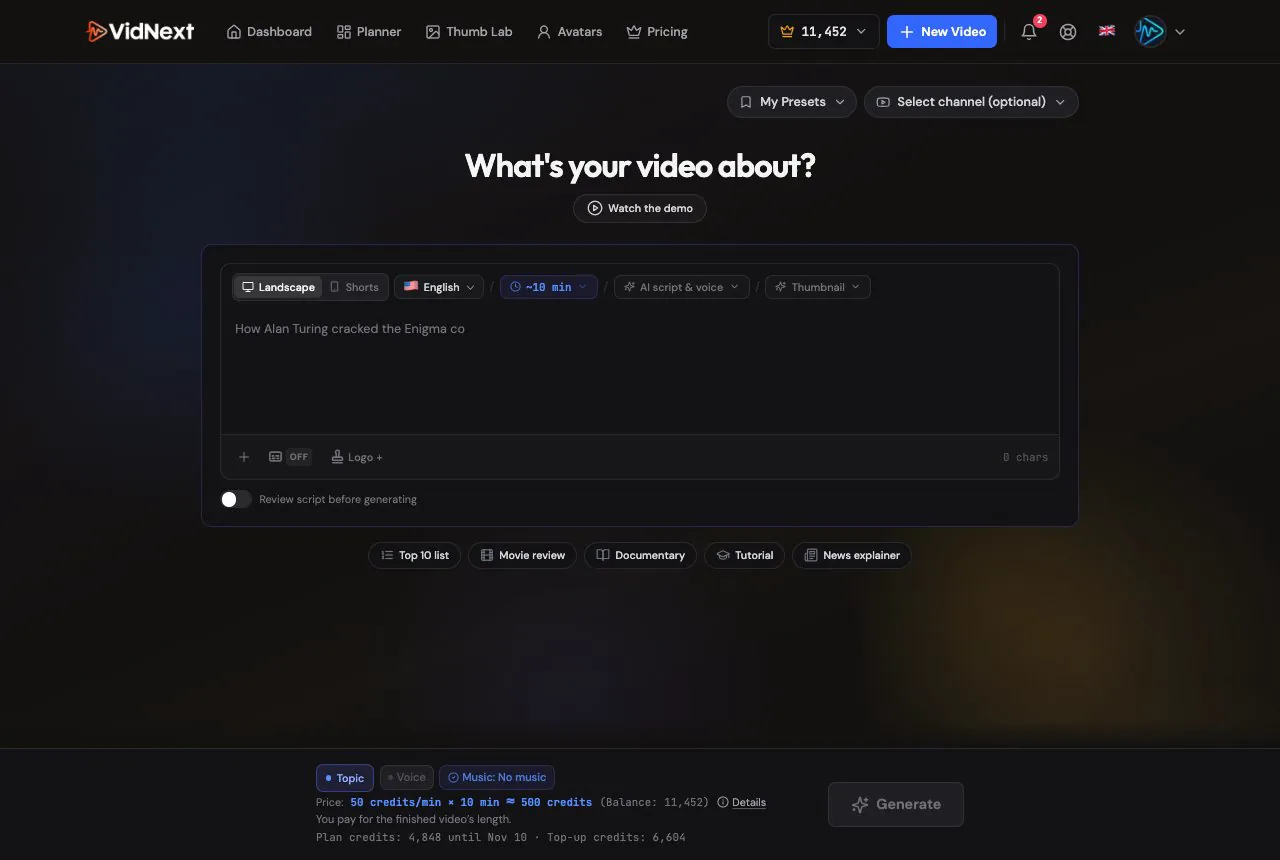
Open the create page and answer one question in the prompt box Show me in the app ↗: what's your video about?
Prefer to watch first? When a demo is available, Watch the demo Show me in the app ↗ sits right under the page heading and plays a short walkthrough for the mode you are in (there is a separate one for music videos); the dashboard has the same button Show me in the app ↗.
Be specific. Instead of "funny videos", try "Top 10 funniest Friends TV show moments". The more concrete your prompt, the better the script, the footage matching, and the pacing. If you're stuck, the quick-start chips Show me in the app ↗ offer rotating examples: top-10 list, movie review, documentary, tutorial, news explainer.

Optional attachments
You can attach a custom script Show me in the app ↗ (read verbatim, up to 60 minutes of narration), story images that the script will flow through, or a video reference — a public YouTube URL whose writing style (never its topic or content) is analyzed and applied to your script.
A logo on your video
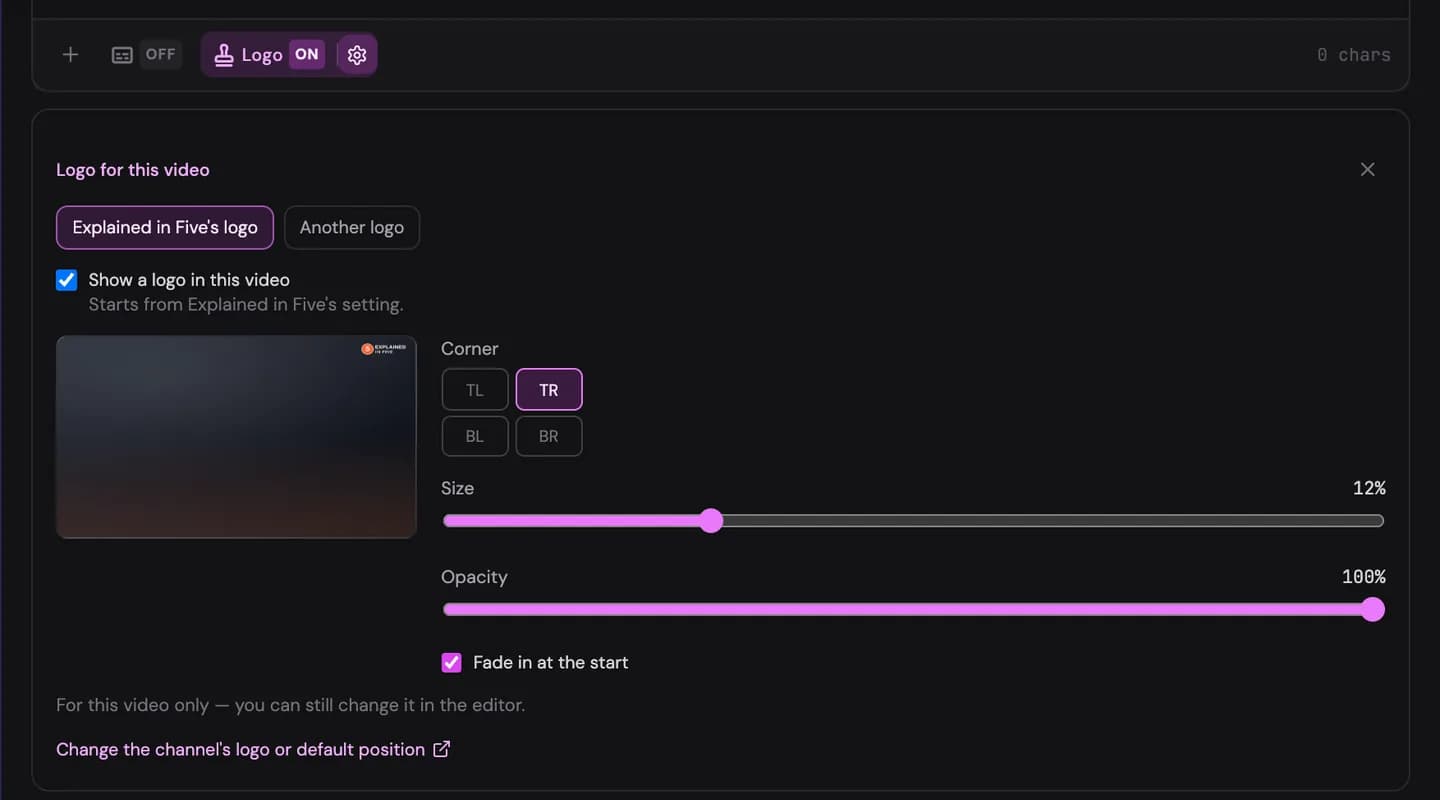
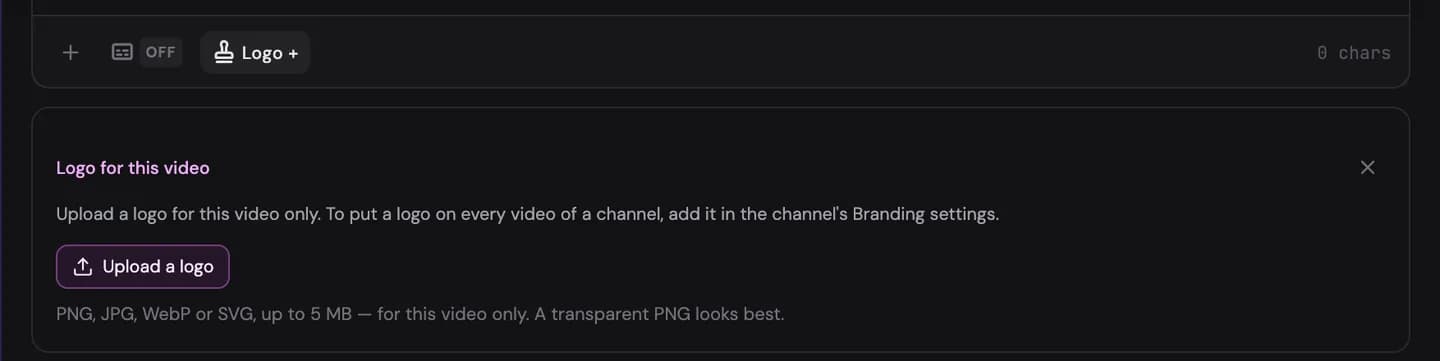
Pick a channel at the top right of the page Show me in the app ↗ and the Logo pill Show me in the app ↗ in the bottom row of the prompt box starts from that channel's logo and its Show the logo in new videos setting — tap it to make this one video with or without the logo. The gear next to it Show me in the app ↗ opens the logo panel: the switch, a preview in your format, and this video's corner Show me in the app ↗, size Show me in the app ↗, opacity Show me in the app ↗ and fade-in Show me in the app ↗. They start from the channel's settings, and Back to the channel's settings Show me in the app ↗ undoes your changes. Another logo Show me in the app ↗ puts a different logo on this one video. Without a channel — or with a channel that has no logo yet — the pill reads Logo +: upload a logo Show me in the app ↗ for this video only (PNG, JPG, WebP or SVG, up to 5 MB). A channel's own logo and defaults live in its Branding settings Show me in the app ↗ (see Adding and editing a channel). A preset you save keeps your logo choice — an uploaded logo included.
Pick format and duration
The format toggle Show me in the app ↗ sits at the top-left of the prompt box:
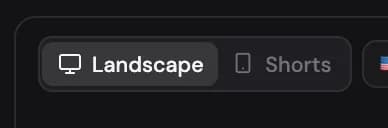
- Landscape (16:9) for YouTube and long-form — 30 seconds up to 30 minutes.
- Shorts (9:16) for YouTube Shorts, TikTok, and Reels — 15 seconds up to 3 minutes.
The Duration pill Show me in the app ↗ offers presets from a 1-minute quick explainer to a 30-minute full-length video. Press Custom Show me in the app ↗ for a slider that sets any length in between. The price updates live as you change the duration. Actual length may vary slightly, since it follows the script.

Choose a voice and music
Pick a narration voice in the Voice step Show me in the app ↗ and preview it: generate a short test clip using a preset snippet (hook, statistics, emotional, high energy) or your own text. Adjust narration speed Show me in the app ↗ if you like.
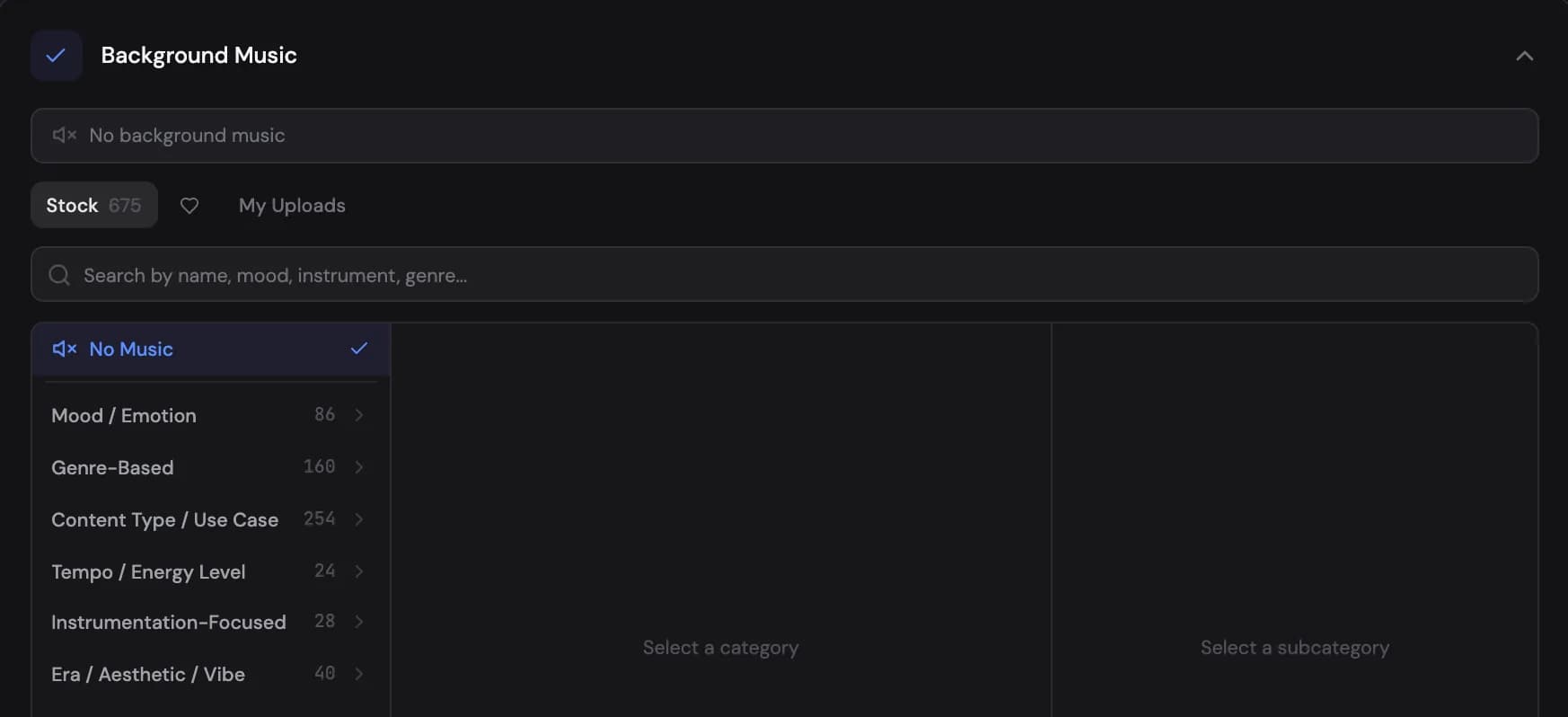
For music, search the stock library Show me in the app ↗ by mood, genre, or instrument — or upload your own track. The recommended music volume is 8–15% so it never overpowers narration, and you can preview the mix Show me in the app ↗ of narration plus music before committing.
(Optional) Fine-tune in Advanced mode
Click Show advanced settings Show me in the app ↗ just below the prompt box to open Advanced mode. It exposes every production decision: the writing style (twelve formats and five presenter hosts), visual style Show me in the app ↗ (documentary, news, top-10, true crime, and more), scene mix (video clips, images, motion design, stock, AI images), footage sources, one of eight style packs, transitions, captions, sound effects, and thumbnail generation.

If you'd rather approve the script before production starts, enable "Review script before generating" Show me in the app ↗ — the project will pause at Awaiting Script Approval until you sign off.
Generate
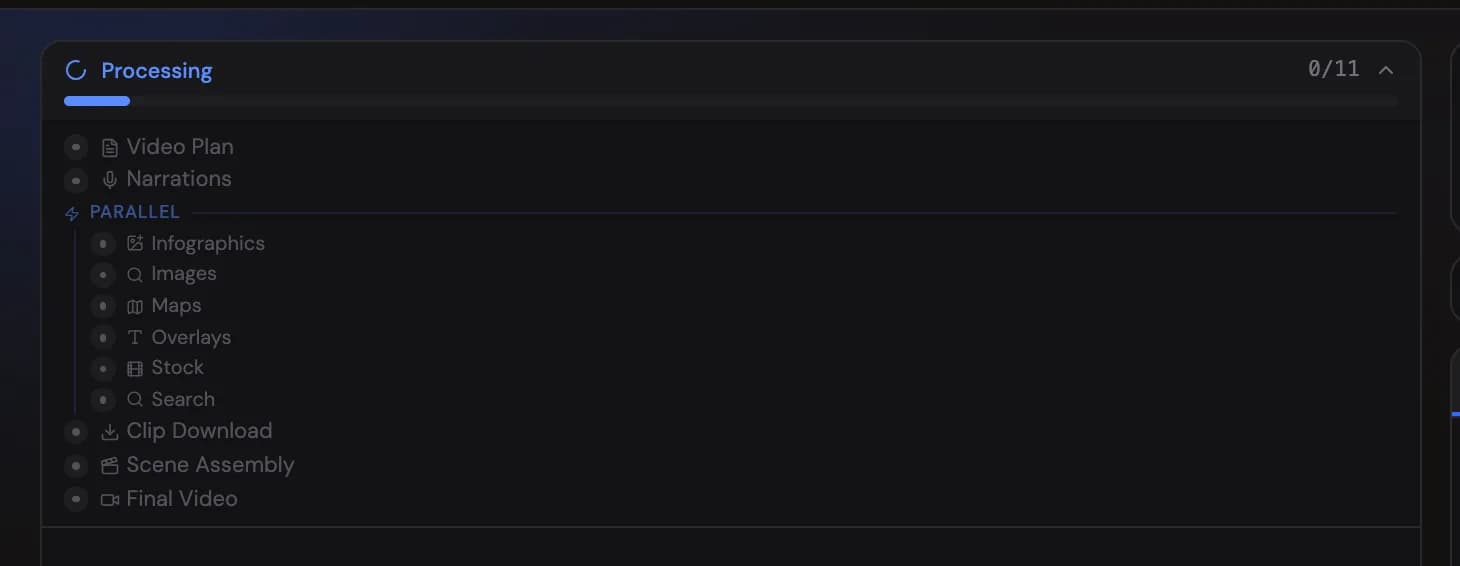
Check the price Show me in the app ↗ in the sticky bar (at default settings, a 10-minute video is 500 credits — 50 credits a minute of the finished video; Details shows how your settings change it). The first time, a short notice explains the price per minute. Then press Generate Show me in the app ↗ to start generation. You can watch each pipeline step progress live — plan, narration, assets, clip search, assembly, final render. See the pipeline overview for what each step does. When many videos are generating at the same time, your project may first show Queued · #N — its place in line. Nothing to do: it starts automatically in first-come order, and the number counts down as projects ahead of it finish.

Review, edit, download
When the render completes, watch the result. If everything looks right, download it Show me in the app ↗ — done. If you want changes, open the editor: swap clips, edit and regenerate narration, adjust captions, restyle overlays. Re-rendering after edits costs only a small fraction of the original generation cost, and your first export of each video is free.
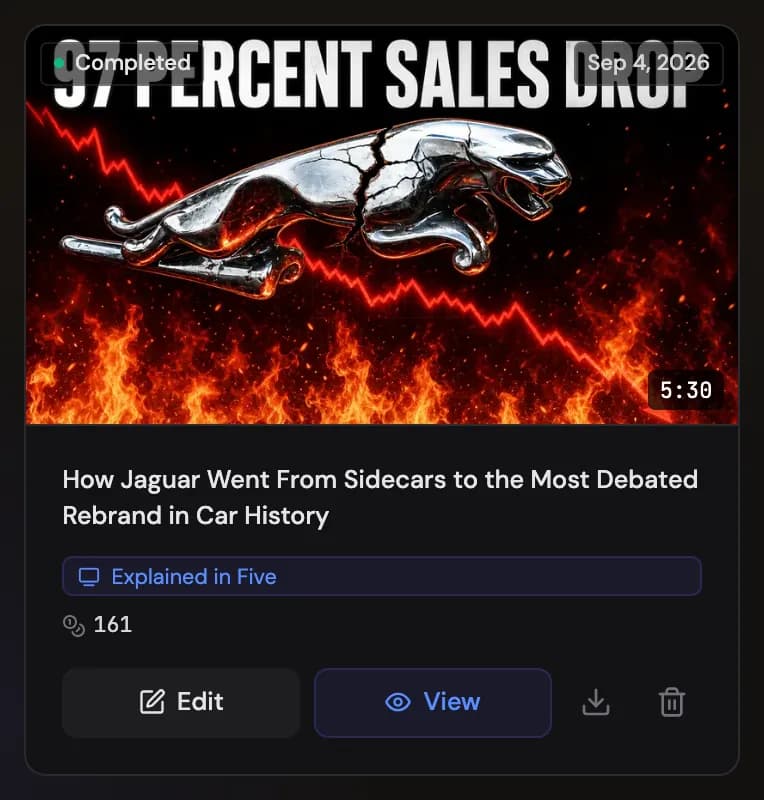

You can also generate YouTube metadata Show me in the app ↗ — title options with CTR scores, description, tags, and SEO analysis — and thumbnails.
Save your setup as a preset
After generating, VidNext offers to save your settings (voice, style, scene mix, design, story images and thumbnails) as a preset Show me in the app ↗. Next time, load the preset and only change the topic — your prompt text is saved with it and comes back exactly as written. Every video also keeps a record of what it was made with: Project settings Show me in the app ↗ on its project page lists the preset and every setting, and Copy all copies them as text.
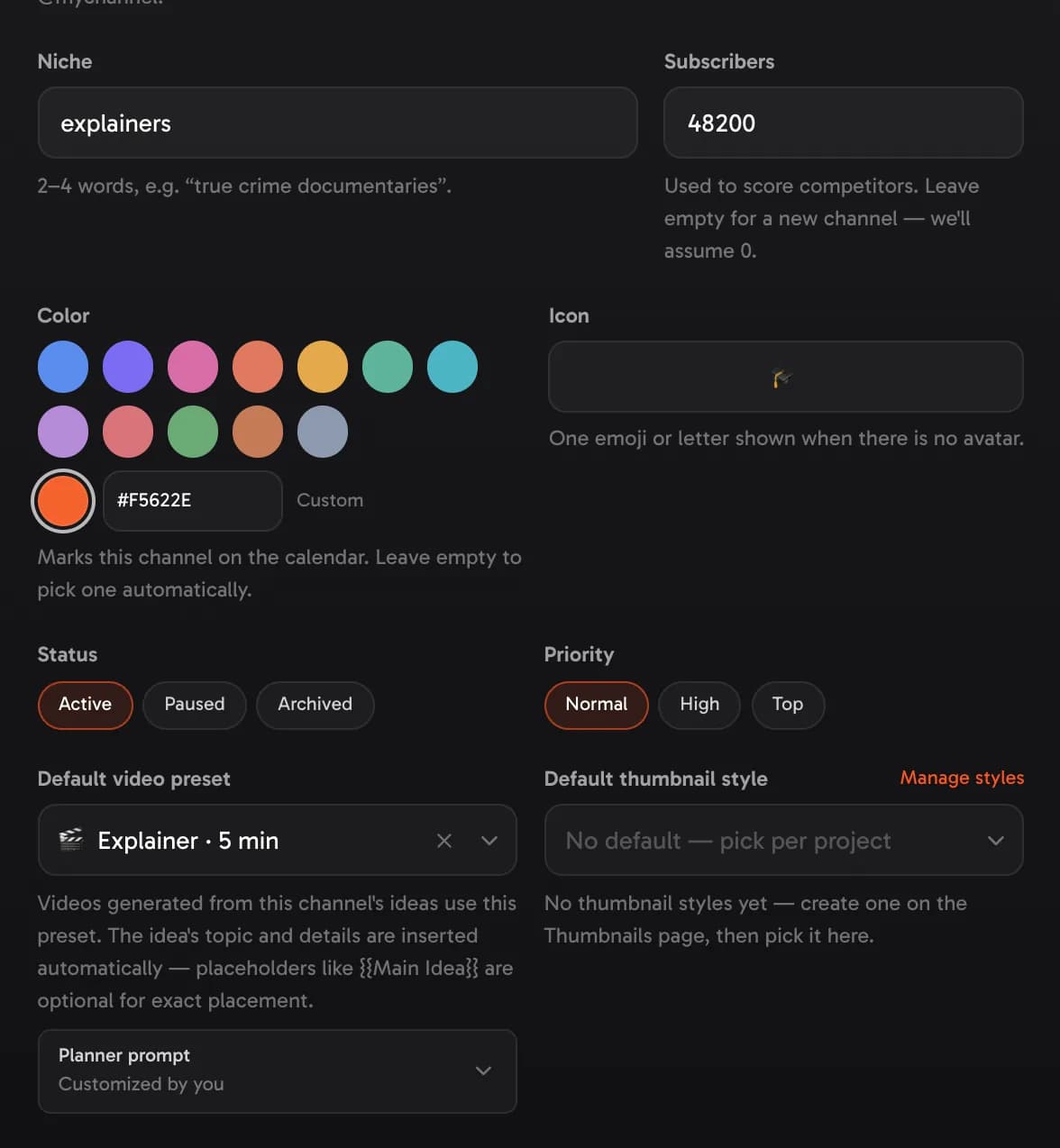
Presets also power one-click generation in the Channel Planner: connect one to a channel Show me in the app ↗ and every planned idea can become a video in a single click. The idea's topic and details are inserted into the preset's prompt automatically, so nothing extra is required — though if you like exact control, placeholders such as {{Main Idea}}, {{Title}} or {{Description}} in the prompt mark precisely where the planner puts them.