DocsAccount
Teams
Invite teammates, see the videos they make and what each one cost, and share your presets, voices, API keys, music and avatars with them.
A team lets several people make videos under one team owner. Open the account menu in the top-right corner and pick Team Show me in the app ↗. The Team page has up to three tabs: Members Show me in the app ↗ for everyone, Projects Show me in the app ↗ when you can see other people's videos, and Sharing Show me in the app ↗ for team owners.
Seats and invitations
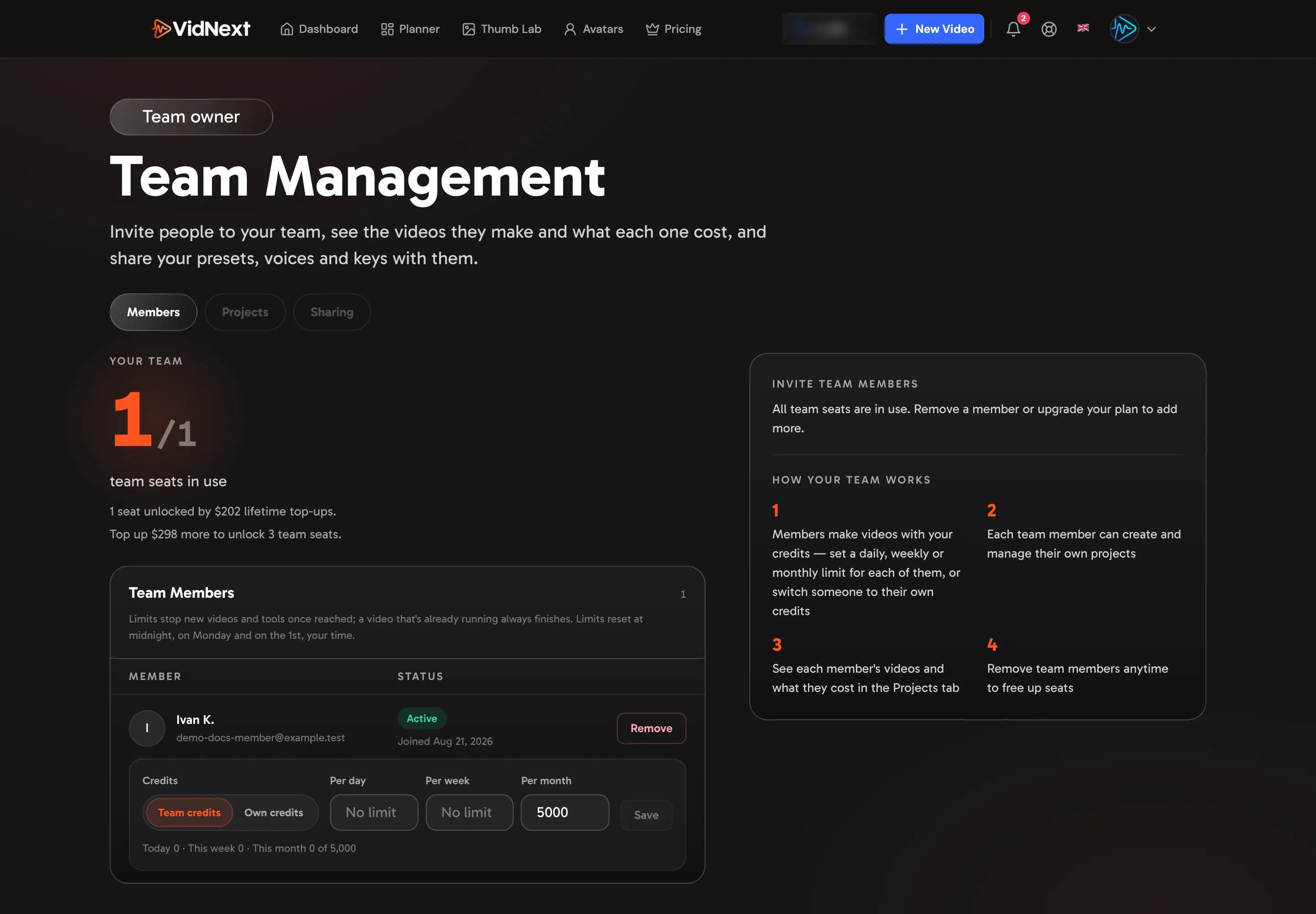
Team seats come with your plan (the pricing page lists them for every plan), and what you have paid over time can unlock more — you always get the larger number. Until you have a seat, the Team page says so and links to the plans with See plans Show me in the app ↗ .To invite someone, press + Invite Member Show me in the app ↗, enter their email Show me in the app ↗ and press Send Invite Show me in the app ↗. We email the invitation, and the page also shows an invite link Show me in the app ↗ with Copy link Show me in the app ↗ in case the email doesn't arrive. The person signs in with the invited email (or creates an account with it) and opens the link. They show as Pending until then and as Active after. Remove Show me in the app ↗ takes someone off the team and frees the seat.
Each member creates and manages their own projects. The invitation tells them who pays for their videos and that the team owner will see their videos, what they cost and their planner channels.
If VidNext set up your team for your company, your members may already be on the Members tab without an invitation. They start on Own credits, so nothing changes in who pays until you switch someone to Team credits (see Who pays), and you manage them like any other member.
Who pays
Each member makes videos either with the team owner's credits — Team credits, the default, with no separate billing — or with their own balance: Own credits. The team owner chooses this for each member separately. On the Members tab, under each member, Credits has Team credits and Own credits Show me in the app ↗; press Save Show me in the app ↗ to apply the change to that member.
- Team credits: every video the member makes, and every tool they use, is charged to the owner's balance.
- Own credits: the member spends their own balance. Switching someone to Own credits asks you to confirm first: they'll need credits of their own to make videos — and, for an account created after plans launched, a plan of their own. Videos they already started finish on the credits they started with.
You can set up a pending invite the same way; the setting applies once they accept.
If the team owner's account is limited or suspended, Team credits are frozen: members on them can still open and download their videos, but nothing new starts until the hold is lifted — or until they leave the team. See Restricted and suspended accounts.
Limits
With Team credits, you can also cap how many of your credits a member spends: Per day, Per week and Per month Show me in the app ↗. Leave a field empty for no limit. Under the limits, a line shows what the member has spent of your credits so far, for example Today 350 of 1,000 · This week 1,200 · This month 4,800. A period that has reached its limit is highlighted.
- A day starts at midnight, a week on Monday and a month on the 1st, in your time zone (the one your computer uses when you save).
- What counts is what the member's videos and tools were charged in that period. Credits held while a video is being made count right away; whatever goes back when it finishes counts back.
- When a new video, a redo or a tool (thumbnails, the planner, AI avatars, exports and the like) would go over a limit, it doesn't start and nothing is charged. The member sees why, for example You've used your team's daily limit (1,000 of 1,000 credits). It resets at midnight — or ask Olena to raise it.
- Limits only stop new spending. A video that's already being made always finishes, even if that takes the member a little past a limit.
- A script the member approves in review sets the video's price for its length: if the approved script makes the video longer than a limit allows, the approval doesn't go through and the member sees why (a shorter script fits).
What members see
On a member's side of the page, Credits Show me in the app ↗ says You use Olena's credits or You pay from your own credits. If the owner set limits, the member also sees each one with what's left of it and when it resets, for example Today: 650 of 1,000 credits left.
Team projects
The Projects tab shows your active members' videos and what each one was charged. Your own videos aren't listed here; they stay on your dashboard. From the dashboard, Team projects Show me in the app ↗ next to the Projects heading opens this tab.
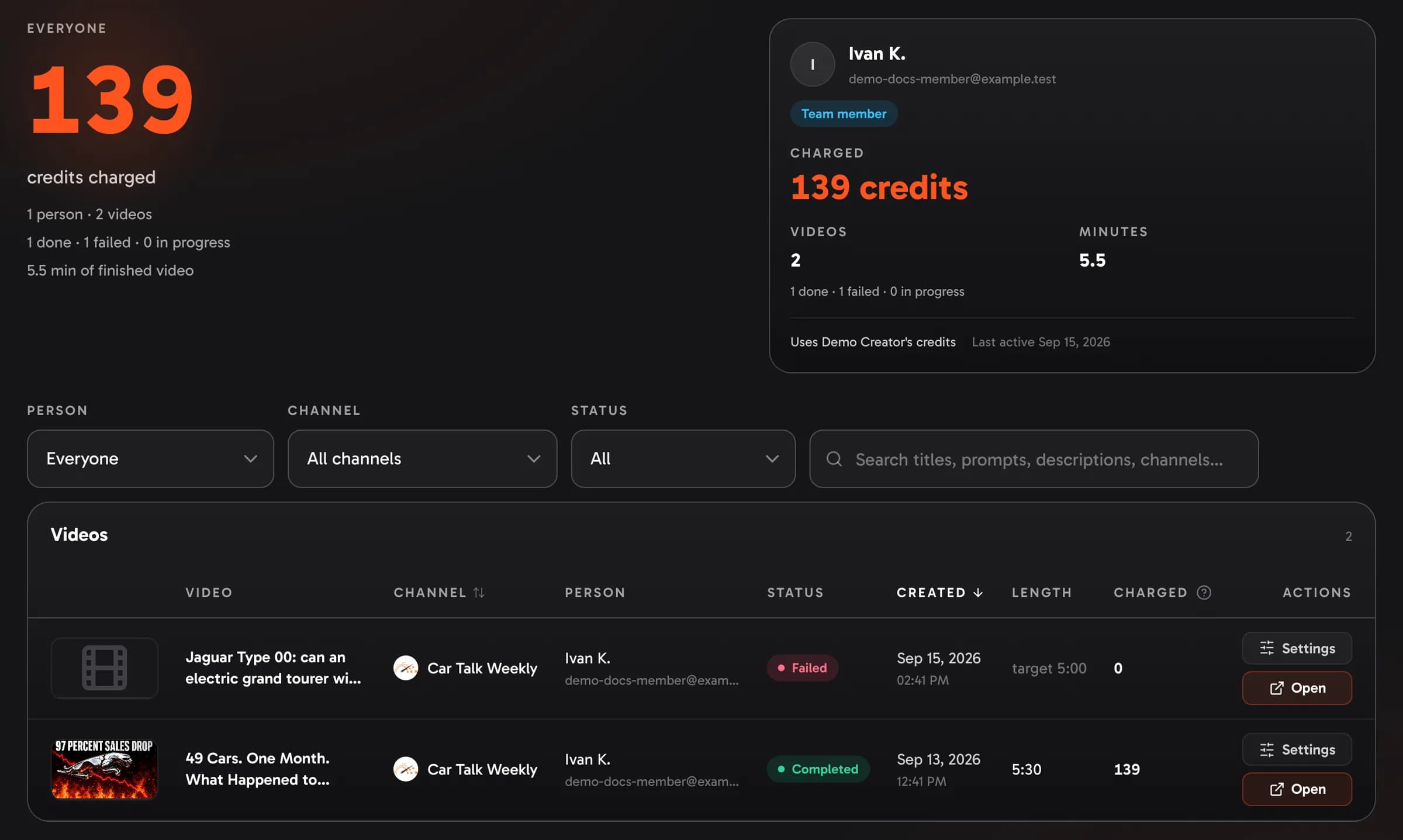
- Period Show me in the app ↗: Today, Yesterday, Last 7 days, This month, Last month or All time (the default). Month… shows one month you pick from the list Show me in the app ↗, and Custom range shows the days between two dates you choose, both days included Show me in the app ↗. Days follow your computer's time zone. A video, and everything it cost, counts on the day it was started: the credits held when it started, whatever went back when it finished (even after midnight), and a later redo or thumbnail. Other tools count on the day they were used. Limits on the Members tab count by the day credits were charged, so for a video that finishes after midnight the two tabs can differ by a day.
- Everyone, at the top, adds it all up: people, videos (done, failed, in progress), minutes of finished video, credits charged, deleted videos and what they cost, and what went on other tools.
- The people cards Show me in the app ↗ show one person each: their videos, minutes and what those videos cost, how much went on other tools, their deleted videos and what those cost, who pays for them, and when they were last active. Click a card to show only that person's videos, and click it again to show everyone.
- Above the table, filter by Person Show me in the app ↗, Channel Show me in the app ↗ or Status Show me in the app ↗, or search Show me in the app ↗. Channel lists the planner channels that have videos in the period, each person's under their name, with how many videos each has; pick a person first to see only their channels. Search finds a video by any word of its title (including the other title ideas), prompt, YouTube description, the planner idea it was made from or its channel's name; every word you type has to appear somewhere. Status also has Deleted, which lists deleted videos (see below). Your filters are kept when you open a video or a channel and come back.
- The table Show me in the app ↗ lists each video with its cover, title, channel, person, status, creation time, length and Charged amount. A video that isn't finished shows its target length. While a video is being made, its credits are marked on hold: the final amount is settled when it finishes, and anything unused goes back.
- The table shows the newest videos first. Click the Channel heading Show me in the app ↗ to order the videos by channel name instead (videos without a channel come last), and Created to go back to newest first.
- Settings Show me in the app ↗ opens the video's Project settings, which list everything it was created with. Open Show me in the app ↗ opens the video itself, and the channel's name Show me in the app ↗ opens its channel (see Opening a member's channel). Show more Show me in the app ↗ loads more videos.
While a video is being made, the tab refreshes on its own.
Team leads. If VidNext has set you up as a team lead for your company, the Projects tab also lists the accounts you were given, marked Set up by VidNext. If you have no team of your own, the Team page opens on this tab.
Deleted videos
Deleting a video doesn't hide what it cost. Videos that a person deleted, or that were removed by VidNext or by an automatic cleanup, still count on the Projects tab:
- The people cards and Everyone show how many deleted videos there are in the period and what they were charged, for example 2 deleted videos · 340 credits. A deleted video counts on the day it was started, with everything it was charged.
- What a person was charged beyond their videos and deleted videos shows as incl. N for other tools: the planner, thumbnails made outside a video and other tools.
- When the period has deleted videos, a note above the table says so Show me in the app ↗: N deleted videos in this period · X credits. Show lists them, the same as choosing Deleted under Status.
- A deleted video is listed as Deleted video, without a title, cover or channel, because its content is gone. The table shows the status it had, when it was started, its length, what it was charged, and when and by whom it was deleted (Date unknown for some older videos). It can't be opened, and search, the Channel filter and the channel order don't cover deleted videos.
Opening a member's video
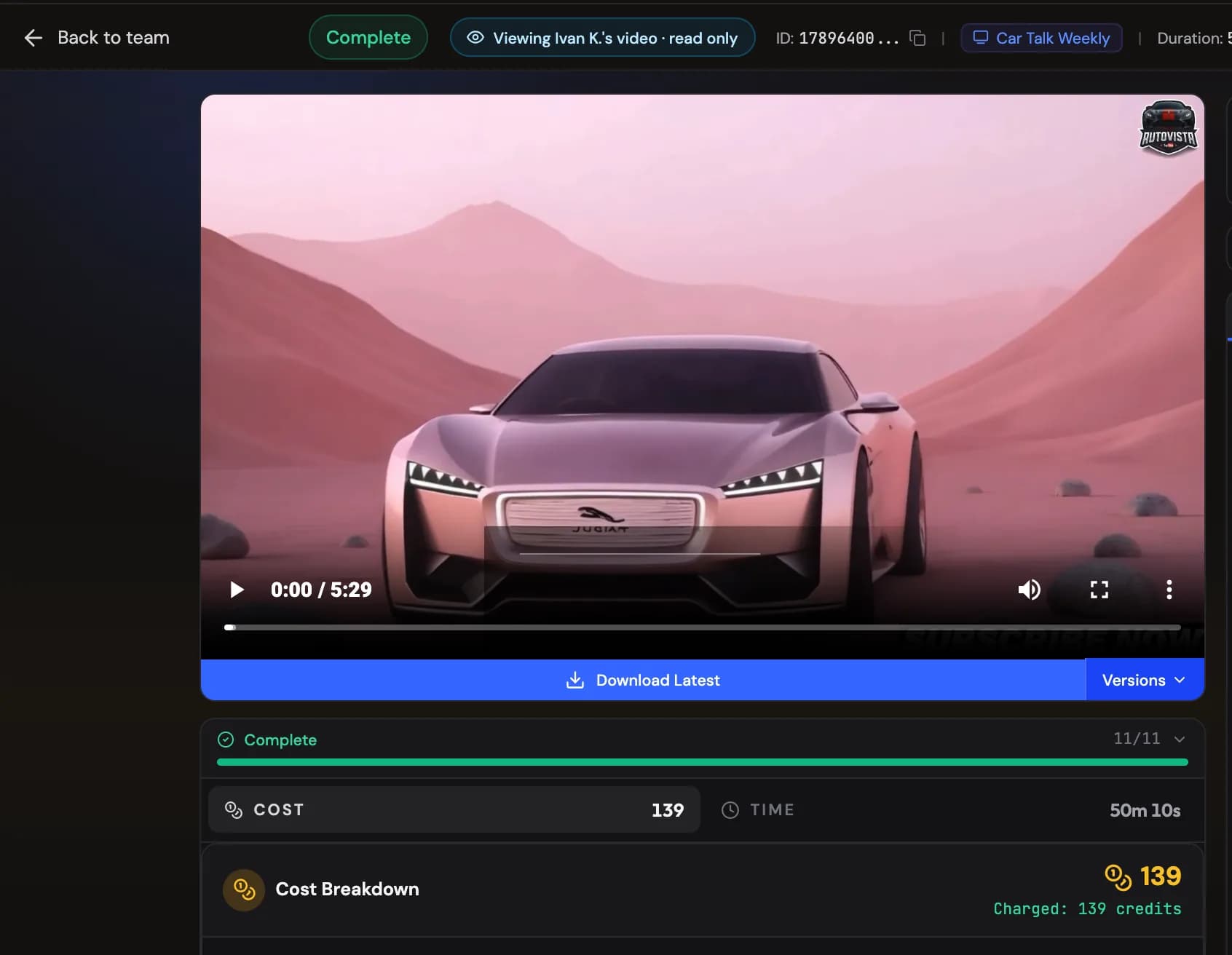
Open shows the video's project page read-only. The top bar says Viewing name's video · read only Show me in the app ↗, and Back to team takes you back to the Projects tab.
You can:
- watch the video and Download Show me in the app ↗ it, along with any version that already exists;
- read its prompt and script, its YouTube details and its saved ad timing, and view and download its thumbnails;
- see what it cost on the Cost tab Show me in the app ↗, including what was actually charged: Charged: N credits, or N held — final when the video finishes while it's being made;
- open its Project settings Show me in the app ↗.
You can't edit the video, redo a step or generate anything for it, such as metadata, thumbnails, avatar clips or a new version. Those buttons are hidden or turned off. If the video is waiting for its script to be approved, the page says its creator is reviewing it.
If the person leaves the team, or your access ends, while their video is open, the page takes you back to the Projects tab with a note saying so.
Opening a member's channel
Click a channel's name in the table, or on a member's video page, to open that planner channel read-only. The top of the page says Read only · name's channel Show me in the app ↗, and the back arrow takes you to the Projects tab.
You can:
- see the channel's numbers on the Overview tab: its videos made in VidNext, ready, scheduled and posted, its health, its top videos on YouTube, the AI's insights on the channel and the latest uploads of the competitors it tracks;
- open the Videos tab to see all the channel's YouTube videos with their views and other stats, sort them by views or by date, show only the ones Made in VidNext, switch between grid and list, and read any comments already downloaded.
You can't change the channel or run anything on it, such as an analysis, collecting stats, deep research, ideas or its settings. Those buttons are hidden, and nothing is charged to anyone. The channel's calendar, pipeline and profile stay with its owner.
Sharing with your team
On the Sharing tab, a team owner chooses what active members can use in their own videos. There are four switches. Nothing is shared until you turn a switch on, and each switch saves as soon as you flip it.
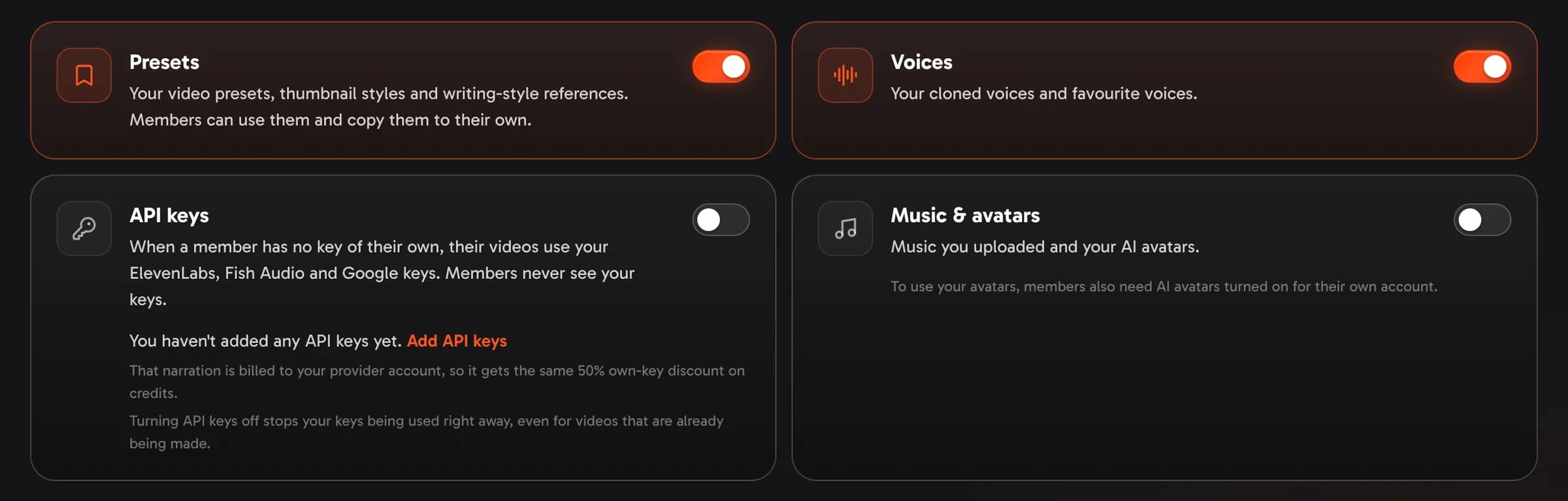
- Presets Show me in the app ↗: your video presets, thumbnail styles and writing-style references (the styles you took from a video reference).
- Voices Show me in the app ↗: your cloned voices and your favourite voices.
- API keys Show me in the app ↗: when a member has no key of their own, their videos use your ElevenLabs, Fish Audio and Google keys. Members never see your keys. Narration made with your key is billed to your provider account, so the video gets the same own-key price as your own: 10% off the price per minute (15% with ElevenLabs), when the key is actually used. The row lists the keys members can use; if you haven't added any, it links to Add API keys Show me in the app ↗.
- Music & avatars Show me in the app ↗: music you uploaded and your AI avatars. To use your avatars, members also need AI avatars turned on for their own account.
Amber notes under a switch tell you what else it needs. For example, presets that use one of your cloned voices need Voices on as well, or members pick their own voice. A voice that lives in your own provider account works for members only while API keys is on.
Members can use what you share and copy presets and thumbnail styles to their own. They can't change, rename or delete your things. If you delete something you shared, it's gone for your members too, the same as for you.
Turning a switch off stops members picking that item for new videos; videos they have already started keep what they had. API keys work differently: turning them off stops your keys being used right away, even for videos that are already being made.
What members see
If you're a member, your Team page shows Shared with you Show me in the app ↗: what your team owner shares. Shared items appear in their own group, labelled with the owner's name, wherever you pick something:
- Presets: the My Presets menu on the create page has a Team group. Pick a team preset to use it as it is, or Copy to my presets Show me in the app ↗ to get a copy you can change. A team preset brings its story images, thumbnail settings and logo with it. If a team preset uses a voice, music or avatar that isn't shared with you, the preset says so (for example Voice not shared), and after you apply it the create page asks you to pick your own before creating. Your copy of a team preset keeps the owner's uploaded logo only while presets are shared; after that it says Logo not shared and uses your channel's logo instead.
- Thumbnail styles: Thumb Lab's settings list Team styles with Copy to my styles. On the create page you can pick team styles like your own; they keep their owner's number of variants.
- Writing styles: the video reference panel lists a Team library. Picking a style from it reuses the style as it is, without a new analysis.
- Voices: the voice picker shows Team favourites and Team voices. A voice marked Needs API keys shared lives in the owner's provider account and works once the owner turns on API keys.
- API keys: on the API keys page, a provider you have no key for shows Using your team's key Show me in the app ↗. In the create page's voice section the key switch reads Team key Show me in the app ↗: turn it on and your narration uses the team's key, with the own-key price: 10% off the price per minute (15% with ElevenLabs) when the key is used. If you add a key of your own, yours is used instead. The owner's own key cards say Your team can use this key.
- Music: the My Uploads tab of the music section lists the owner's tracks in a group of their own.
- Avatars: the Avatars page and the create page's avatar picker show the owner's avatars. You can use them in your videos, but only the owner can change them.
On the project page, the Cost tab lists Your own voice API key among the video's price settings when the team's key is set for it; like your own key, it lowers the price only when the key is actually used.
The VidNext API and your team
When the VidNext API is on for a team, the owner holds the API keys (Settings → VidNext API) and one key serves the whole team: a request that names a member's email makes the video in that member's dashboard, with their voices and presets, on the team's credits — see Keys and permissions.
Who can see your videos
When someone can see your videos, the Team page says so at the top: Your videos, what they cost and your planner channels are visible to: … Show me in the app ↗, followed by their names: your team owner, and any team lead VidNext set up for your company. They see your videos read-only, with what each one was charged, as described in Team projects, and can open your planner channels read-only too: their numbers, YouTube videos, AI insights and tracked competitors (see Opening a member's channel). They can't change anything. When you join a team, the invitation email and the page where you accept it tell you this first. If VidNext added you to a team for your company, your Team page shows the team and this line.
Leaving a team
A member leaves with Leave team Show me in the app ↗ on the Members tab, and the owner can remove a member at any time. After that:
- the owner no longer sees that person's videos or channels;
- the member no longer spends the owner's credits (a member who pays from their own credits keeps their balance);
- for the member, sharing works as if the owner had turned every Sharing switch off.
The member's videos stay in their own account.