DocsEditor
Export & publishing
Rendering your edited video, export history, YouTube metadata, and thumbnails.
Exporting
Click Export Video Show me in the app ↗, choose format and quality, and the render runs in the background — you'll see progress through its stages: downloading assets, building video, rendering overlays, compositing, mixing audio, uploading. All exports are 1080p HD.

Re-rendering after editor changes costs only a small fraction of the original generation cost — you're paying for the render itself, not for regenerating content. A video priced per minute includes its first export free — the project's Cost tab shows whether it is still left; later exports cost what the render uses.
-
Export History Show me in the app ↗ keeps previous renders available.

Download on the project page, with the versions arrow next to it. -
Download Latest Show me in the app ↗ re-downloads the most recent render without re-rendering.
-
Abort Render Show me in the app ↗ stops an in-progress export. Rendering compute is billed as it runs, so aborting charges only for what was already used — never the remainder.
Three ways out of a finished project: download the generated render, export an edited timeline, or publish with the YouTube kit and thumbnails.
An avatar element whose clip is still generating is left out of the export rather than shown as a blank; wait for its status in the properties panel to read Clip ready, then export.
If a file on the timeline can't be found, the export stops within seconds instead of rendering, and a panel under the Export button says where that file is Show me in the app ↗. Show Show me in the app ↗ jumps to the clip and selects it; replace or delete it, then press Try again Show me in the app ↗. A failed export isn't charged.
The video's ending exports exactly as the preview plays it: the music rises over the closing shot, then the picture and the music fade out on the Ending block. Remove the block for a hard cut at the end.
YouTube metadata
The project's YouTube tab Show me in the app ↗ generates a complete publishing kit with Generate Metadata — free, in about a minute:
- Title options Show me in the app ↗ scored for click-through rate — pick one as the main title
- Description and tags, plus a category suggestion
- SEO analysis Show me in the app ↗ — primary and secondary keywords, competition, search intent
- Copy All / Quick Copy formatted for pasting straight into YouTube Studio
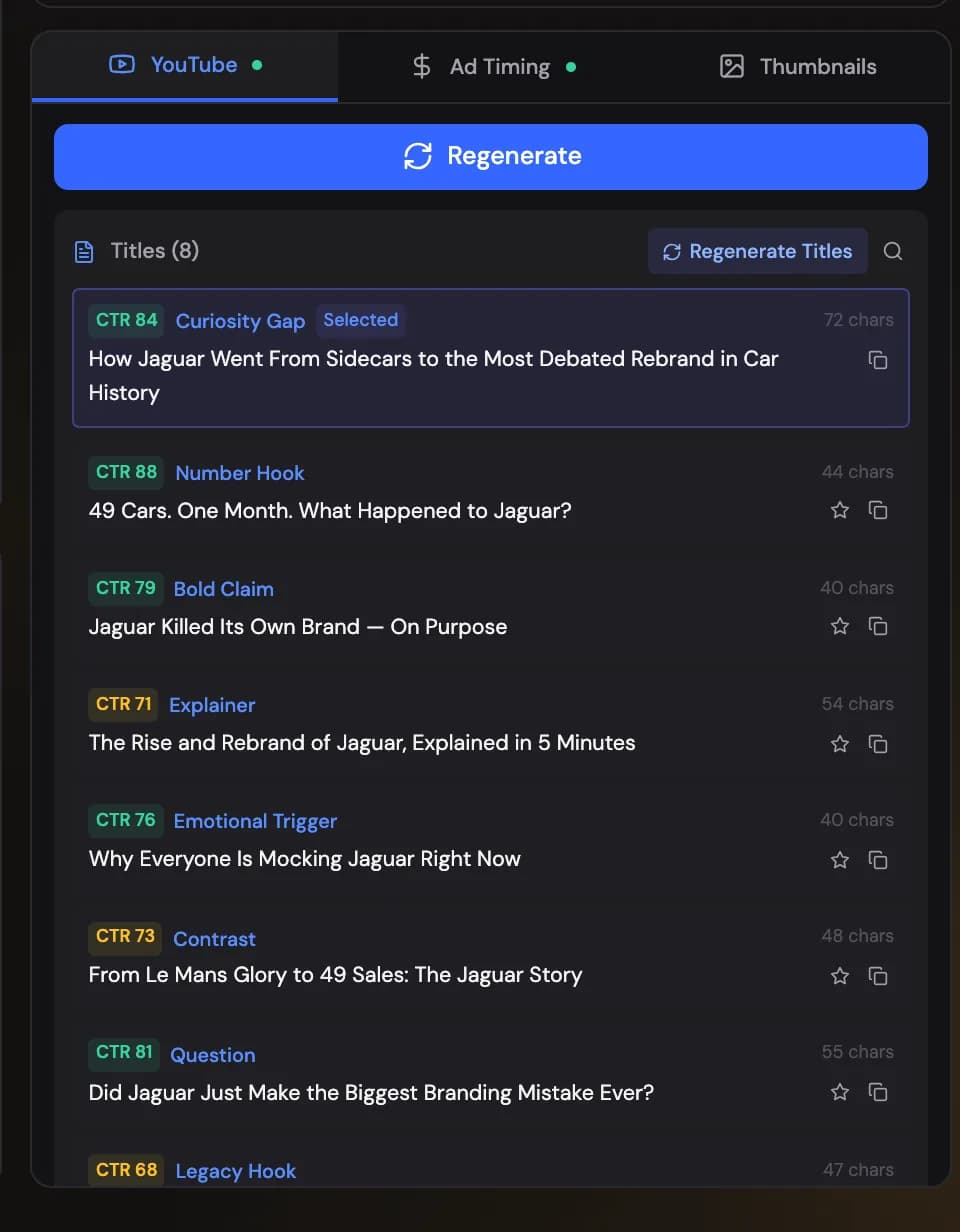
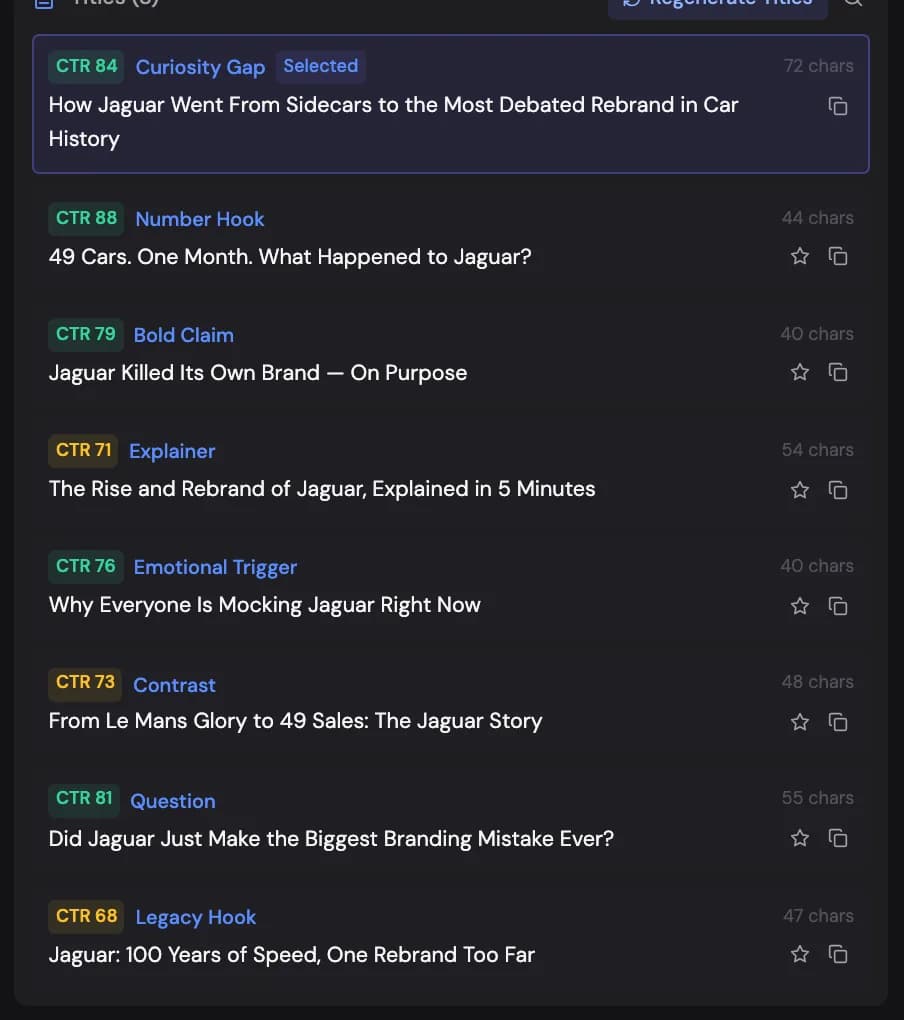
You can regenerate titles Show me in the app ↗ or refresh competitor research at any time (takes about 30–60 seconds).
Stock credits
When the finished video uses Pexels clips or photos, the YouTube tab lists them under the description as Stock credits Show me in the app ↗. Each item shows its creator and links to its page on Pexels. The list matches the video as it is now, including your changes in the editor. Long lists show the first four items; Show all Show me in the app ↗ opens the rest.
- Copy Show me in the app ↗ copies the credits as text, ready to paste into your video description.
- Add to description Show me in the app ↗ puts the credits at the end of the kit's description, the one Copy and Post to YouTube use. Click it again to take them out. If the full list doesn't fit YouTube's description limit, only the creators' names are added.
Credits are never added to a description on their own; that only happens when you click Add to description.
Thumbnails
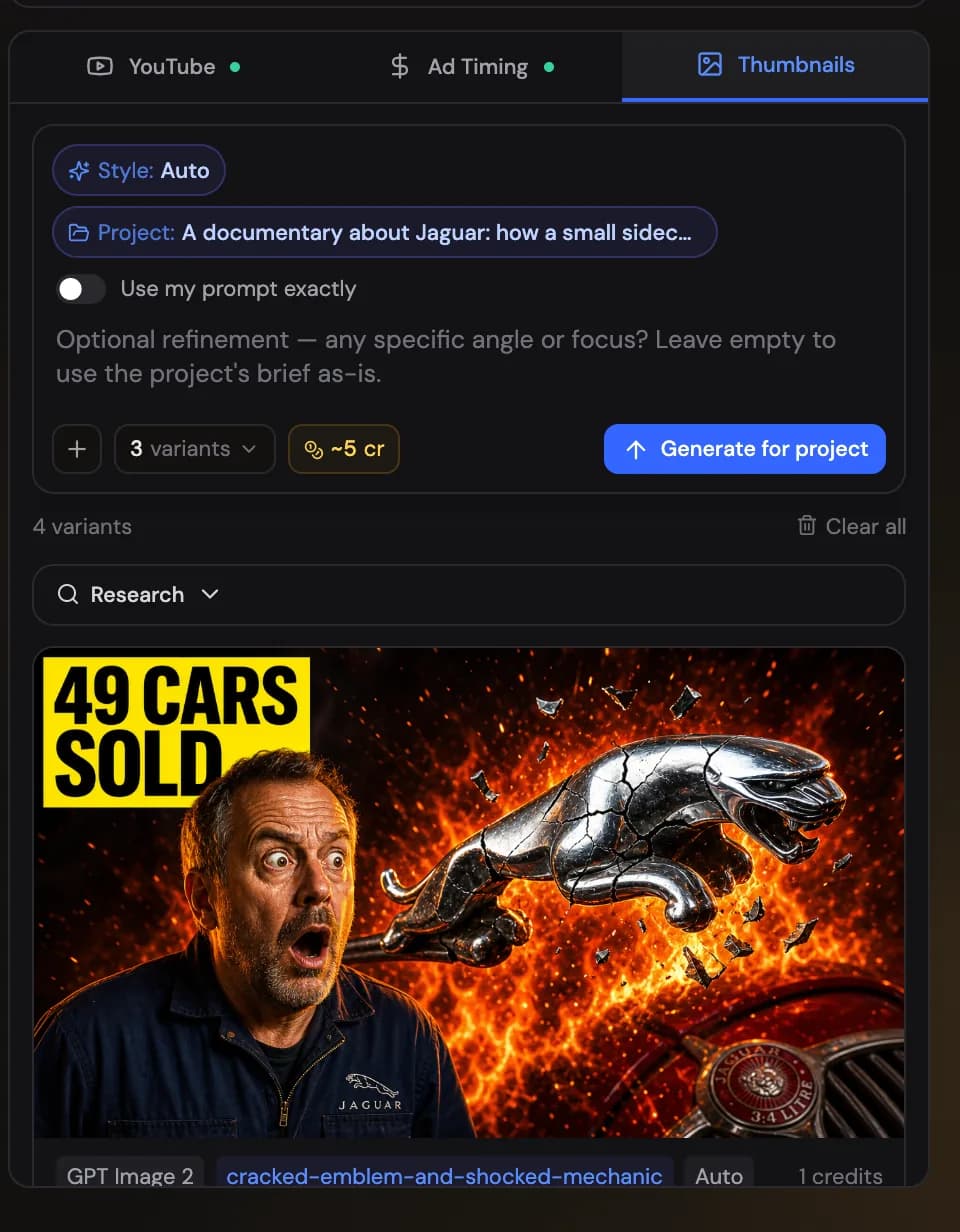
Thumb Lab builds thumbnails in a chat-style composer Show me in the app ↗: describe what you want, attach the project for context, add reference images or a YouTube sample, and generate variants in 16:9, 9:16, or 1:1. Any finished variant can be edited Show me in the app ↗ with a plain-language prompt, which produces a new variant beside it. Style presets can be saved Show me in the app ↗ and reused; failed generations aren't charged. It's big enough to have its own page.
Mid-roll ad timing
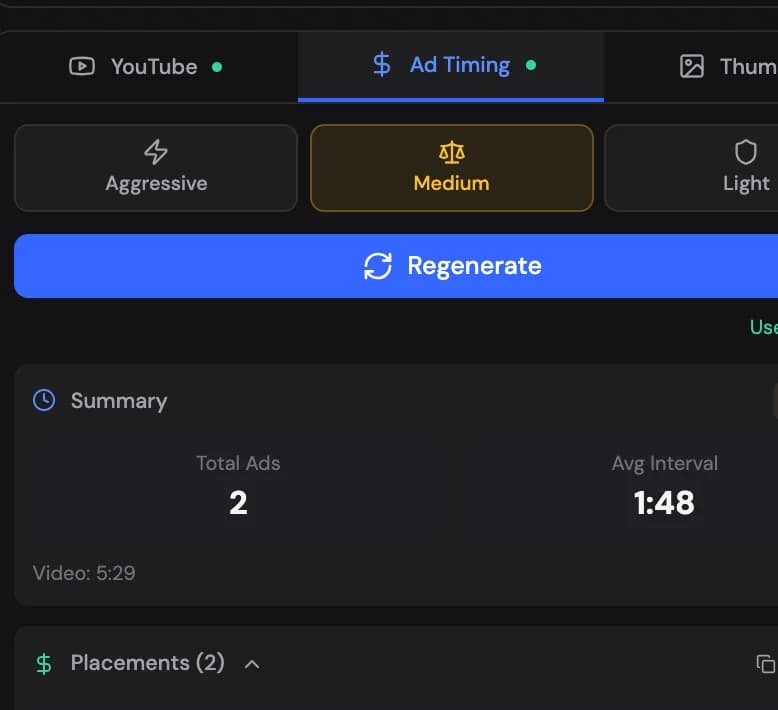
For monetized channels, the ad-timing generator Show me in the app ↗ proposes mid-roll placements at natural breaks, with three densities — Aggressive (every 1–1.5 minutes), Medium (every 2–3), Light (every 4–5) — and copyable timestamps for YouTube Studio: copy them all at once Show me in the app ↗ or click any single timestamp Show me in the app ↗ to copy just that one. Each placement is checked against the actual footage around the cut, so the list Show me in the app ↗ shows the kind of break it lands on — a title card, a topic change, or a pause between sentences — and what is on screen at that moment. Placements that fall inside the first minute or the last 30 seconds are never proposed.
VidNext adds no watermark to exports — what you render is entirely yours to publish. The only logo an export carries is your own channel logo, and only where you put it.