DocsAccount
Help & Support
Talk to the VidNext team from inside the app — with your project, its error and the page you were on attached automatically.
Every signed-in page has a life-buoy Help button next to the notification bell. It opens a side panel with your conversations, and you can start a new one without leaving what you were doing. The same conversations live at vidnext.ai/support, and replies you haven't read in the app also reach you by email — you can answer straight from your inbox. The team can write to you first, too: messages from the team arrive in the same place.
Where to find it
-
The Help button Show me in the app ↗ in the top bar (on phones it is in the menu under Help).

The life-buoy Help button next to the bell. -
Get help Show me in the app ↗ on a video that stopped — on the dashboard card, on the project page and in the auto-pipeline view. The conversation opens with that video already attached.
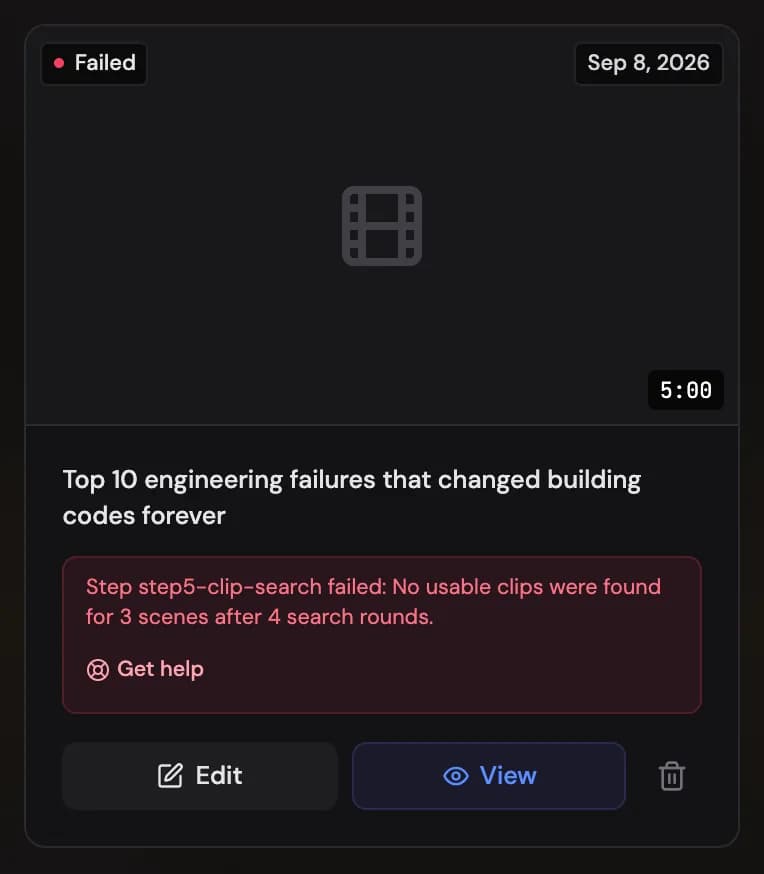
A failed video's card: the error text and Get help. -
Contact support on the credits and billing pages when something is off with a charge.
-
The Help & Support page at
vidnext.ai/support— the full history, and the place email links open.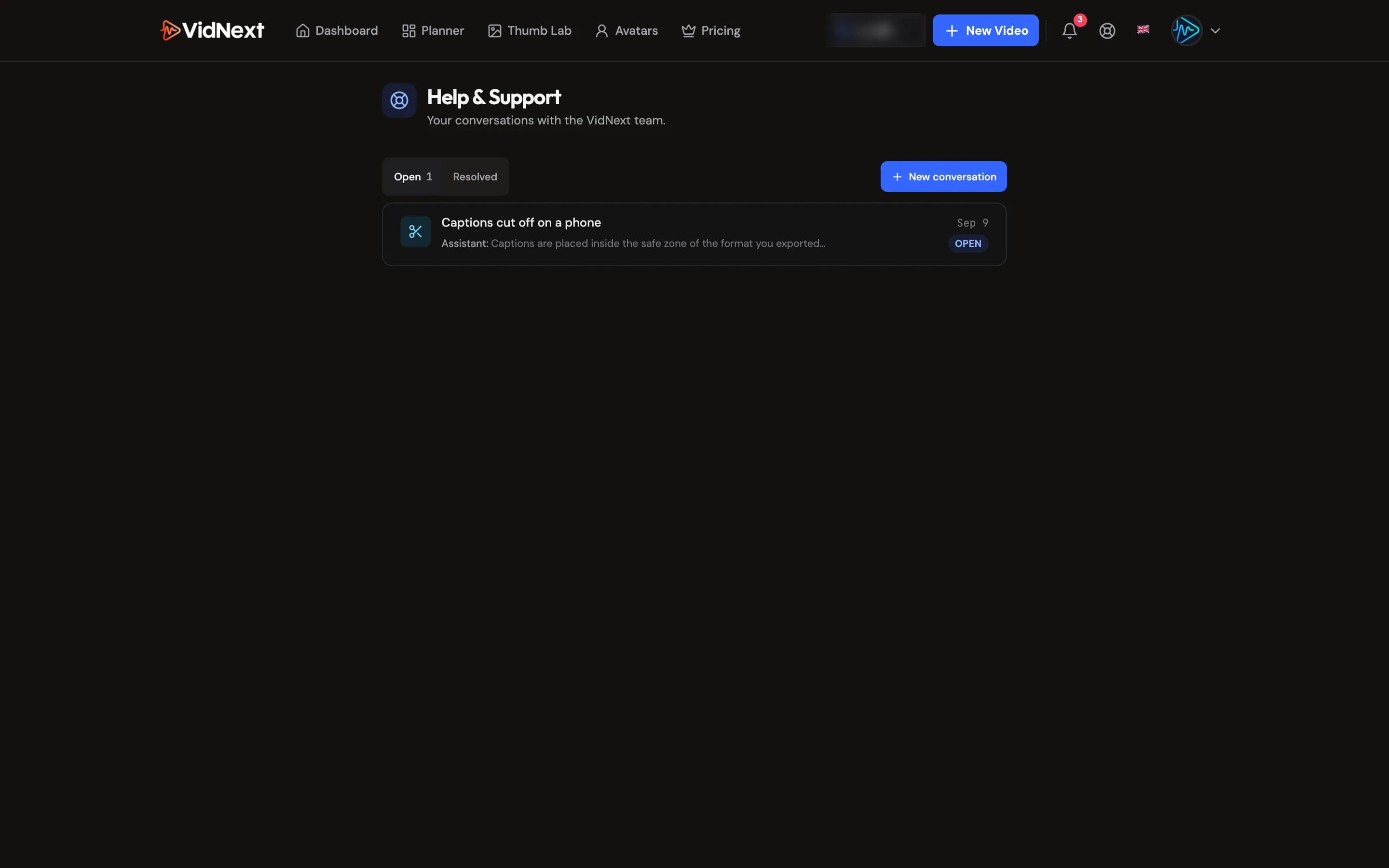
Help & Support: your conversations, open and resolved.
Starting a conversation
- Optionally pick what it is about: Video generation, Editor, Planner, Billing & credits, Account, Idea or request or Something else — skip it and we sort it for you.
- Write what happened — that is the only required field. The conversation is named after your first line and gets a proper short title a few seconds later. Screenshots help a lot — paste them straight into the message, drop files onto the panel or use the paper-clip. Up to 5 files per message, 25 MB each: images, video, PDF and log/text files.
- Check the What we'll attach card. When you came from a video, its title, status and error text are attached; Page & browser details (the page you were on, your browser, screen size and timezone) are attached by default so we can reproduce the issue. Untick anything you would rather not share, or Attach a video to add one yourself.
- Send. You get a ticket number, and the conversation stays open in the panel and at
/support.
Chatting with the assistant
Right after you send, the VidNext Assistant may answer — built from these docs and clearly labelled as automatic. You can keep asking: while the assistant is handling the conversation you'll see it typing, and each answer comes with This solved it and I still need a person underneath. The assistant only answers what the docs cover. When the docs don't cover your question it doesn't guess — it asks Want me to pass it to a person from the team? with two buttons: Yes, connect me with a person alerts the team and they reply here and by email; No, that's all marks the conversation solved (reply any time to reopen it). Pricing and credit questions are answered from these docs; questions about discounts and promotions are answered from the offers running for your account right now — never from older pages — and if the assistant can't check them at that moment, your question goes straight to the team. Anything about your own payments, refunds, charges or account, and anything you explicitly ask a person for, goes straight to the team without asking.
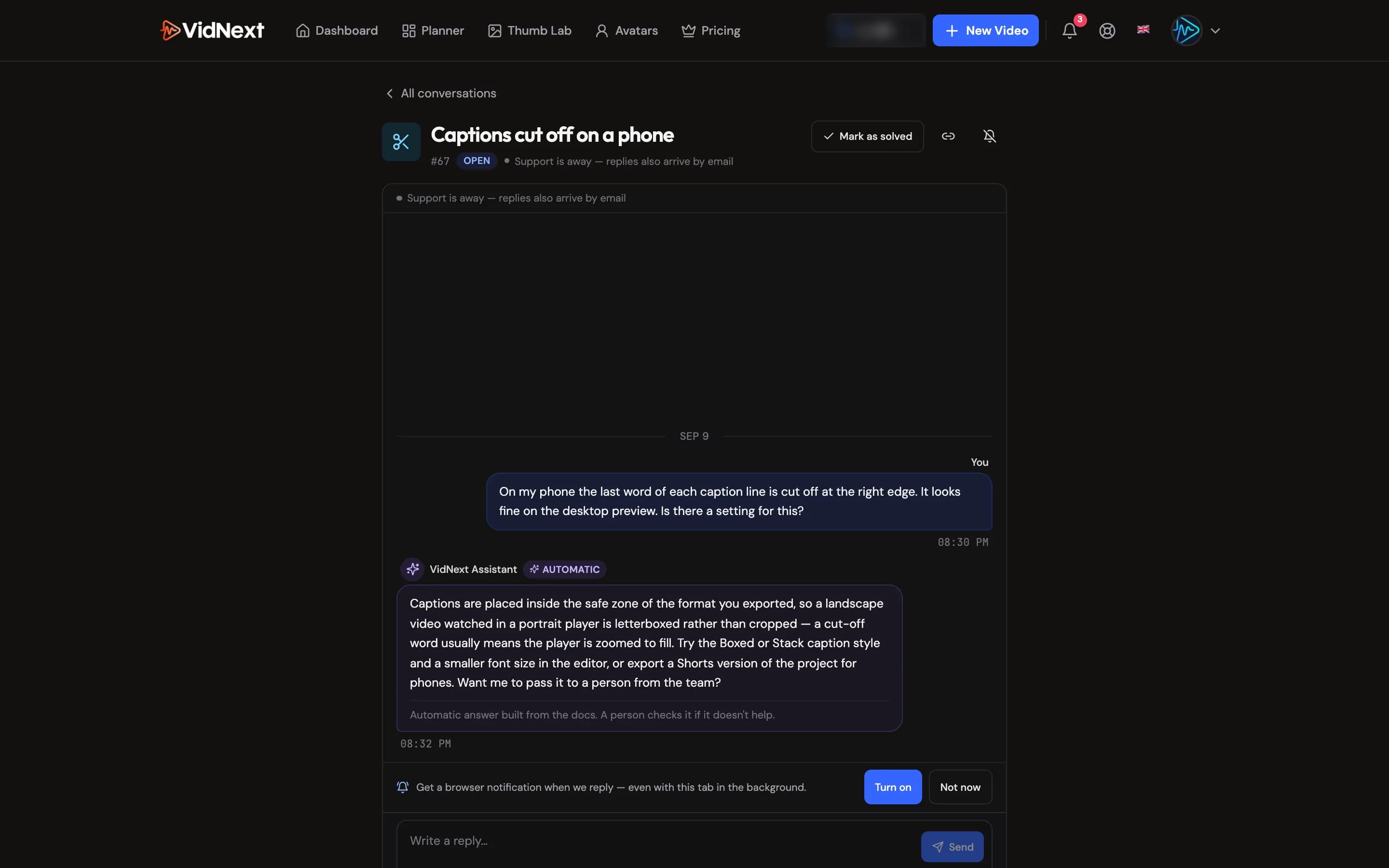
Answers can carry Show me chips next to the controls they mention. Click one and the app opens the right page, scrolls to that control and highlights it; the help panel folds into a Back to chat pill so you can return to the conversation with your draft intact. If the control isn't on the page yet — say, the music section before you have typed a topic or picked a voice — the guide points at what to do first, then moves on to the control by itself as soon as it appears (opening the right tab or section on the way). The same links appear across these docs as Show me in the app.
Online badge and reply time
The conversation header shows whether the team is online right now and how quickly it usually replies (based on recent conversations). When the team is away, replies still come — in the app and by email.
Replies
- In the app: replies appear in the open conversation within a second or two, the bell shows a notification, the Help button shows a dot, and the conversation marks the first unread message with a New line.
- In your browser: after your first message you can turn on browser notifications for replies (also under the ⋯ menu of a conversation). You get one when a reply lands while the panel is closed or the tab is in the background; clicking it opens the conversation.
- By email: a reply you haven't read in the app within a couple of minutes arrives from VidNext with the ticket number in the subject — if you're in the conversation when it lands, no email follows. Several replies sent close together come as one email. Reply to that email and your answer lands in the conversation (shown there with a small via email tag). Attachments you add to the email come along too. For a quick follow-up the team may also answer in the app only.
- The Support replies toggle Show me in the app ↗ in Settings → Notifications switches the emails off if you only want the in-app thread.
Messages from the team
Sometimes the VidNext team writes to you first — news that matters to you, or a note about one of your videos. It arrives as a conversation in Help: a strip under the top bar says Message from the VidNext team with its subject and an Open button Show me in the app ↗, the Help button shows a dot and the bell a notification. If you don't open it in the app within a couple of minutes, it may also come by email (when the team sends it that way).
You don't have to reply. If you do — in the app or by answering the email — a person reads it, and the conversation carries on like any other. The ✕ on the strip Show me in the app ↗ hides it; the message stays in Help. A message you never answer closes by itself after a while, without an email.
Emails of these messages follow the Support replies switch in Settings → Notifications. A message the team sends to many people at once counts as news, so its email also needs Tips & product news on — you always see it in the app either way.
Statuses
| Status | What it means |
|---|---|
| From the team | A message the VidNext team started. No reply needed — answer if you have a question. |
| Open | With us — we will reply soon. |
| Waiting for you | We answered; your turn. If you do not reply for a while we send one reminder and then close the conversation. |
| Resolved | Marked as solved by you or by the team. Replying reopens it. |
| Closed | Finished. You can start a new conversation from it — we link the two so the history is not lost. |
Use Mark as solved Show me in the app ↗ whenever your question is answered, and rate the conversation (thumbs up or down, with an optional comment) once it is resolved — it helps us improve.
What the team can see
The team sees your account email, plan and credit balance, the videos you made recently, the details you chose to attach and the conversation itself — never your password or payment card. Attachments are private to you and the team.
Restricted and suspended accounts
If an account breaks the Terms of Service — for example with abusive or threatening messages to our team — we can limit it to downloads or suspend it, and we tell you why by email.
- Download-only. You can still sign in, see your dashboard and your videos, and download finished videos and editor exports. Creating, editing, exporting, buying and the support chat are turned off, and a notice under the top bar says so. Its Email support link Show me in the app ↗ writes to support@vidnext.ai.
- Suspended. The app can't be opened; the suspension screen links to support@vidnext.ai instead.
Either way, your plan stops renewing, so you aren't charged again — the current period isn't refunded and ends on its date. Videos already being made finish; videos still waiting to start are cancelled and their credits go back to your balance. Your credits stay on the account but can't be used while the restriction lasts.
If your team owner's account is on hold, the team's credits are frozen: if you make videos with Team credits, you can still open and download your videos, and you can leave the team to use your own account. Members on Own credits aren't affected.
If you think it's a mistake, write to support@vidnext.ai.