DocsCreating videos
Background music
Choosing, mixing, and uploading music for your videos.
Music sets the emotional floor of a video. VidNext mixes it automatically under narration so it supports rather than competes.
Choosing a track
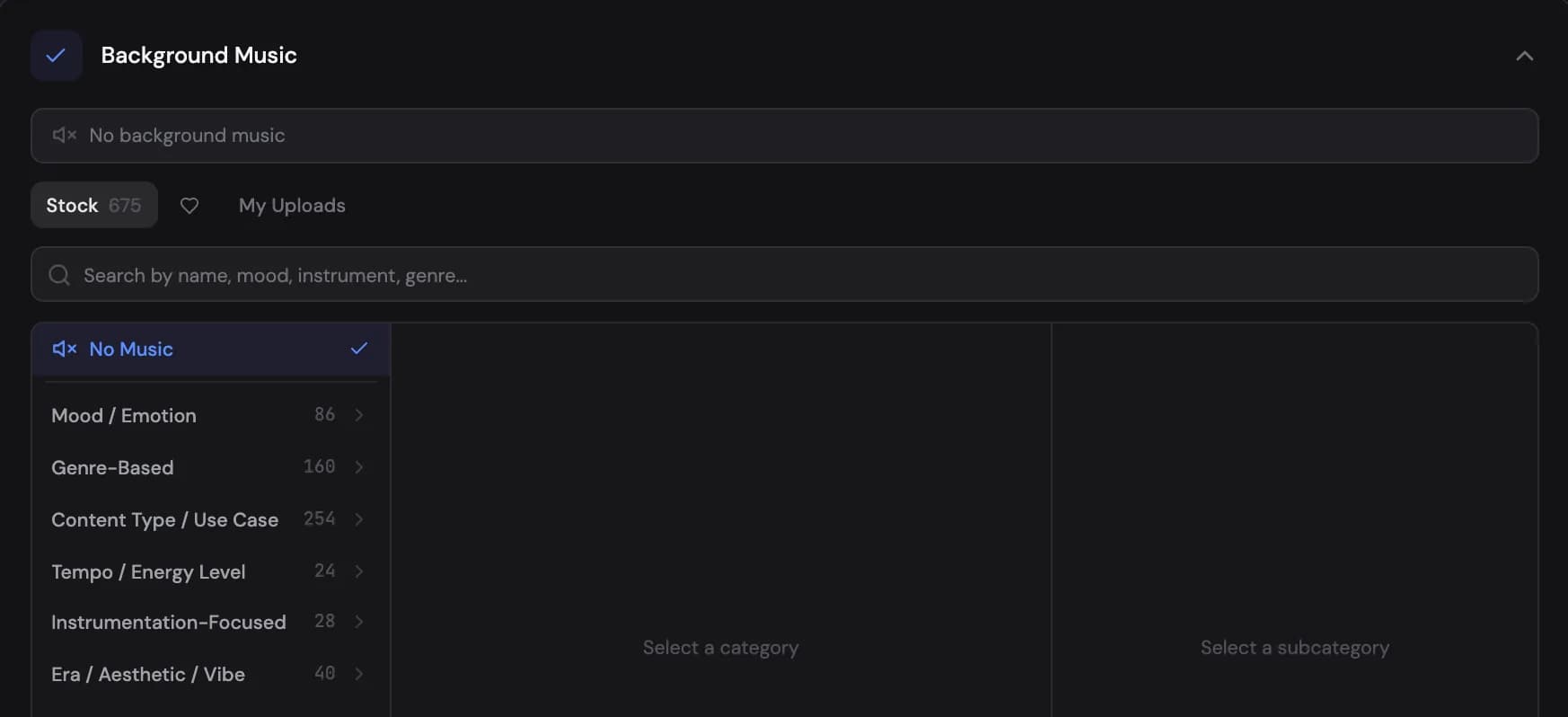
The music section has three tabs Show me in the app ↗:
- Stock Show me in the app ↗ — a licensed library searchable by name, mood, instrument, or genre
- Favorites — tracks you've hearted for quick reuse
- My Uploads Show me in the app ↗ — your own files (MP3, WAV, or M4A, up to 50 MB)
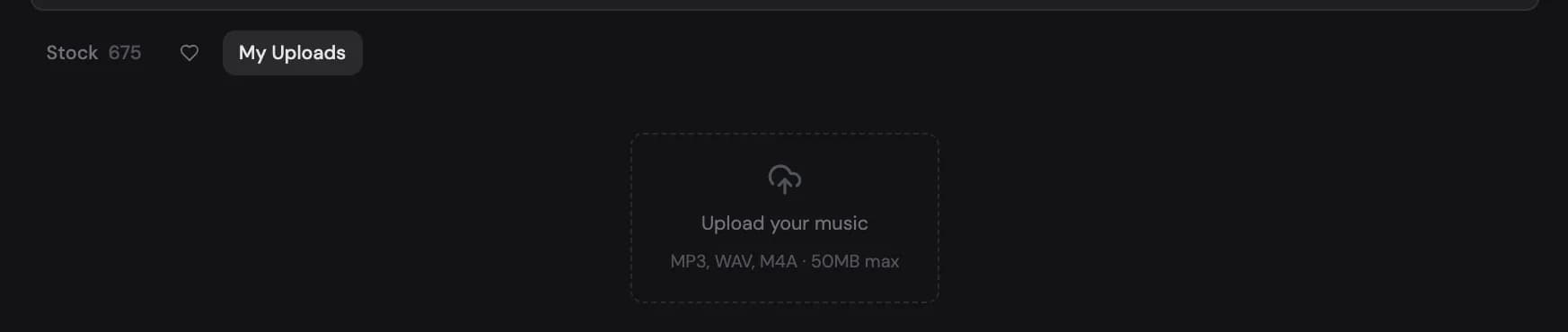
If your team owner shares music, My Uploads also lists their tracks in a group with their name. Use them like your own; only the owner can delete them (see Teams).
"No music" Show me in the app ↗ is a valid choice too — some formats, like news explainers, often work better dry.
Volume and mixing
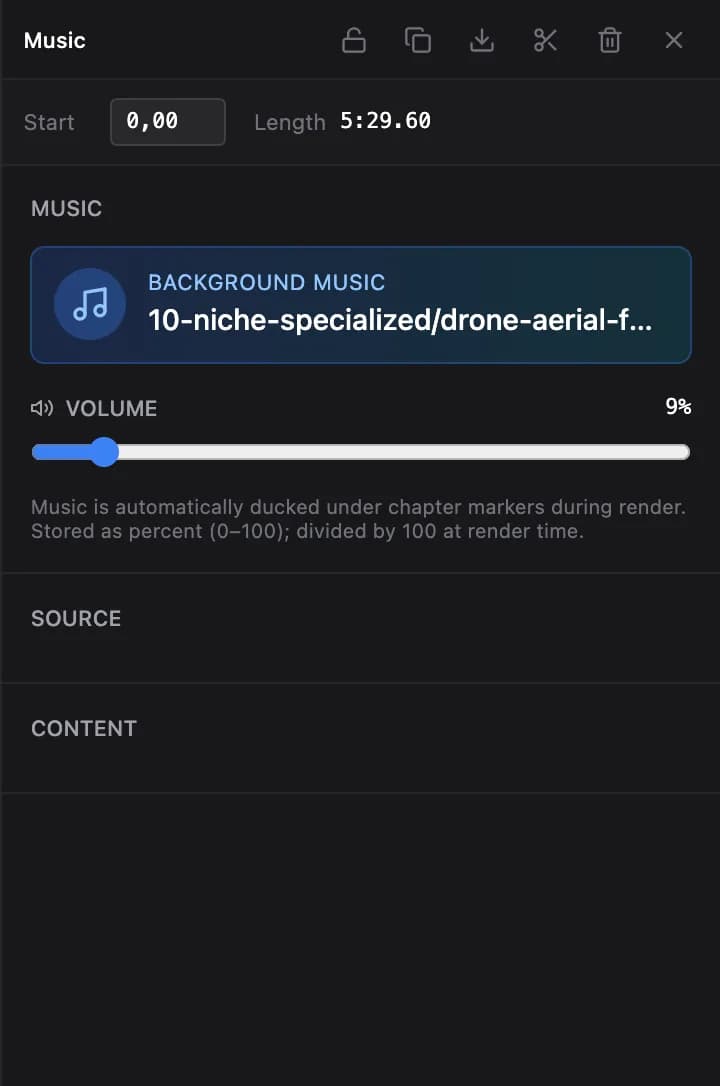
The recommended music volume Show me in the app ↗ is 8–15% so it never overpowers narration. VidNext automatically ducks music under narration and chapter markers, and normalizes the final mix to broadcast loudness.
Before generating, use Preview Mix Show me in the app ↗ to hear your selected voice and music together — it's the fastest way to catch a track that fights the narration.

The ending
A long video doesn't stop on its last spoken word. Choose the Ending Show me in the app ↗ in the music step — Off, 3 s, 5 s (the default) or 10 s. After the narration, a calm closing shot of your topic plays while the music keeps going at the level it has between chapters; then the picture and the music fade out together. The closing shot is picked when the video is planned, like any other scene — stock footage or a video clip, whichever fits your topic and your content mix. If your prompt says how the video should end — for example "end on the strongest close-up of the machine at work" — the closing shot follows that instead of a calm general view, with real footage of your subject when that is what you asked for.

- No music selected — the closing shot lasts 2 seconds and the picture fades to black.
- Shorts and music videos have no ending: a Short is built to loop back to its first second, and a music video ends with its song.
- In the editor the closing shot is the last clip and the fade is an Ending block on the Effects track — resize it, change the fade, or remove it.
After generation
The music track is a first-class element on the editor timeline: adjust its volume Show me in the app ↗, swap the track, or mute it entirely and re-render.
Music video mode
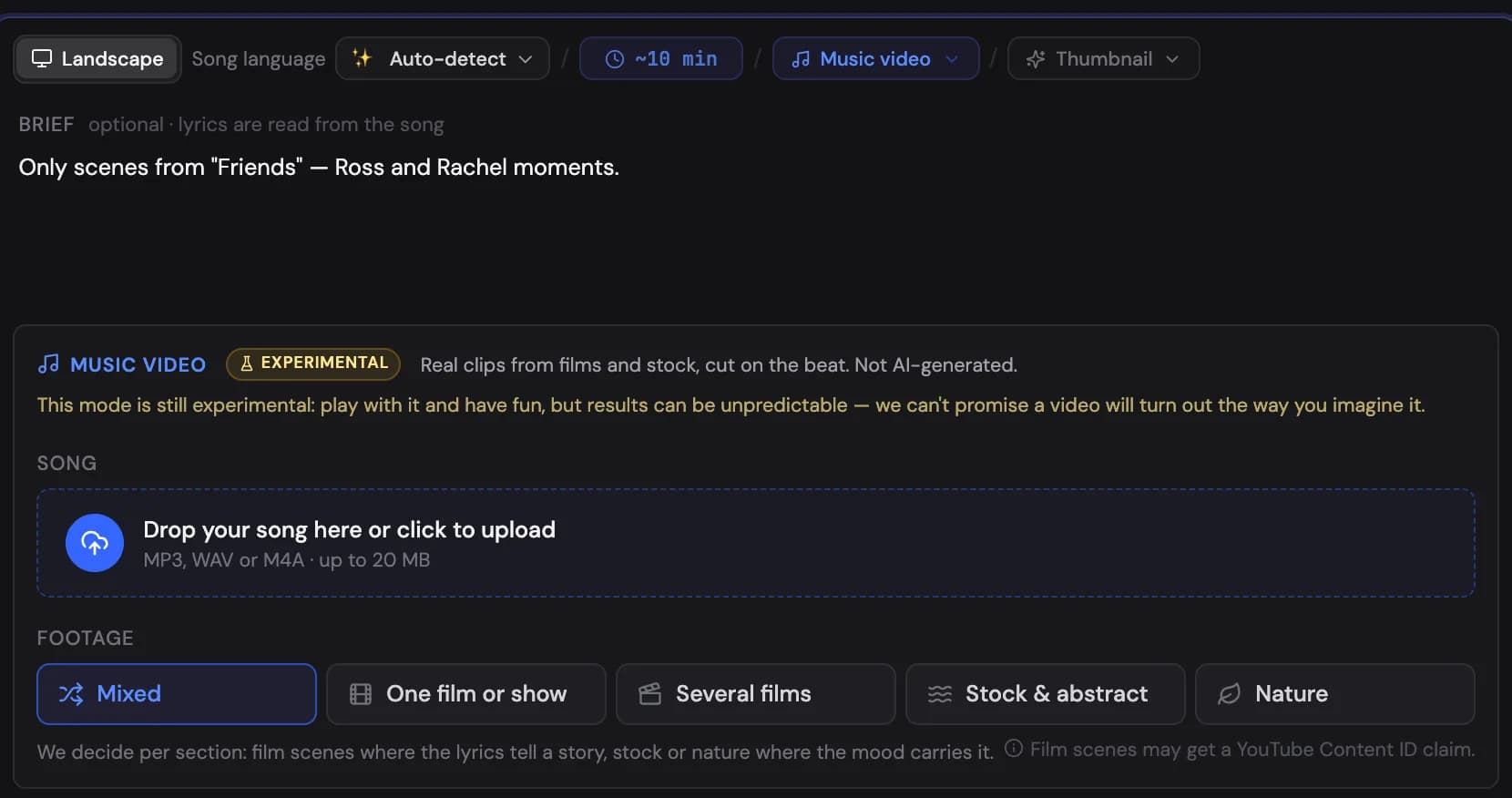
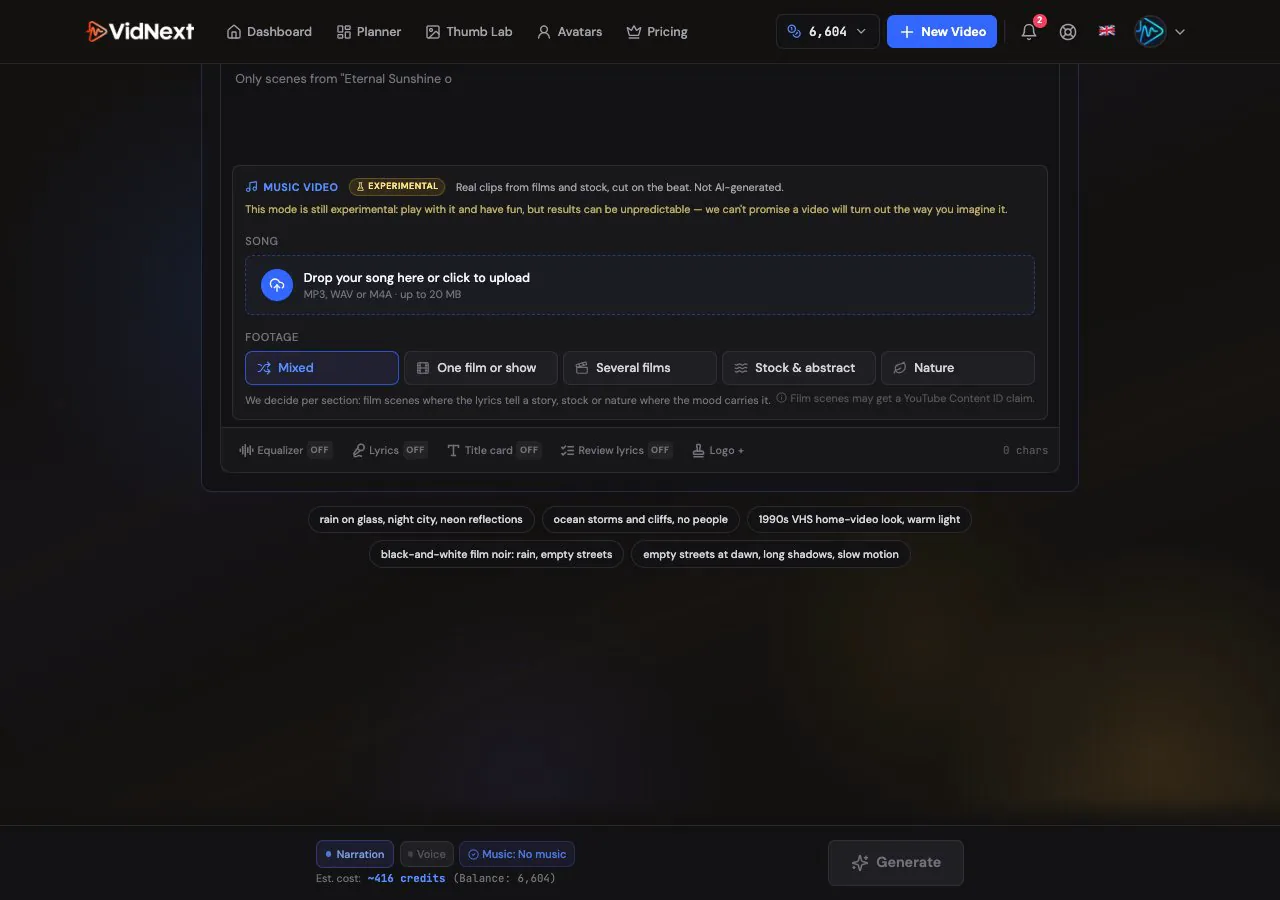
The reverse is possible too — upload one song Show me in the app ↗ (max 20 MB) as the entire audio track and VidNext cuts the visuals to it:
Experimental
Music video mode is experimental — the card shows an Experimental badge Show me in the app ↗. Play with it and have fun, but results can be unpredictable, and we can't promise a video will turn out the way you imagine it.
There is no voiceover in this mode — your song is the whole soundtrack. Music videos are made in the horizontal 16:9 format; the Shorts format is not offered for them yet, so the format pill Show me in the app ↗ shows only the horizontal option. The card asks for three things, in this order: an optional brief at the top, then your song, then the footage source. The optional overlays (equalizer, lyrics, title card) are pills in the bottom row of the box, where the captions pill sits for narrated videos. Anything you type in the brief only directs the visuals (mood, era, "scenes from…"), it is never read aloud.
The Music video option Show me in the app ↗ carries an Experimental badge. If it shows a Maintenance badge instead and can't be selected, the mode is temporarily paused while we work on it — the other narration sources keep working, and the option returns on its own.
Choosing the footage source
Pick one of five options Show me in the app ↗; the choice is passed to the director together with your brief:
- Mixed (default) — VidNext decides per section: film or show scenes where the lyrics tell a story or the song peaks, stock or nature footage on ambient and instrumental passages.
- One film or show — name a title and every scene comes from it, in story order. The most coherent result, and the one to pick when you want it to feel like an official edit.
- Several films — film and show scenes only: a curated set of titles that fit the lyrics, one story arc. List titles in the brief to steer it, or let VidNext pick.
- Stock & abstract — cities, textures, light, nature. No film or TV scenes and no recognizable people.
- Nature — landscapes, weather, seasons and wildlife that match the mood.
The footage source doesn't change the price: a music video has one price per minute whatever footage you pick — lower than a narrated video's at default settings, since a song replaces the narration. The sticky bar shows the price before you start; see How credits work.
Before you publish
Film and show clips are used under fair use, but YouTube's Content ID may still claim monetization on recognizable scenes. Stock & abstract and Nature use no film footage at all.
Stock footage comes from a shared library with an hourly search allowance. When it is used up, the search waits and resumes by itself at the next free slot — the project page says so while it waits — and Stock & abstract and Nature videos wait for it however long it takes, because moving footage is all they can cut to. If a song video still gets no stock footage, it stops with a clear message, your credits are released, and the project page offers Retry stock footage Show me in the app ↗, which runs the footage search again with everything else kept.
The lyrics are transcribed from the song — you don't need to paste them. The Song language pill Show me in the app ↗ above the brief is set to Auto-detect: VidNext reads the language from the singing itself (several passages of the song vote, so an instrumental intro cannot decide it). Pick a language there only if the transcript came back in the wrong one; a picked language is then forced. Switch on the Review lyrics pill Show me in the app ↗ in the bottom row of the box to check the transcript before the video is built: the lyrics open as timed lines Show me in the app ↗ (each with its moment in the song), you fix mis-heard words in place, press Enter to split a line or Backspace at its start to join it with the one above, and continue — edited words are re-synced to the singing automatically. If no lyrics are recognized at all — an instrumental track, or vocals the transcription cannot make out — the project page says Instrumental — no lyrics detected, the review step is skipped, and the video renders without lyric captions.

Use the brief for mood, era or specific scenes. Some briefs that work well:
| You want | Brief |
|---|---|
| One film | Only scenes from "Eternal Sunshine of the Spotless Mind" (2004), in story order. |
| One show | Only scenes from "Friends" — Ross and Rachel moments. |
| No film footage | Stock footage only: rain on glass, night city lights, ocean waves, slow abstract motion. No films, no faces. |
| Nature | Nature footage only: mountains, storms, forests in autumn. No cities, no people. |
| An era or look | Black-and-white 1950s film noir scenes, rain, city at night. |
Equalizer, lyrics and title card
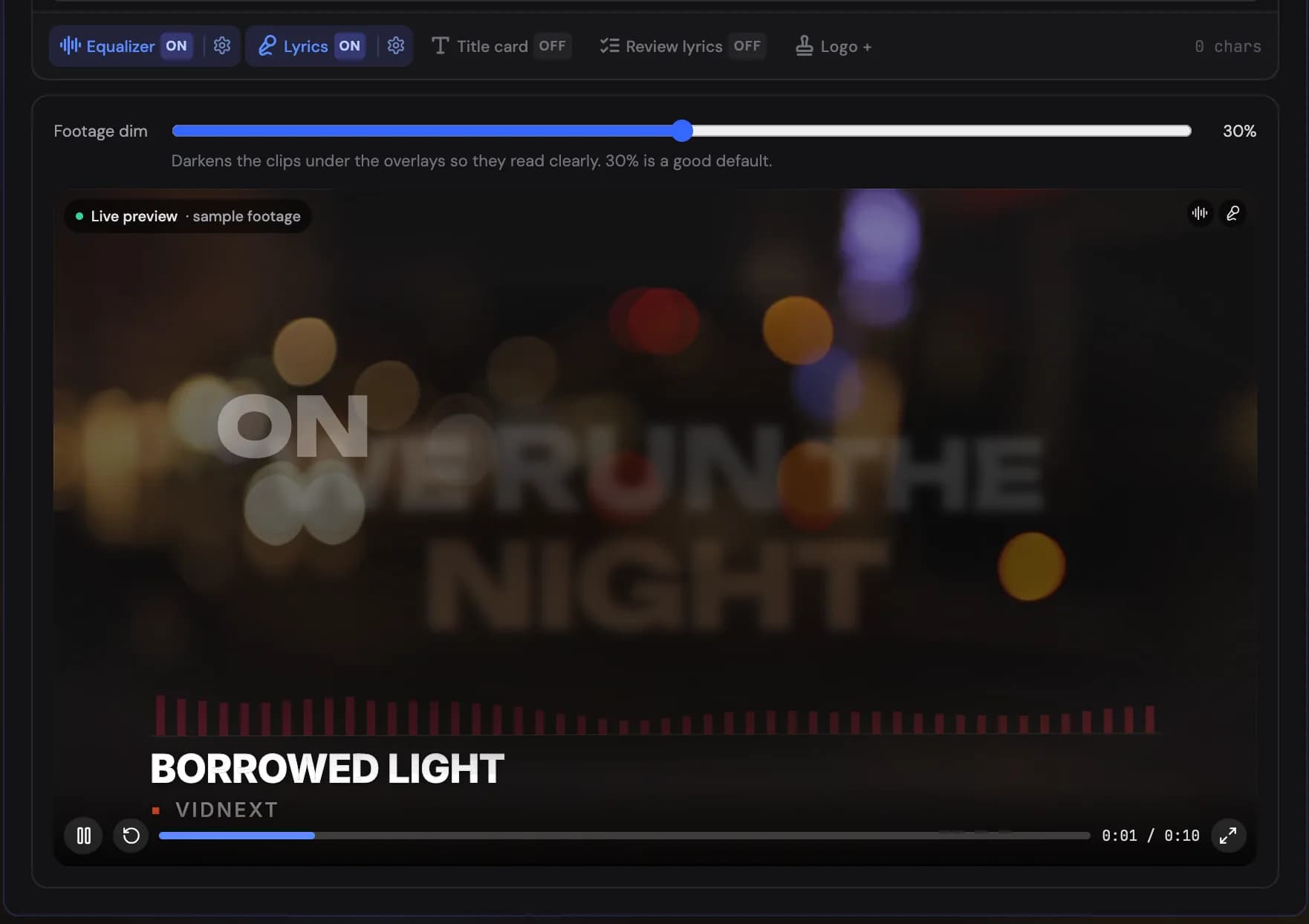
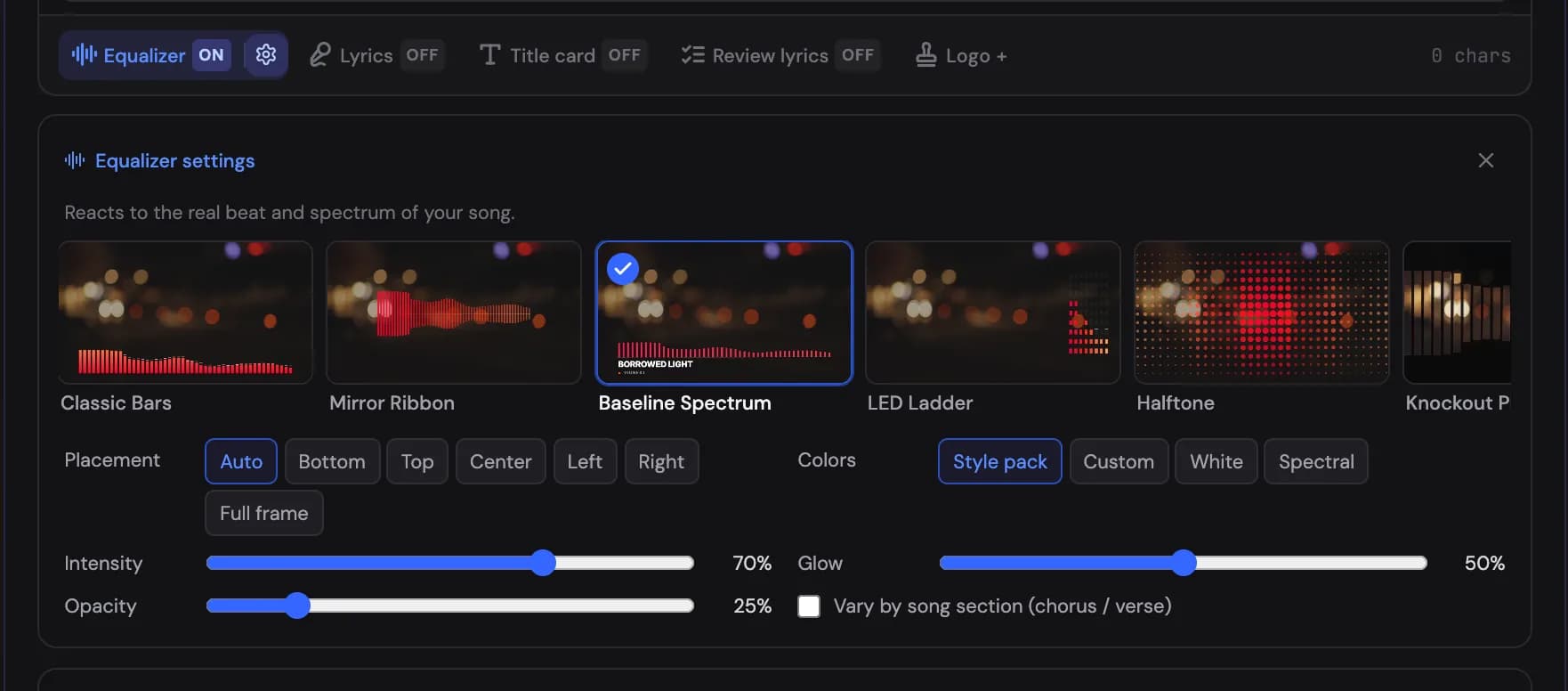
The three overlay pills Show me in the app ↗ in the bottom row of the box add the graphics that make a music clip look produced: Equalizer Show me in the app ↗, Lyrics Show me in the app ↗ and Title card Show me in the app ↗. Each pill shows ON or OFF. As soon as one is on, a live preview Show me in the app ↗ appears under the box: sample footage in your video's format with every overlay you switch on composited over it, exactly as they will render, with the Footage dim slider above it. Toggle the pills and the preview follows. Each overlay's settings stay collapsed until you press the gear Show me in the app ↗ inside a pill that is on; its panel Show me in the app ↗ opens under the box with that overlay's style strip and options. Change a style, a colour or any slider and the preview updates as it plays; use the transport under it to pause, restart or scrub, and the expand button for a larger view.

- Equalizer — a visualizer that moves with the real beat and spectrum of your song: bars, rings, waveforms, particles, grids and more (24 styles in four families). It starts as Baseline Spectrum at 25% opacity, a thin spectrum along the bottom that lets the footage through. Choose a placement (bottom, top, centre, a side rail or the full frame), a colour mode (your style pack's accent, a custom colour, white, or a spectral ramp), the intensity, the glow and the opacity (lower it to let the footage show through the visualizer).
- Lyrics — the song's words, big and animated, synced to the singing word by word (21 styles). The kinetic looks build each line word by word with a different move per word and sizes that follow how long a word is sung (Kinetic Cascade, Kinetic Slam, Typo Poster); Infinite Depth keeps every line travelling away into a tunnel; Drift & Fade and Split Reveal are softer, cinematic reveals; and the classic karaoke pill, gradient, neon, glitch, typewriter and knockout looks are all still there. Pick the size, font and colour; the position defaults to whatever suits the style (most kinetic styles sit centre) and can be pinned to top, centre, bottom or lower third. Lyrics come from the transcript, so turn on Review lyrics before generating and fix any mis-heard words first: the corrected text is re-synced to the song before rendering.
- Title card — the song title and artist animated before the first line (four variants). Fill in the Song title Show me in the app ↗ and Artist Show me in the app ↗ fields in the Title card settings; title-bearing equalizer styles use them too.
Vary by song section lets an overlay switch to a companion style on the chorus and calm down on the intro and outro instead of keeping one look for the whole song. The Footage dim slider above the live preview darkens the clips under the overlays so they stay legible (30% is the default; some styles bring their own scrim).
A music video has no captions: the words on screen come from the lyrics overlay, so the captions pill Show me in the app ↗ of narrated videos is not shown here. All three overlays appear in the editor on the Overlays track, where you can change their style, colours, placement and dim later.
What a music video is made of
VidNext finds real footage and cuts it to your song on the beat: scenes from films, shows and games on YouTube, and stock clips (nature, places, people, abstract motion). It doesn't render footage — it can't draw characters, keep an invented character consistent across shots, produce 2D/3D animation, or follow shot-by-shot camera directions. Write the brief as footage to look for: "scenes from Titanic", "kids dancing in a living room, confetti, warm light", "dark neon city at night".
Asking for animation or generated footage?
If your brief reads like a prompt for a video generator — invented characters that must look the same in every shot, an animation to render, camera moves and output specs — a Brief check explains this before generation and offers three real-footage briefs on the same idea, in your language. Edit the brief, pick a suggestion, Create anyway to continue with real footage, or Make a narrated video instead Show me in the app ↗ when what you described is really a story: your text becomes the narration script and your track stays as background music. A brief that can only be fulfilled with generated footage doesn't turn into a video by accident: without that confirmation the project stops before generation and no credits are charged. When the stricter setting is in force, Create anyway and Continue with real footage are not offered at all: rewrite the brief, pick a suggestion, or make a narrated video instead.
If it stops, the project page shows the same two ways forward — Continue with real footage Show me in the app ↗, which re-plans this project from film scenes and stock clips with your settings intact, and Start a narrated video Show me in the app ↗, which carries the brief to the create page as the narration script (your text is spoken; you pick a voice and music there). When the uploaded file sounds like a spoken voiceover rather than a song, the message says that first.
There is no script, story images, video reference or sound effects in this mode — the song and the brief drive the visuals, and the song is the only audio. The footage choice presets the advanced Content Mix — Video Clips are scenes found on YouTube, Stock Video comes from the stock library — and the Footage Sources list (which YouTube categories Video Clips may use). Both stay adjustable. Chapter headings, text overlays and calls to action are not available for music videos — the equalizer, lyrics and title card overlays above are the music-video equivalents.
How footage is found. Scenes that belong to the same film (or to the same passage of the song) share one footage pool, and VidNext asks for one distinct shot per beat plus a few spares — a five-beat scene is cut from five different moments, not from two clips replayed. Uploads below 720p are skipped while HD ones are available, long uploads are sampled rather than watched end to end, and a film whose pool still comes up short is searched once more from its generic scenes, with a project-wide limit on how much re-searching a video can do.
The footage check. Every clip is checked before it is cut to the beat: stills and posters, title cards, near-black frames, and footage that is clearly from a different film than the one requested are rejected. Any moment of the named film counts — a scene about the planetarium can use another La La Land shot. Clips from another film in your brief are kept as a fallback, and clips with burned-in subtitles, a visible channel watermark or a sub-HD source are kept only as a scene's own last resort. Stock sections are screened from their preview frames first, so only the best few per section are downloaded and scored as video; they are never re-searched on YouTube.
Cutting on the beat. The song's bars are read from the audio itself — the beat where the accents fall and the chords change is beat one — and every cut sits on a bar line: one cut per bar lands on the downbeat, two per bar on beats one and three, and a section change never falls on a weak beat. Cuts also land on real shot boundaries detected inside each clip, so a beat never starts mid-shot, and consecutive beats alternate between wide, medium and close shots when the footage allows. A scene that runs short borrows unseen footage from the same film first and from other scenes only after that; the final quality report flags any scene where footage still had to repeat.
Scene transitions in a music video sit on section changes: entering a chorus or the outro always gets one, other section changes usually do, and the beat cuts inside a section stay hard cuts. The mode starts with the Music video transition set (dissolve, fade to black, film burn, flash, impact cut, whip pan, push cut, spin zoom, light leak); calm sections get the soft passes, energetic ones the hits. Change the set in the Transitions step Show me in the app ↗ of Advanced mode: Music video is one of its quick sets Show me in the app ↗, and None keeps every cut a hard cut.
Uploaded a voice recording by mistake?
Music video mode expects a song. If the uploaded file sounds like a spoken recording, VidNext points it out next to the file and, when you press Generate, offers to switch Show me in the app ↗ to Upload my narration with the file kept. The check is a heuristic — your choice always wins.
Pasted a narration script by mistake?
If your prompt looks like a script meant to be spoken, VidNext warns you before the video starts and offers to switch Show me in the app ↗ to a narrated video instead: your text becomes the narration script, your uploaded track is kept as background music, and you pick a voice before generating. You can also continue as a music video knowingly — the choice is always yours.
More coming soon
This page will grow with genre recommendations per content style. Meanwhile, the mood search in the Stock tab is the quickest route to a fitting track.