DocsCreating videos
AI avatar presenter
A consistent on-camera presenter who talks to the viewer in some scenes, lip-synced to the narration.
An AI avatar is a presenter who appears on camera in some of your scenes — a talking-head video generated from a still portrait and the narration audio, so the lips match the words. Used well it makes a video feel hosted by a real person: an opening to camera, a cut to footage, the presenter back in a corner for a comment, a sign-off at the end.
AI Avatars are rolling out gradually. The card on the create page, the Avatars page and the editor's Avatars tab appear only once the feature is enabled for your account. If you would like access, ask support.
Choosing an avatar and how often it appears
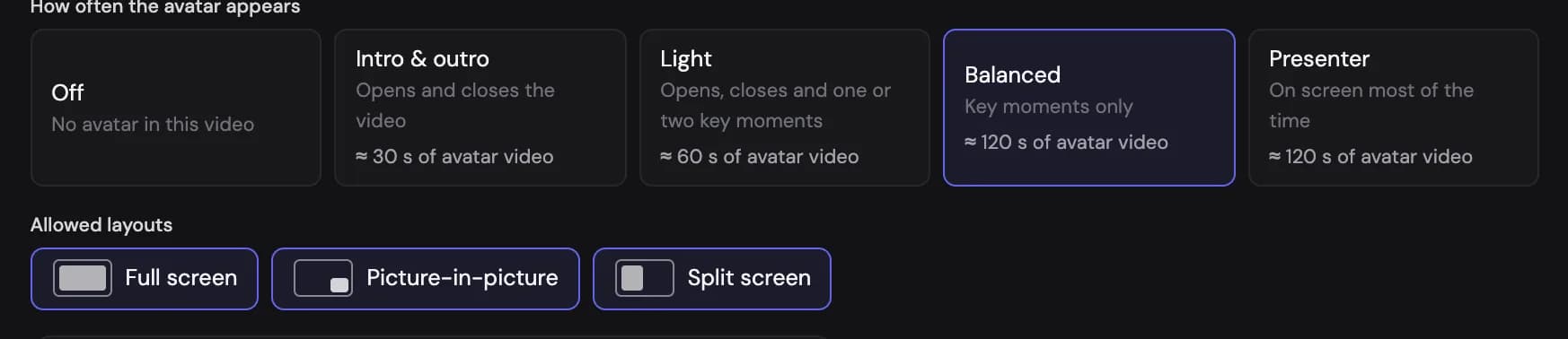
On the create page the AI Avatar card Show me in the app ↗ sits below the narration voice. Pick a presenter from the ready-made ones or your own library Show me in the app ↗, then choose the presence Show me in the app ↗ — how much of the video the presenter should carry:
| Presence | What the plan writer does |
|---|---|
| Off | No presenter in this video |
| Intro & outro | Opens the video to camera and closes it — a few seconds at each end, at most 30 seconds in total |
| Light | Intro and outro plus one or two key moments — roughly 10–18 % of the runtime, at most a minute |
| Balanced | Opens and closes, plus one key moment per chapter — roughly 20–35 % of the runtime |
| Presenter | On screen most of the time, cutting to footage for the visuals — roughly 55–75 % of the runtime |
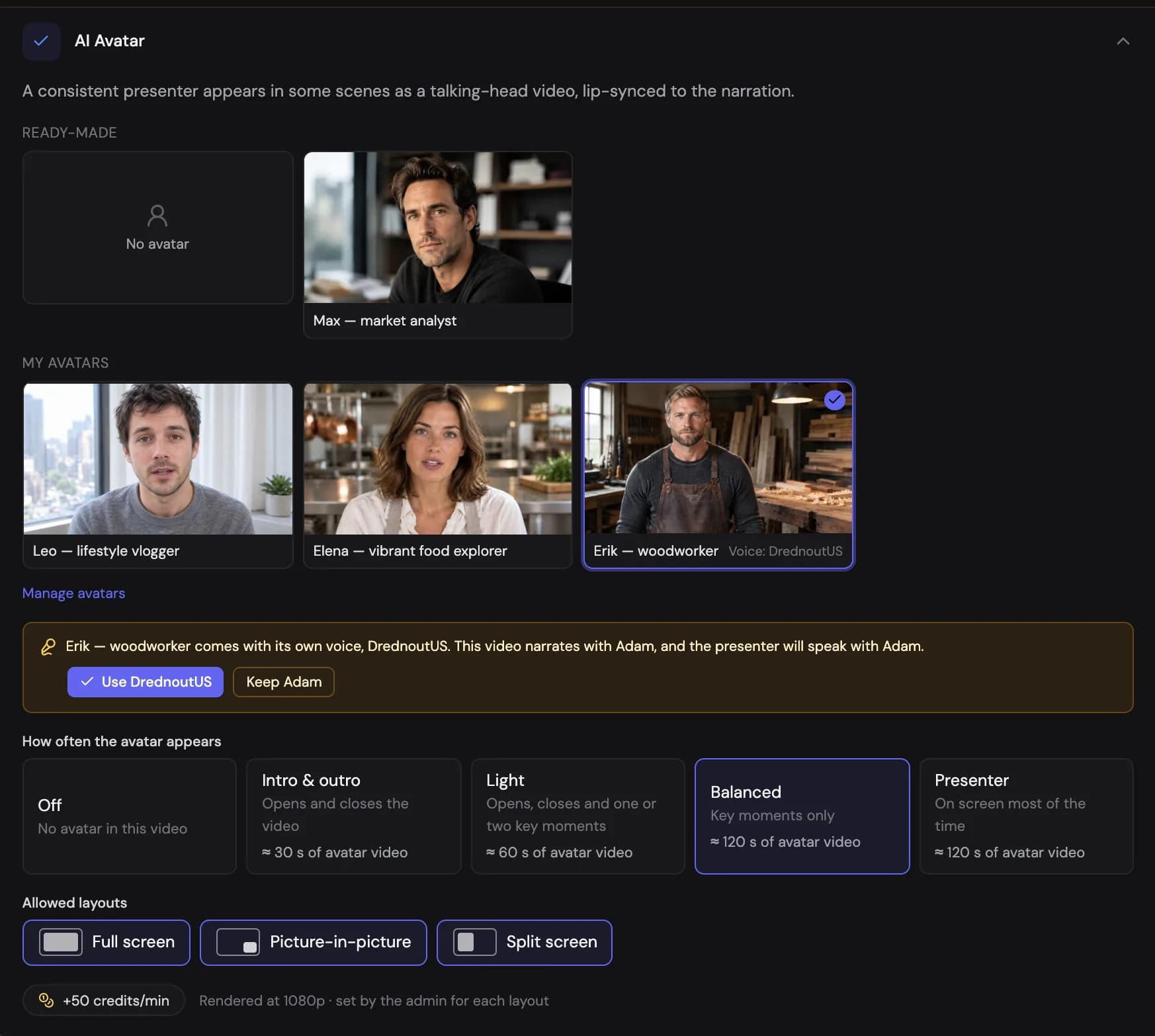
The exact scenes, and whether the presenter is full screen, in a corner or sharing the frame, are decided by the plan writer inside that budget — the same way it decides scene types and footage. The card shows the range of avatar seconds each level produces for your video length, and the number of credits the presenter adds to every minute of the video's price (+N credits/min) — charged only if the presenter's clips are made.
If the avatar has a bound voice, picking it also sets the narration voice — with the settings saved with it, such as Cartesia's speed or a Gemini style. You can choose any other voice for this video. The presenter always speaks with the video's narration voice, so when the avatar has its own voice and the video narrates with another, the card says so: Use the avatar's voice Show me in the app ↗, or Keep the video's voice Show me in the app ↗. An avatar voice that your account cannot use, or an English-only voice on a video in another language, is not applied, and the card says why.
Extra shots
By default the presenter appears only as the looks saved in the library. When extra shots are enabled (an admin switch), the plan writer may also describe a shot for a scene — walking through the server hall, one hand on a rack, looking at the camera — when the moment calls for it. A still of that shot is made from the chosen look before the clip and animated, so it is always the same person in the same wardrobe; other people, brands and readable text are ruled out. Each distinct shot is one AI image, included in the credits per minute the avatar adds to the price, and a shot that cannot be made falls back to the plain look. Shots are kept per video: rerunning the avatar step reuses them.
Layouts
Three layouts exist, and you can switch any of them off for a video Show me in the app ↗:
- Full screen — the presenter fills the frame: the hook, a verdict, the sign-off.
- Picture-in-picture — a small box over footage (bottom-right by default, rounded on landscape, a circle in Shorts), for commentary while the visuals carry the story.
- Split screen — the presenter on one half, footage or an image on the other.
In Shorts the presenter uses split screen (presenter on top, footage below) and the circular corner box, both above the caption band. Full-screen vertical avatars Show me in the app ↗ are switched on separately once they render well.
What it costs
In a video, the presenter is part of the video's price: it adds credits to every minute, shown as AI avatar in the price details on the create page — and it is charged only if the presenter's clips were made. A clip that fails is never charged — the scene shows the presenter's still image instead, and you can redo it. Avatar takes in Avatar Studio and in the editor are charged on their own, per second of video, as described below.
Your avatars
The Avatars page Show me in the app ↗ holds your presenters. Each avatar is a person; each look is a shot of that person — an outfit and a place, a framing (close-up, medium, waist-up, knee-up with a table in front, or full body standing), an angle and an aspect — so every video can vary the shots.
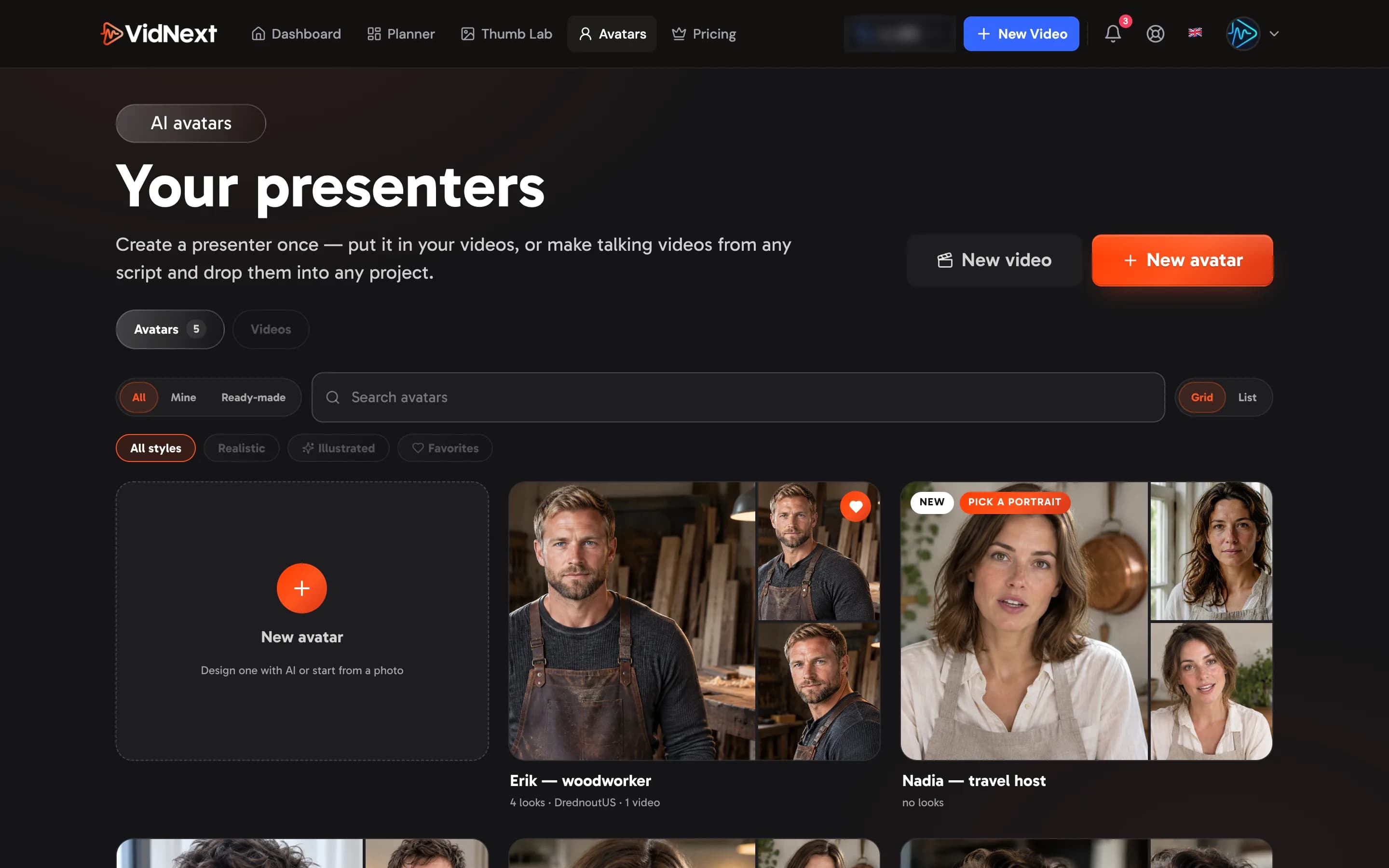
The Avatars tab Show me in the app ↗ shows every avatar you can use as a card Show me in the app ↗: the main look big and two more beside it (a look still being made shows a spinner, one that failed a cross), the name, how many looks it has and its voice. Hover a card to play the main look's preview clip. Switch between All, Mine, Ready-made and Team Show me in the app ↗, search by name Show me in the app ↗, filter by Realistic, Illustrated or Favorites Show me in the app ↗, and show the avatars as a grid or a list Show me in the app ↗. The heart on a card Show me in the app ↗ adds the avatar to your favorites — favorites come first in the grid (then your own avatars, your team's and the ready-made ones) and when you pick a presenter for an avatar video. Click a card Show me in the app ↗ or its name to open the avatar.
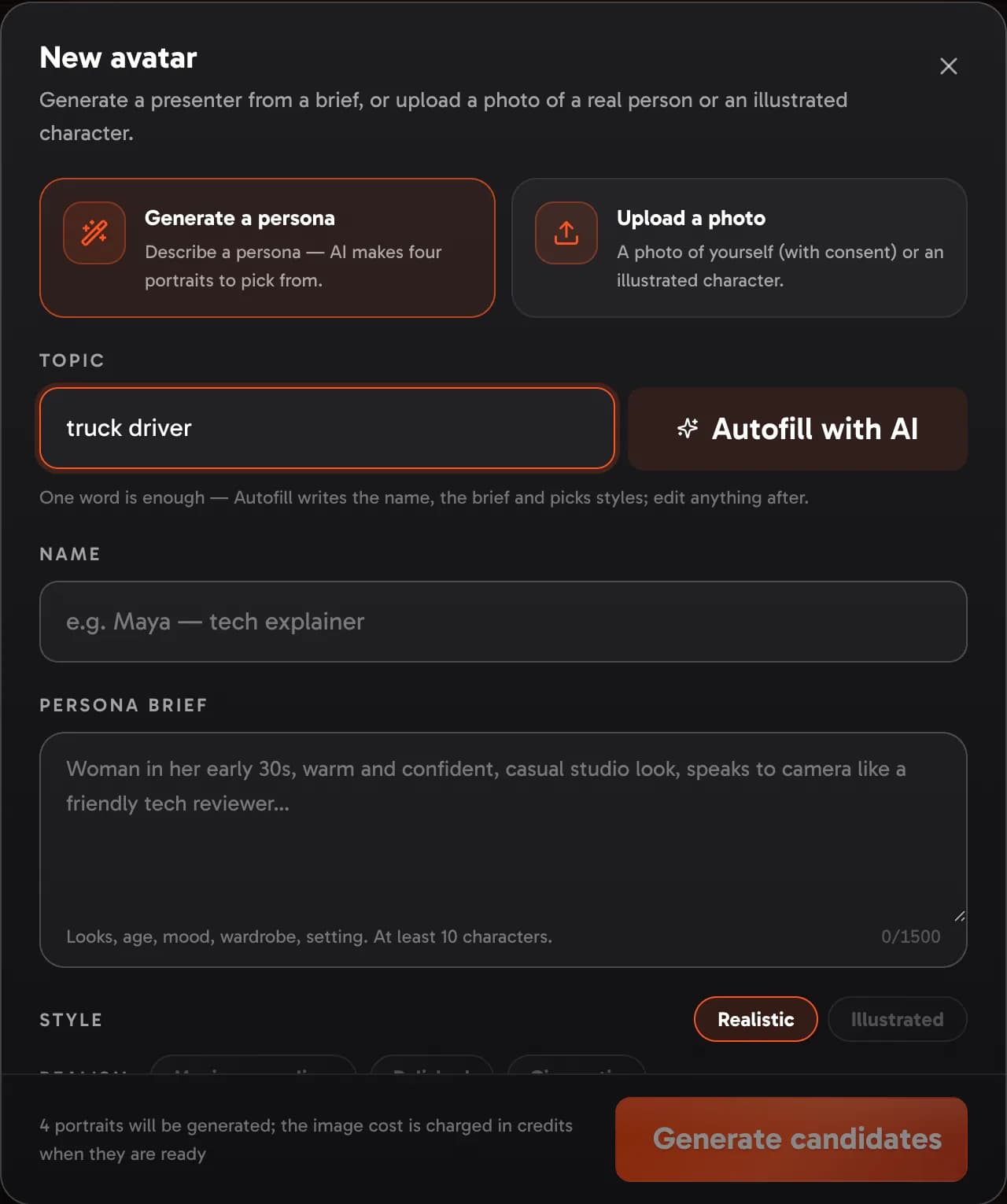
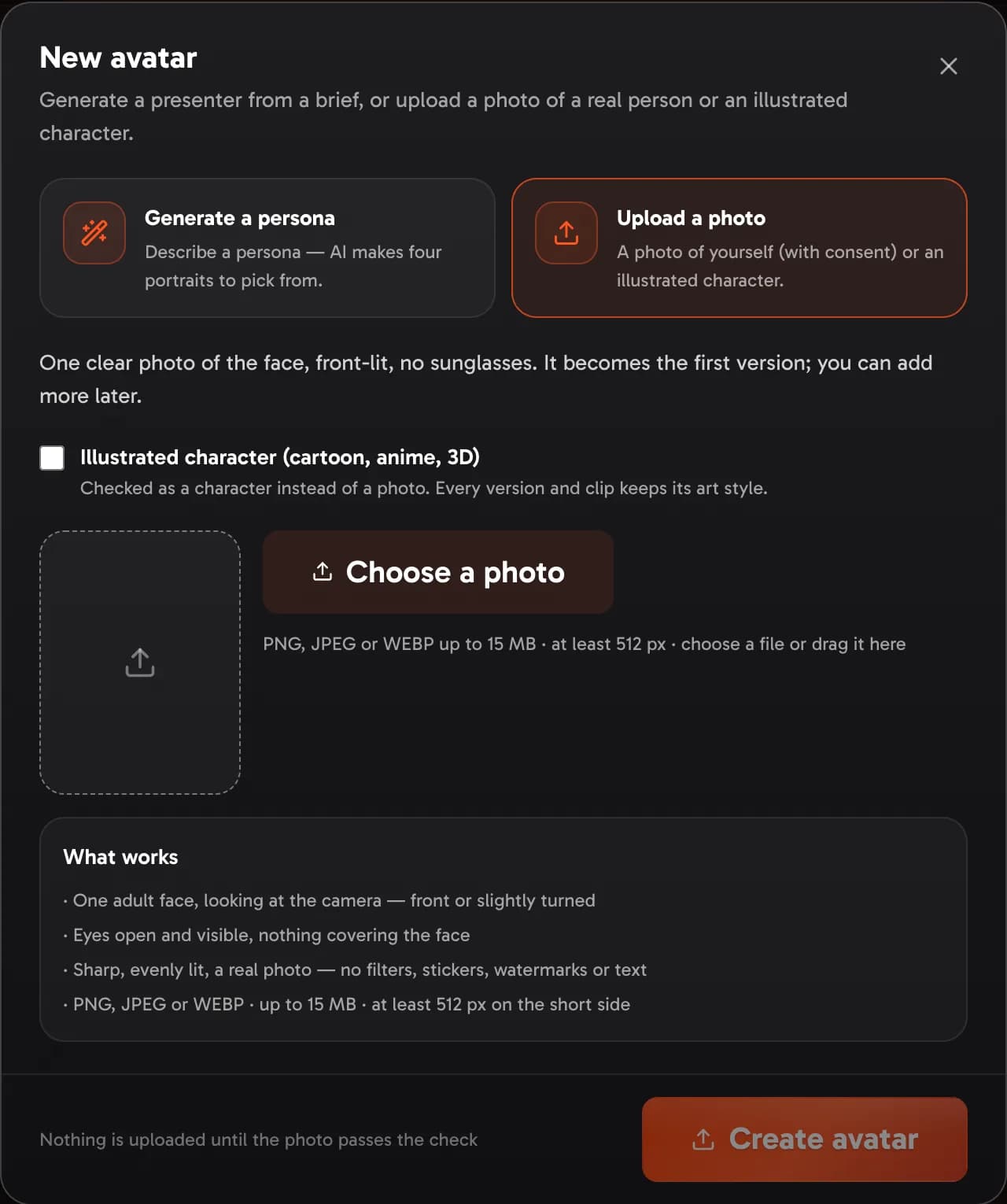
New avatar Show me in the app ↗ offers two ways to start:
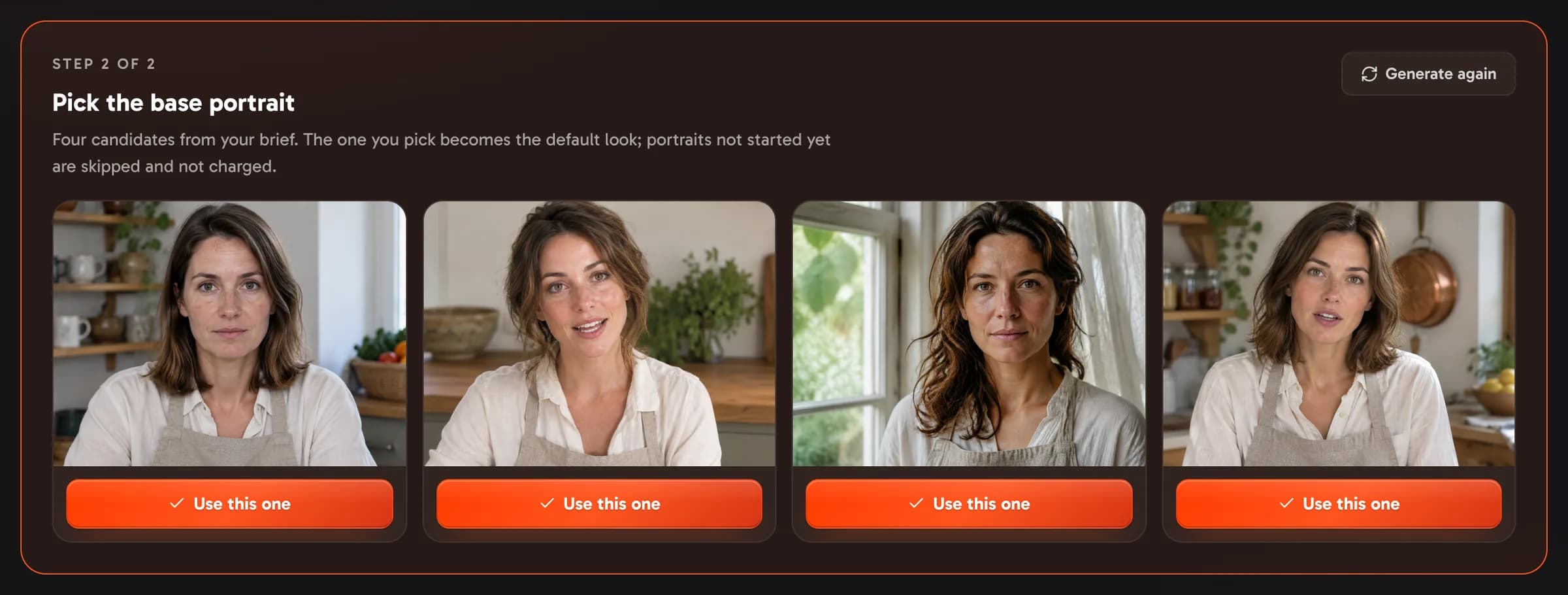
- Generate a persona: type a topic — one word such as teacher, truck driver or crypto vlogger is enough Show me in the app ↗ — and press Autofill with AI Show me in the app ↗; it writes the name and the brief in your language and picks styles, all editable. Or write the brief yourself Show me in the app ↗: looks, age, mood, wardrobe, setting. Choose Realistic or Illustrated Show me in the app ↗, then a Style Show me in the app ↗ — for a realistic presenter a realism level (Maximum realism, Polished, Cinematic), for an illustrated one an art style (3D animated, Anime, 2D cartoon), plus a look (Studio actor, Model, Documentary host, Vlogger, Corporate, Casual, Studio); the choice steers every portrait, look and shot of that presenter. Four candidate portraits are made, and each tile shows its status — waiting, generating, ready, or failed (not charged) — also after you reload the page. Pick the base one Show me in the app ↗ as soon as you like it: portraits not started yet are skipped and not charged, and one that is still rendering is finished and offered under Finished after you picked Show me in the app ↗ — Add as a look keeps it.
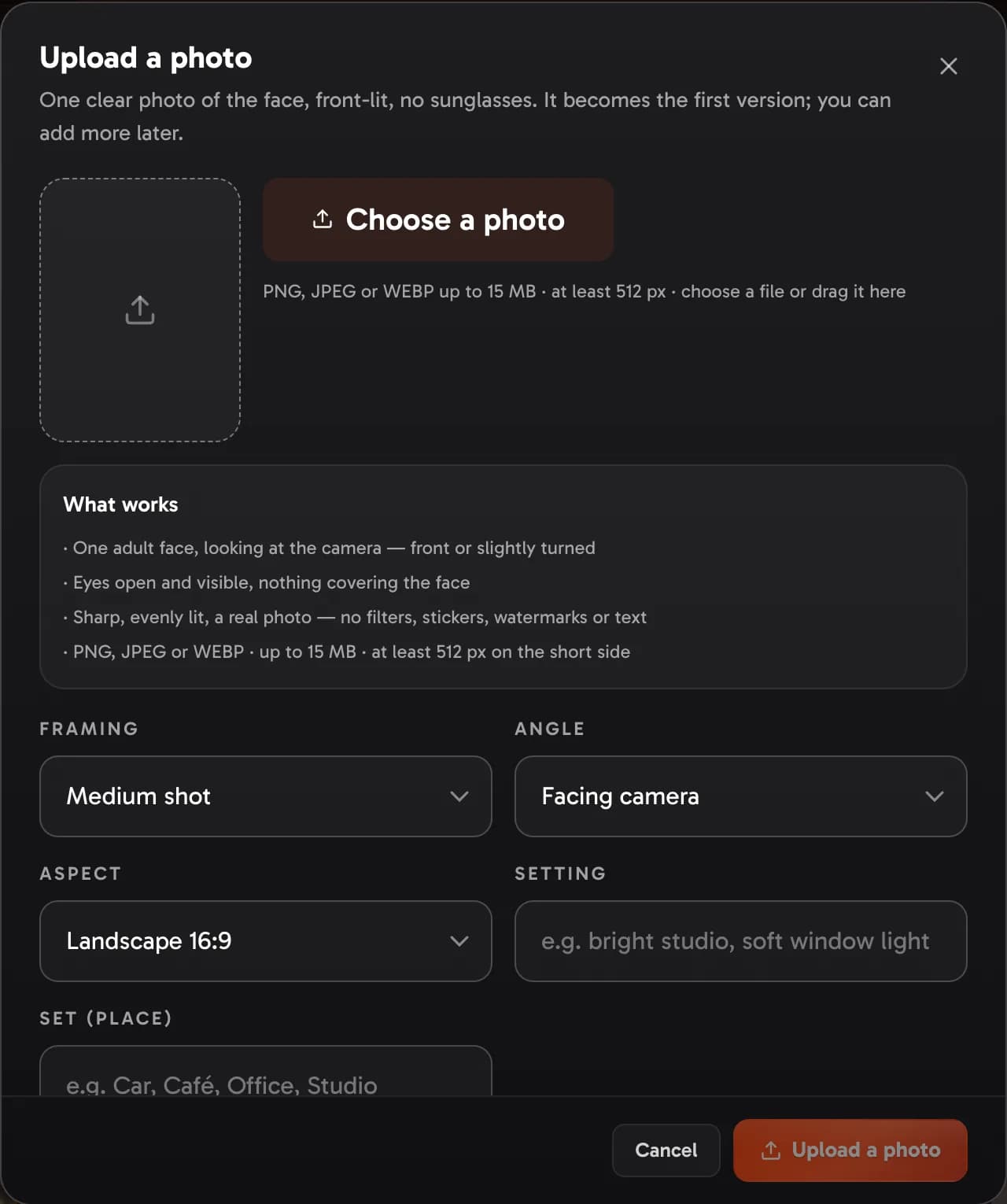
- Upload a photo Show me in the app ↗ (when enabled for your account): choose a photo Show me in the app ↗, or drag it onto the picture, and it is checked on the spot — the card under it Show me in the app ↗ says whether the photo works and, if not, what to fix. What passes: one adult face looking at the camera (front or slightly turned), eyes open and visible, nothing covering the face, sharp and evenly lit, a real photo without filters, stickers, watermarks or text, not a public figure; PNG, JPEG or WEBP up to 15 MB, at least 512 px on the short side. A photo with a transparent background is placed on a plain studio backdrop — for a real place, edit the look afterwards. Nothing is uploaded until a photo passes, and uploads require the likeness attestation below.
- Upload an illustrated character: in Upload a photo, turn on Illustrated character Show me in the app ↗ to use a cartoon, anime or 3D character instead of a photo. The check then looks for one character facing the viewer with the eyes and mouth visible; a real photo, an existing character from a film, series, game, comic or brand, or a caricature of a real person is declined. Characters come with their own attestation (below).
An avatar's page
An avatar's page Show me in the app ↗ has ← back Show me in the app ↗ to the grid, the name with a pencil to rename it Show me in the app ↗, the voice button Show me in the app ↗, the heart Show me in the app ↗ and New video Show me in the app ↗ (see Avatar videos). Its tabs are Looks Show me in the app ↗, Videos Show me in the app ↗ — the avatar videos made with this avatar — and, for your own avatars, Settings Show me in the app ↗.
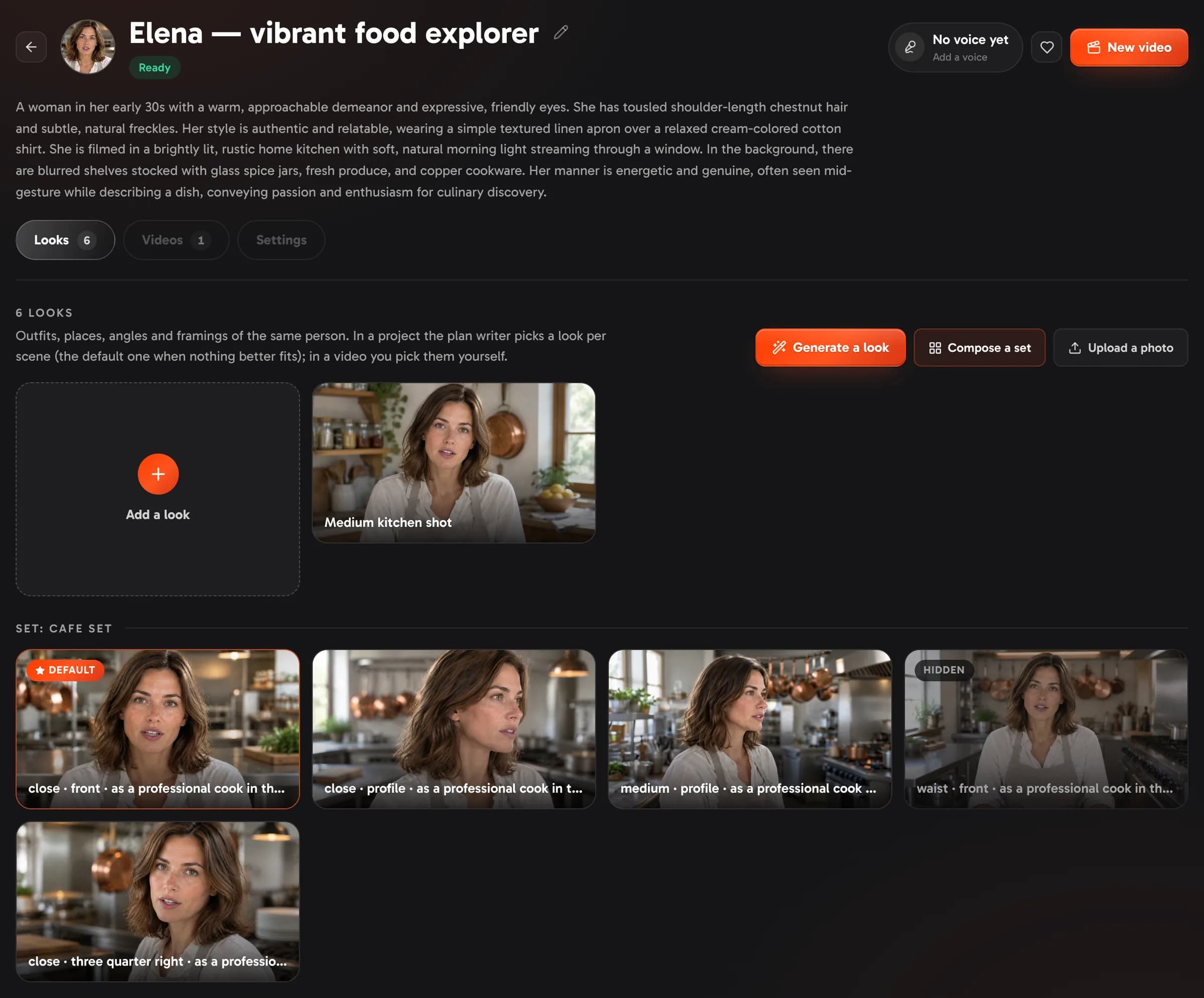
Looks Show me in the app ↗ are shown at their own shape; hover one to play its preview clip and to see its buttons. You can:
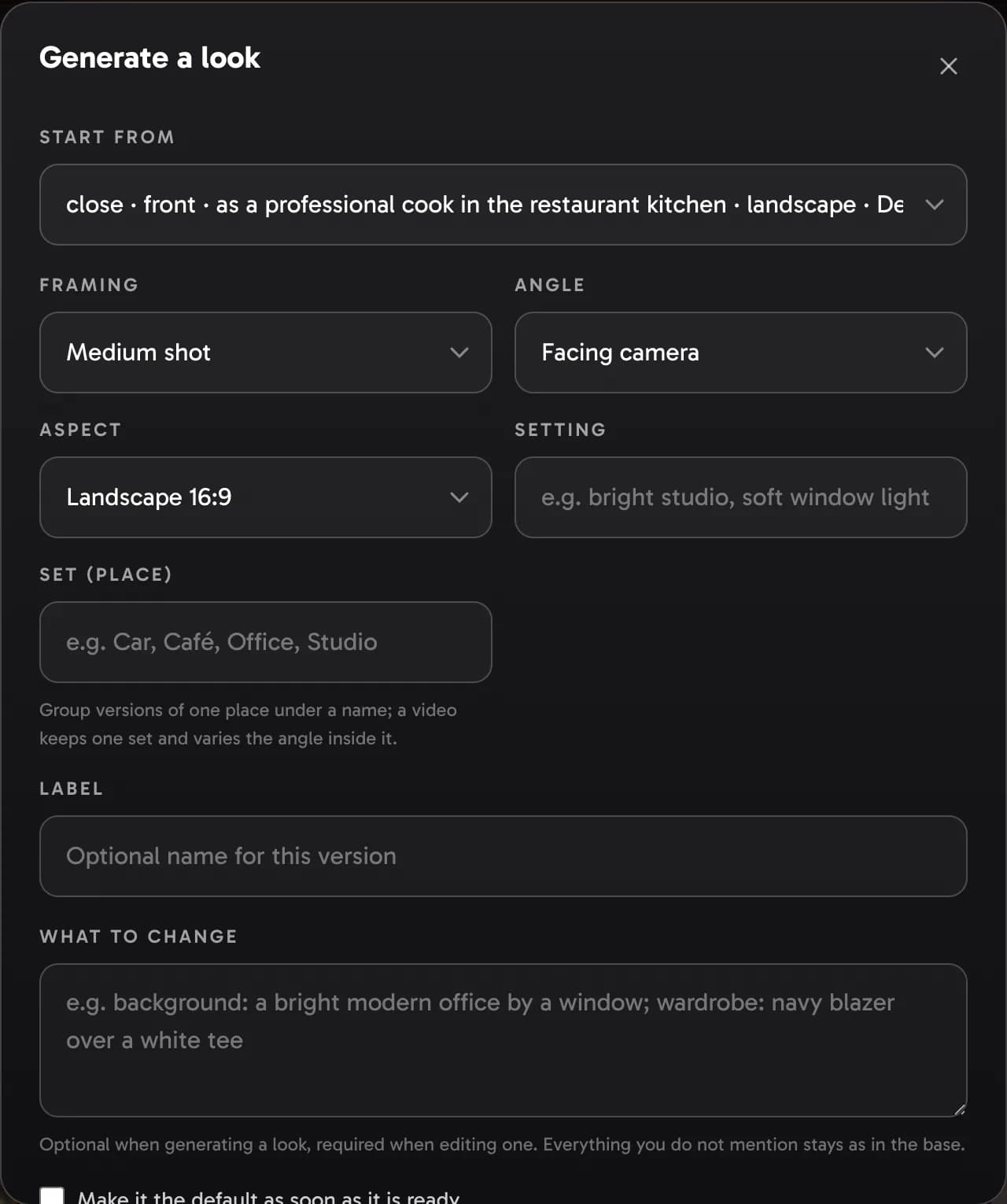
- Generate a look Show me in the app ↗ — a new angle, framing or setting made from an existing look (the result is checked against the framing and angle you asked for and redone once if the picture kept the old crop — the redo is free). The sheet shows what a look costs: its image plus writing its prompt and checking its framing;
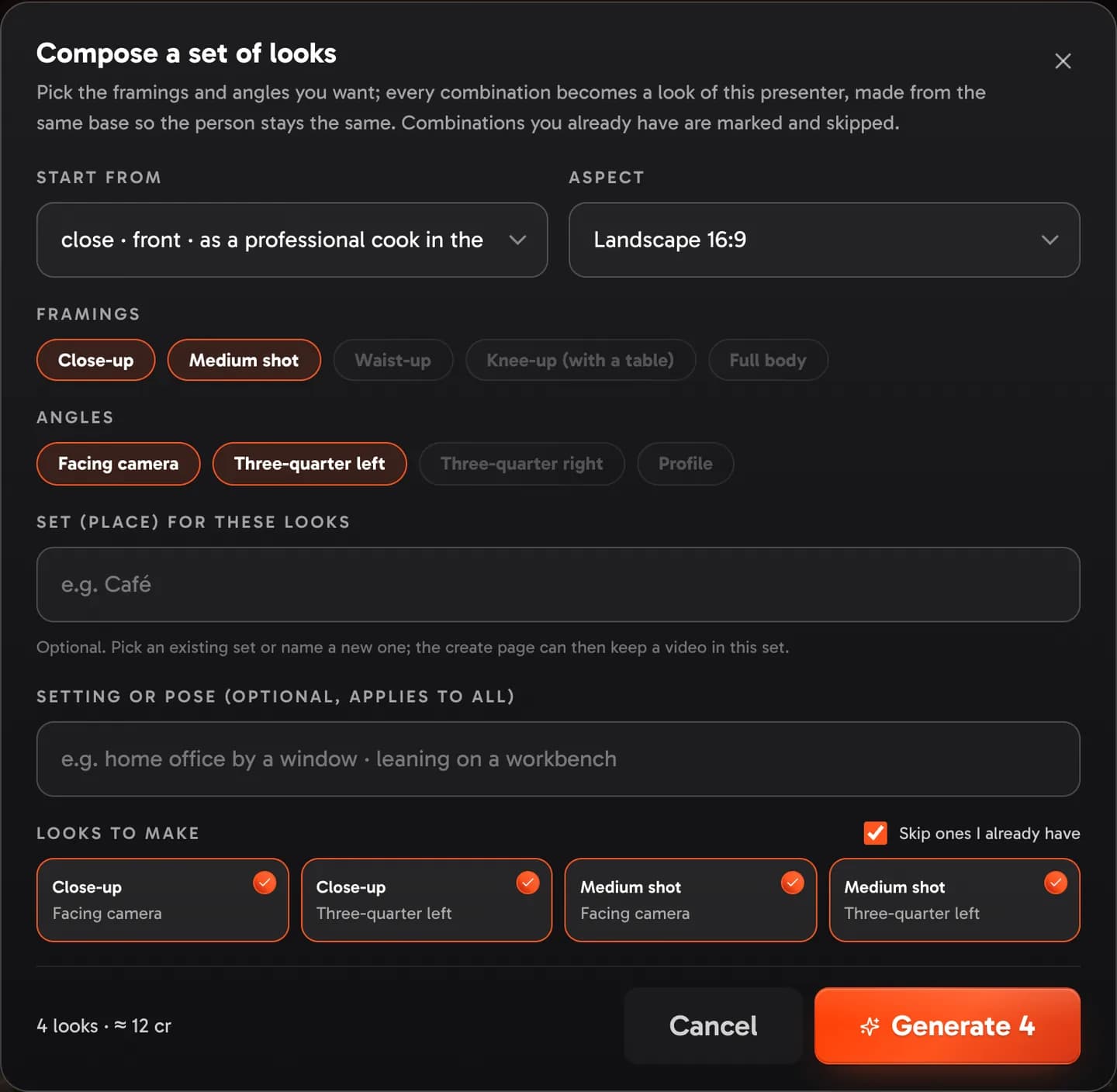
- Compose a set Show me in the app ↗ — tick several framings and angles, add a setting or pose if you like, and every combination is made at once from the same base (ones you already have are skipped); the sheet adds up the price of the looks it will make;
- Upload a photo Show me in the app ↗ as another look, checked the same way as soon as you choose it Show me in the app ↗;
- edit a look from its ⋯ menu — say what should change (the background, the setting, the wardrobe, a pose) and a new still is made from it with everything else kept, optionally becoming the main look at once so later looks start from it Show me in the app ↗;
- make a look the main one (the star), hide one from new videos, delete it, or start a New video with this look;
- make a five-second preview clip Show me in the app ↗ to hear and see the presenter talk. Each look shows its own preview progress, which carries on if you reload the page or start previews on other looks; a preview that fails says so on its tile and is not charged.
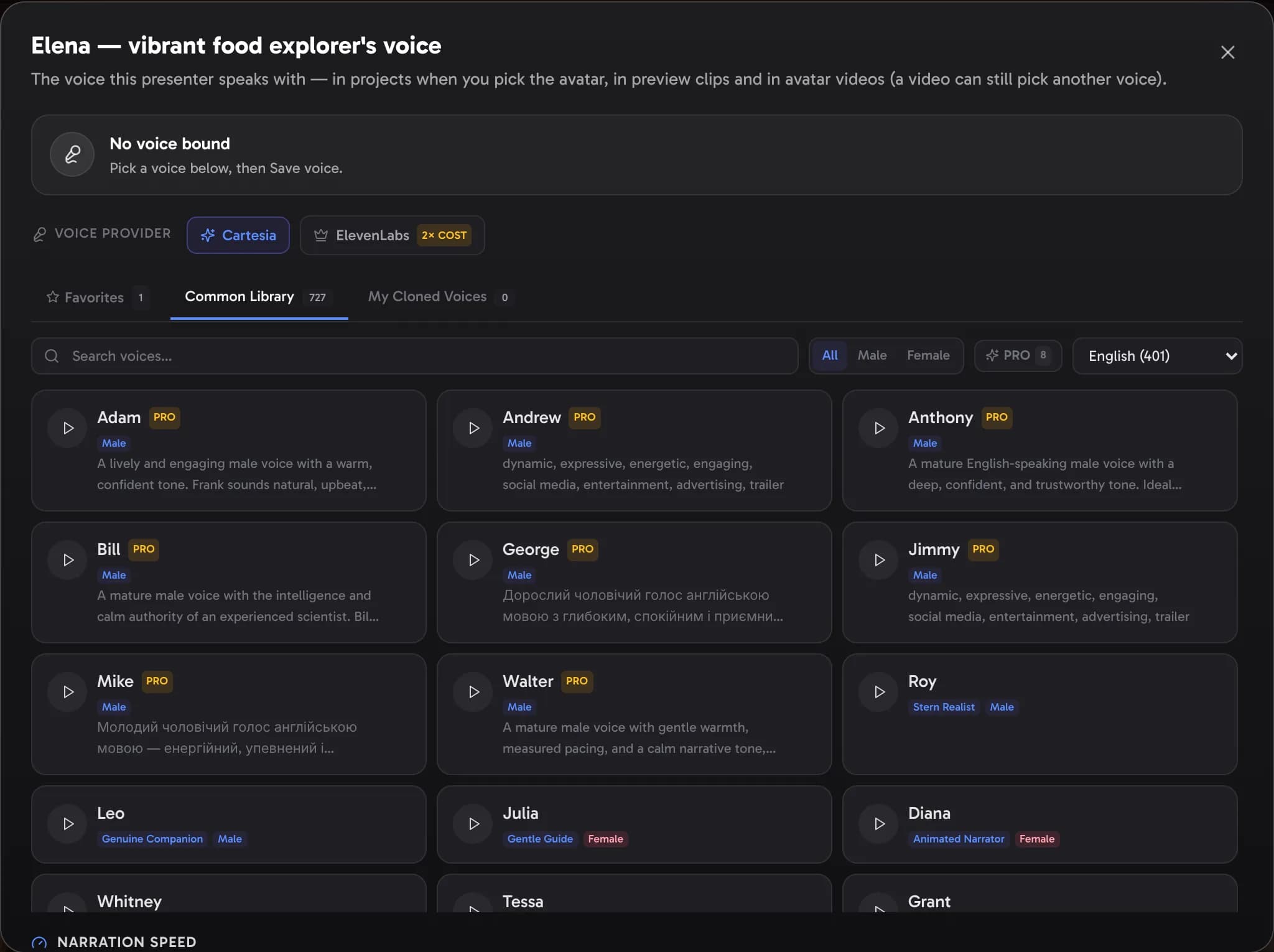
The voice button opens the avatar's voice window: the same voice picker as the voice step on the create page, with the providers available to your account, your favourites and your cloned voices. Pick a voice, set its options (Cartesia's speed; Gemini's style, pace and audio tags; Fish Audio's audio tags) and Save voice Show me in the app ↗; Remove voice Show me in the app ↗ unbinds it. The create page applies the voice and its settings when you pick the avatar, preview clips speak with it, and so do avatar videos unless a video picks another voice — make a new preview after changing the voice.
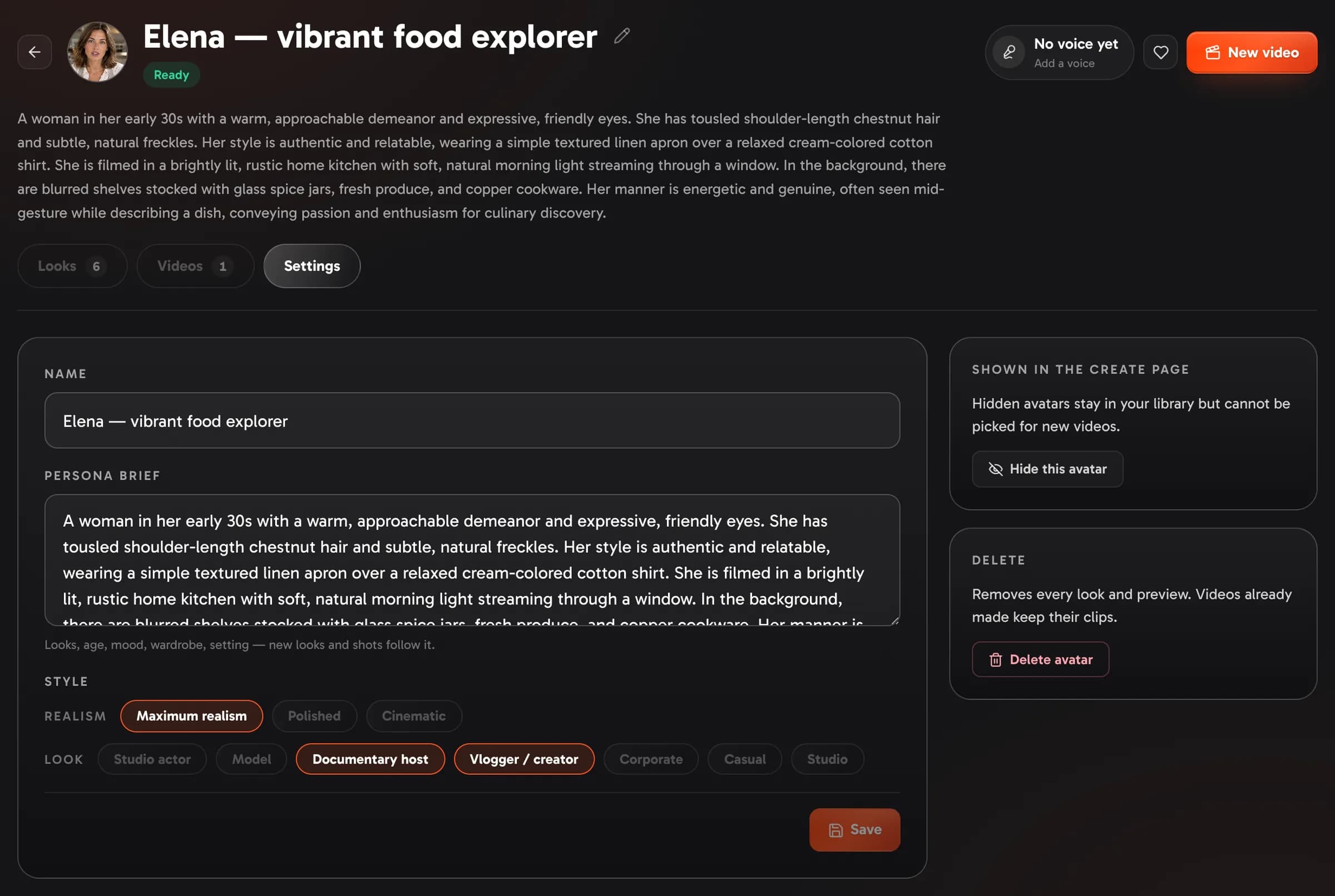
In Settings you can change the name, the brief and the style, hide the avatar from new videos Show me in the app ↗ or delete it Show me in the app ↗. Videos already made keep their clips.
Sets. Give looks a set name — Car, Café, Office, Studio Show me in the app ↗ — and they group under it on the Looks tab. A set is one place or look with several framings and angles inside it; Compose a set fills one in a single go. On the create page, an avatar with named sets shows a Set chooser Show me in the app ↗: pick the place for this video and the presenter stays there from scene to scene while the angle varies, or leave it to the plan writer, which then picks one set that fits the topic and sticks to it. The choice is saved in presets.
Illustrated presenters. An avatar generated with an art style, or uploaded as an illustrated character, stays illustrated everywhere: every candidate, look, extra shot and clip keeps its art style and is never turned into a photo.
Ready-made avatars are provided by VidNext and cannot be edited.
If your team owner shares music and avatars, their avatars appear under Team on the Avatars page and in a Team group of the create page's avatar picker. You can use them in your videos and avatar videos but not change them, and you need AI avatars turned on for your own account to use them (see Teams).
Avatar videos
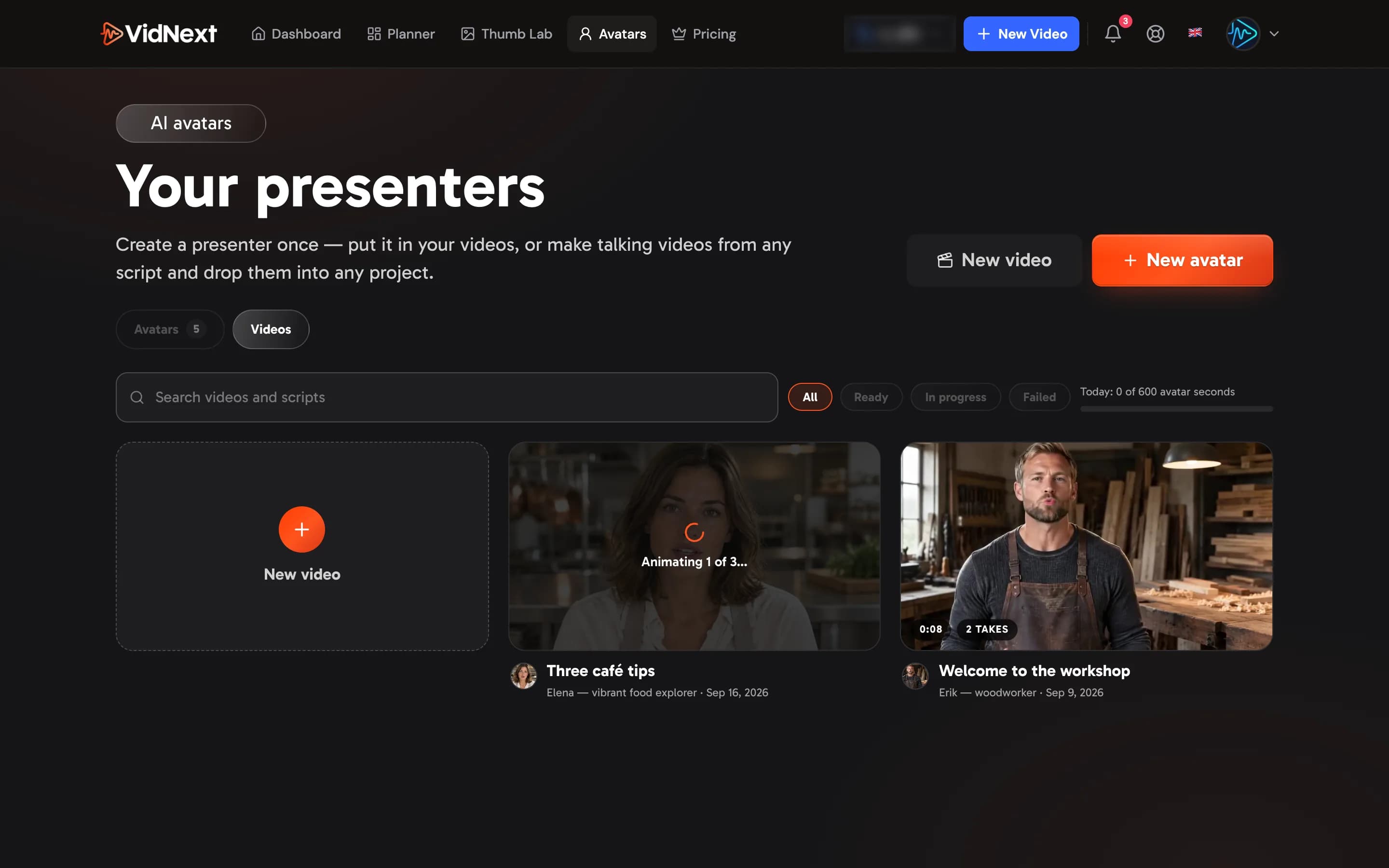
An avatar video is a talking video of one of your avatars saying a script you write — a greeting, an ad, a lesson, a comment to drop into a project. It has the voice in it: download it, or drag it into any project in the editor. Avatar videos are on the Videos tab Show me in the app ↗ of the Avatars page (when available for your account); start one with New video Show me in the app ↗, from an avatar's page, or from a look's menu. A video is kept once it has a title, a script, your recording or a take — one you open and leave empty is not listed, and the next New video with that avatar picks it up again.
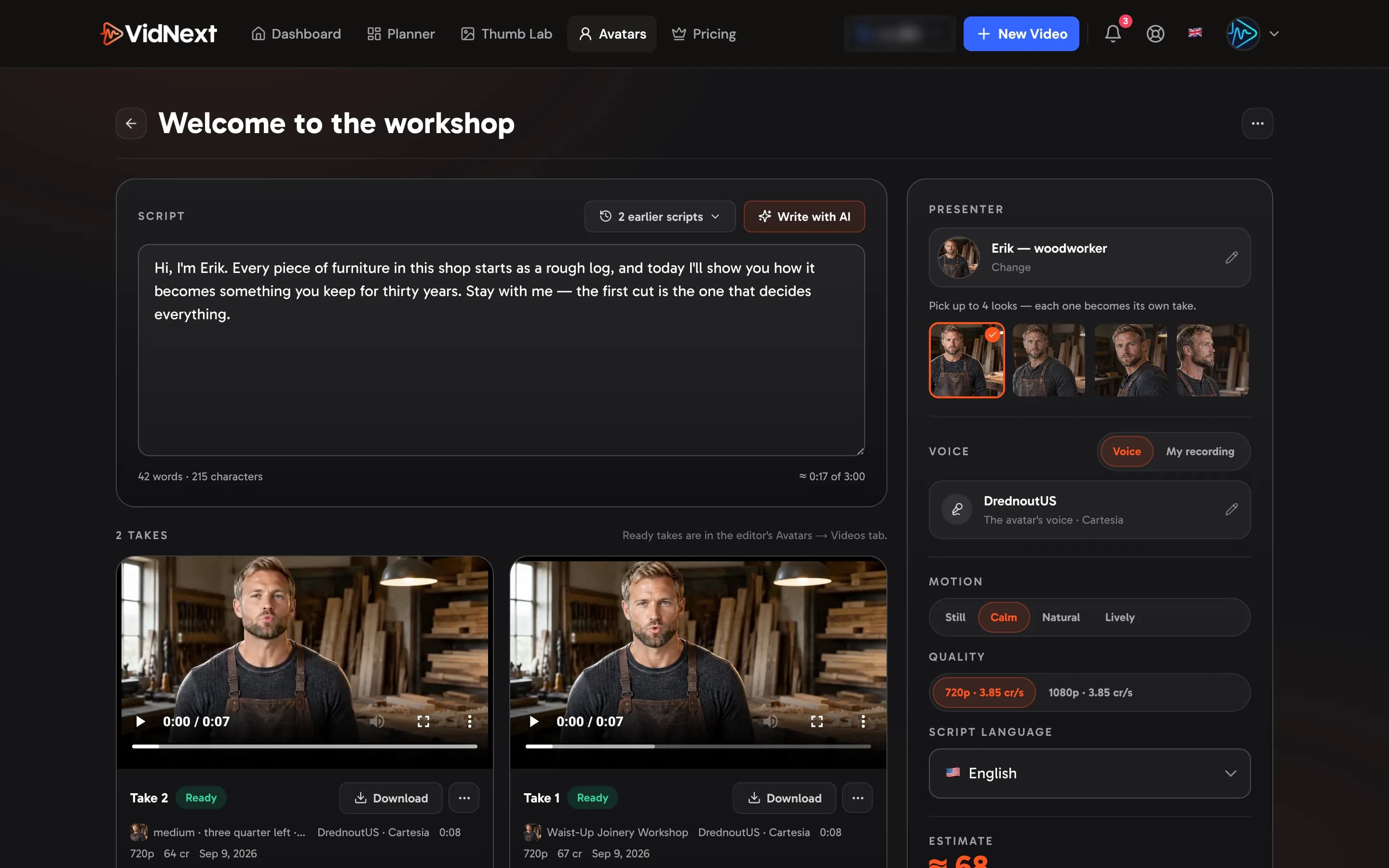
On a video's page:
- Presenter Show me in the app ↗ — the avatar that speaks. Under it, pick the look Show me in the app ↗; pick up to four and each becomes its own take, all speaking the same voice track, so you can compare looks side by side.
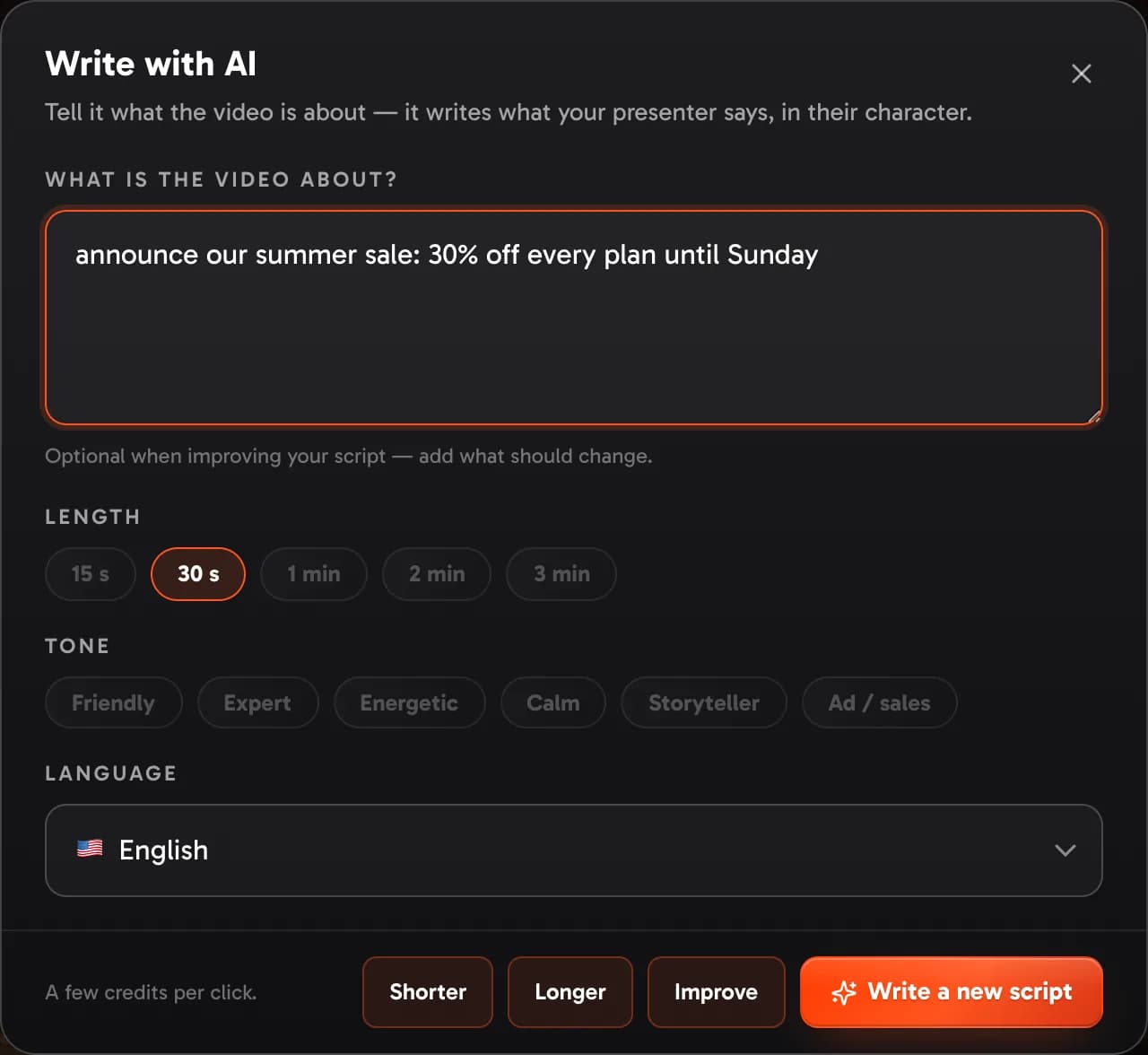
- Script Show me in the app ↗ — what the presenter says, as plain spoken text. Write with AI Show me in the app ↗ writes it from a sentence about the video Show me in the app ↗, a length, a tone and a language — in the presenter's character Show me in the app ↗ — and with a script already written it can Improve Show me in the app ↗ it or make it shorter or longer (a few credits per click). The title and the script save as you type, and earlier scripts Show me in the app ↗ keeps every script a take was made from, to restore.
- Voice Show me in the app ↗ — the avatar's own voice by default. Pick another voice for this video only (the avatar keeps its own) and Use for this video Show me in the app ↗. Or switch to My recording Show me in the app ↗ and choose an audio file from your library or upload one Show me in the app ↗ — the presenter lip-syncs to your recording and no voice is generated Show me in the app ↗.
- Motion Show me in the app ↗ (Still, Calm, Natural, Lively), Quality Show me in the app ↗ with its credits per second, and the script language Show me in the app ↗.
- The estimate Show me in the app ↗ — the length and the credits — then Generate video Show me in the app ↗.
Every Generate makes a new take Show me in the app ↗ and keeps the earlier ones; takes are numbered in order — Take 1, Take 2 — and keep their number when you delete others. A take shows its progress — making the voice, animating the avatar (a long script is animated in parts and joined), putting it together — and you can leave the page meanwhile. A finished take plays on the page and downloads as the video with voice, the video without sound, or the voice only; it is also in the editor's Avatars → Videos tab and in your Assets, named after the video — from the second take on with its number, like Welcome to the workshop (2). Use this script brings a take's script back into the editor box. Deleting a take also deletes its file, unless a project uses it — then the file stays in your Assets.
What it costs. A take is charged once, when it is ready: the seconds of avatar video at the rate shown under Quality, plus the voice by the character (nothing for your own recording). The estimate before you generate is the most it can cost. A take that fails or that you stop is never charged. Avatar videos count toward the same daily avatar seconds as avatars in projects; the Videos tab shows how many you have used today.
In the editor
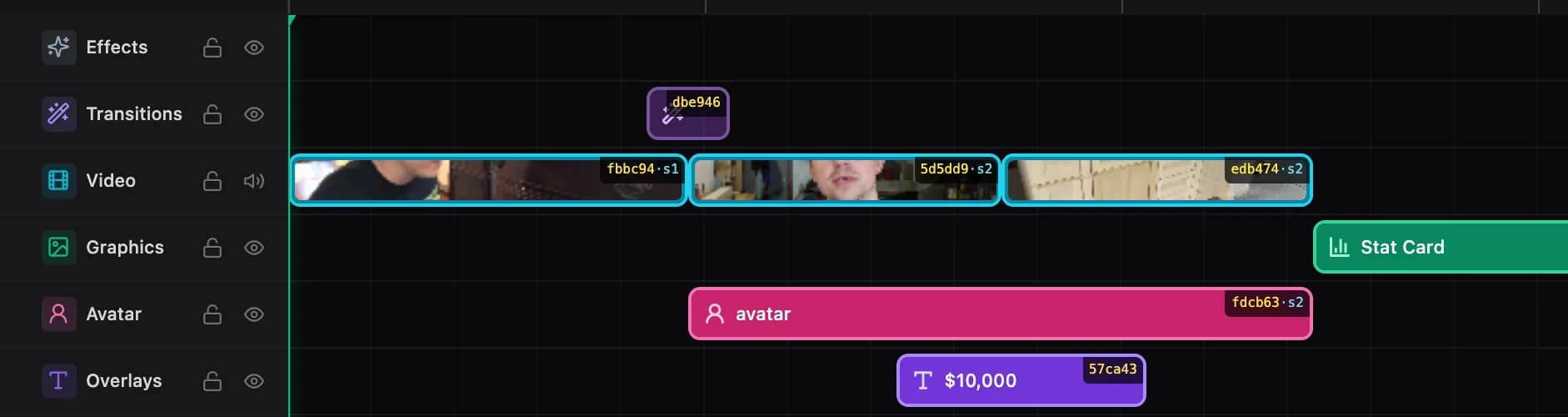
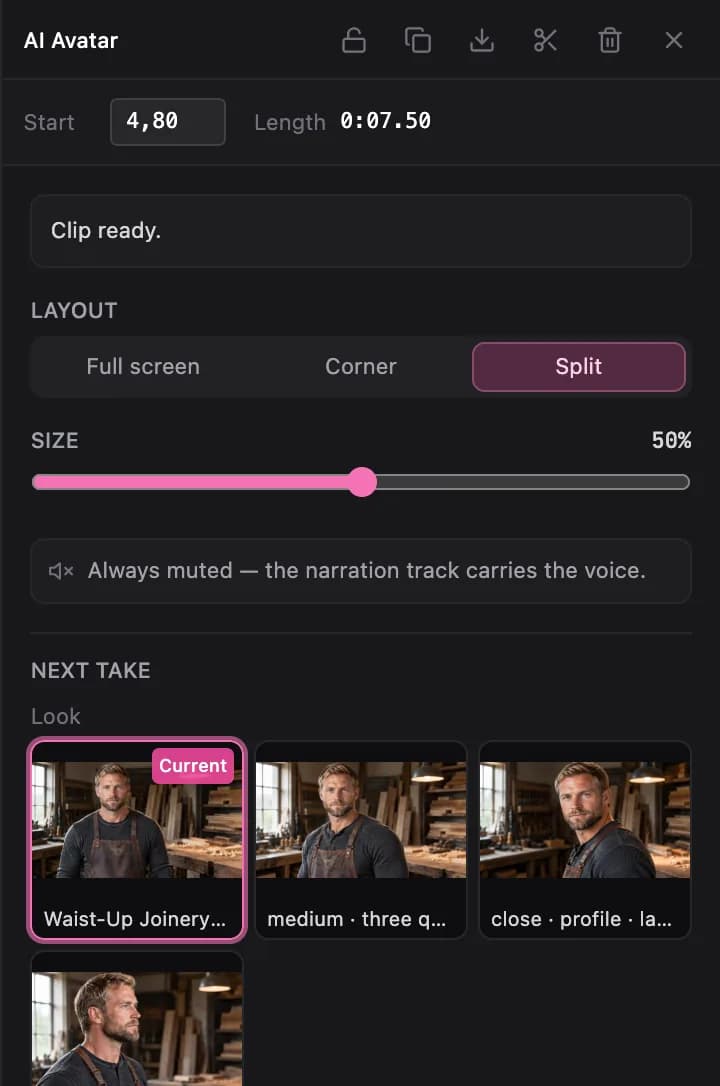
Avatar scenes live on their own Avatar track Show me in the app ↗, between Graphics and Overlays. Select an element to change its layout, corner, size and shape Show me in the app ↗; those apply instantly. A presenter made for the video is always muted — the narration track carries the voice, so the lips stay in sync with what you hear. A corner window is never part of a scene transition: it fades out just before the cut and fades back in once the transition has ended, while a full-screen or split presenter carries through the transition. A full-screen presenter can carry a slow zoom Show me in the app ↗ — a steady push-in or pull-out over the scene so the shot does not feel frozen; the default for new videos is set by the admin, and each scene can be changed here.
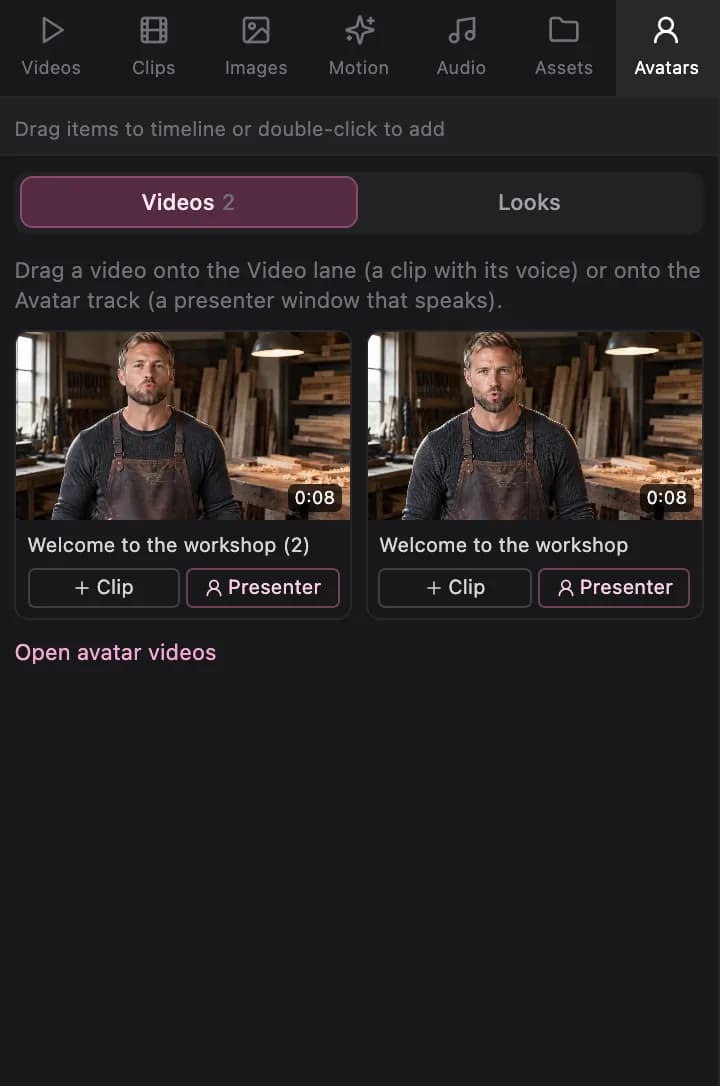
The Avatars tab of the library Show me in the app ↗ has two parts.
Videos Show me in the app ↗ lists your avatar videos. Drag one onto the Video lane and it becomes a normal clip that plays with its own voice; drag it onto the Avatar track and it becomes a presenter window — corner, split or full screen — that speaks. Clip and Presenter add it at the playhead instead (Presenter creates the Avatar track if the video has none). Nothing is generated or charged. Its voice plays over whatever else is on the timeline, so lower or cut the narration under it; on the Avatar track, the element's Voice switch and volume Show me in the app ↗ turn it down or off.
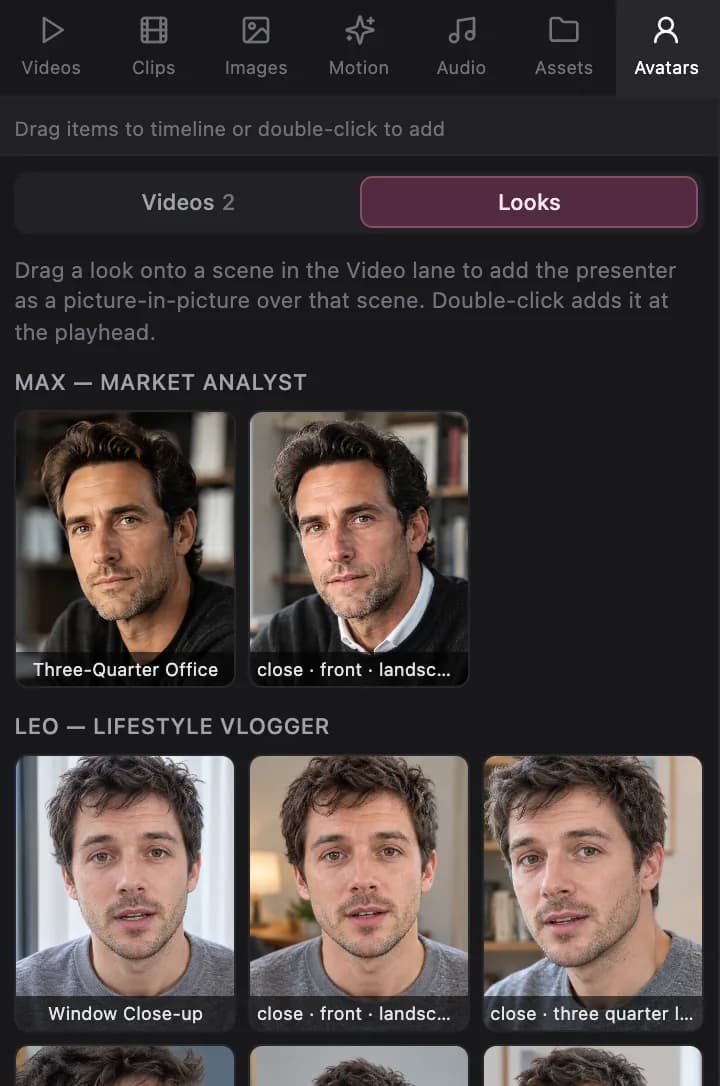
Looks adds a presenter made for a scene: drag a look onto a scene in the Video lane; it lands as a corner box over that scene and the clip is generated in the background (usually one to five minutes), lip-synced to that scene's narration. When a drop cannot add a presenter — no scene under it, not enough credits, or a video made without an avatar — the editor says why. An avatar clip on the timeline moves along the Avatar track, never onto the Video lane, and stays lip-synced to its own scene's narration.
A scene whose clip could not be generated still has its element on the Avatar track, showing the presenter's still image exactly as the finished video does. Select it and press Generate the presenter clip Show me in the app ↗: the clip is made with the look the plan chose and replaces the still in that same element when ready; the cost is shown on the button and charged only when the clip succeeds.
The Motion buttons Show me in the app ↗ set how much the presenter moves in the next take — Still (only the face), Calm (a level head, no gestures), Natural (gentle nods, an occasional small gesture) or Lively (animated, hand gestures). On a presenter model that has an energy setting, the choice sets that too: Still and Calm run at the lowest energy, Natural in the middle, Lively at the highest. The default for new videos is set by the admin; a motion prompt of your own replaces the automatic one.
Regenerate Show me in the app ↗ makes another take — with a different look or a new motion prompt if you like. The looks are shown as stills under Next take Show me in the app ↗: the one playing now is marked Current; tap another to use it for the next take (other avatars sit behind a fold). The cost is shown on the button and charged only when the new clip succeeds. Until the new take lands, the timeline and any export keep the previous one; the new clip then replaces it in place, even if you have moved on to other elements in the meantime. An avatar video on the Avatar track has no takes to regenerate — make a new take on its page instead.
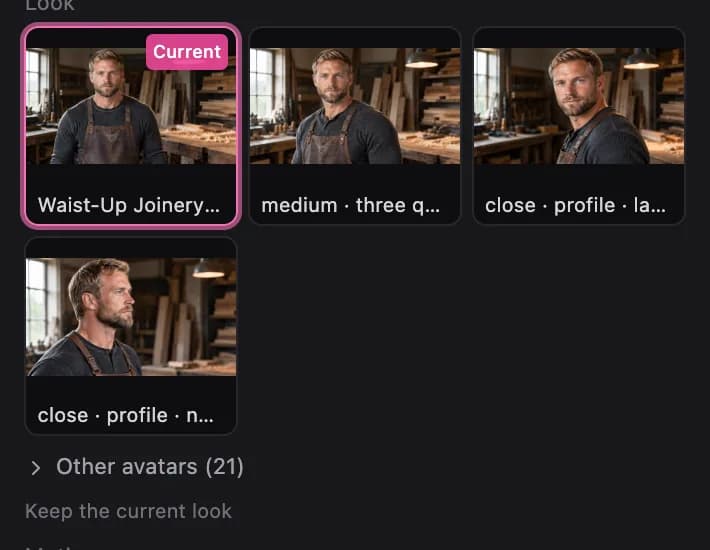
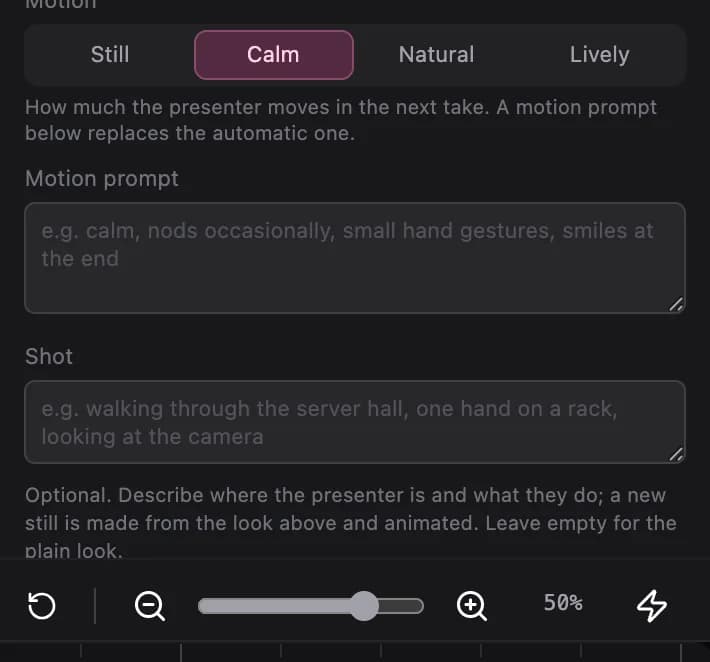
When extra shots are enabled, the Shot box Show me in the app ↗ shows the shot this scene animates; edit it for a new still (its image price is shown under the box) or clear it to go back to the plain look. A scene that animates a shot also offers Save shot to library Show me in the app ↗, which turns that still into a regular look of the avatar for future videos.
Regenerating from the project page
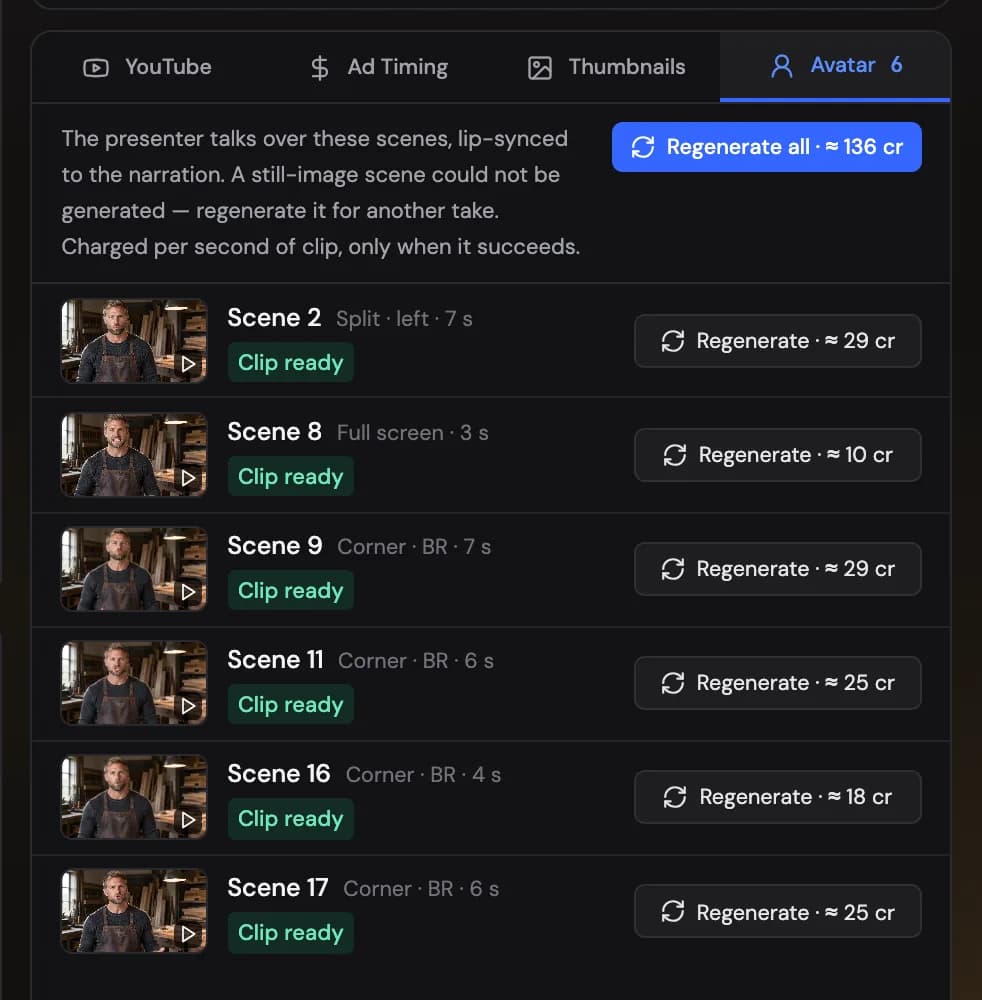
On the project page, the Avatar tab Show me in the app ↗ in the right sidebar, after Thumbnails, lists every avatar scene with its status Show me in the app ↗: clip ready, generating, or still image when a clip could not be made. The tab shows how many avatar scenes the video has, a spinner while a clip is generating and an amber dot when some scenes show the still image. Regenerate one scene Show me in the app ↗ or all of them Show me in the app ↗; each button shows its credit cost, charged only for clips that succeed. Click a scene's picture to open its clip. When a finished video has scenes on the still image, a notice above the player Show me in the app ↗ offers Redo avatars, which regenerates only the scenes that need it and keeps everything else.
Limits
- Uploaded photos: PNG, JPEG or WEBP up to 15 MB, at least 512 px on the short side, one adult face looking at the camera (or, as an illustrated character, one character facing the viewer). A transparent background is replaced with a plain studio backdrop.
- Avatar video is not available for music videos.
- One presenter per video; scenes with interview or news footage never carry the avatar.
- Per-video and per-day caps on avatar seconds apply; the plan writer trims the presence to fit, corner boxes first.
- Extra shots are capped per video; identical wording counts once, and any beyond the cap use the plain look.
- Avatar videos: up to the length shown on the video's page (the script counter shows how long yours runs); a long script is animated in parts at natural pauses and joined.
- Generation takes real time — roughly 10–30 seconds of processing per second of clip — so a video with an avatar finishes later than one without.
- Most models have no motion dial: how much the presenter moves is steered by the prompt, so takes differ. Models with an energy setting follow the Motion choice directly. If one take moves too much, regenerate it with Still or Calm.
Consent
Uploading a photo means attesting that Show me in the app ↗:
- it is your own likeness, or you have written permission from the person shown;
- the person is an adult;
- the person is not a public figure, and the avatar will not be used to impersonate anyone.
Uploading an illustrated character means attesting that:
- you created the character, or you hold the rights to use it;
- it is not a character from a film, series, game, comic or brand;
- it does not show or caricature a real person.
A photo that fails the check is declined before anything is uploaded, with the reasons and tips shown in the window. Avatars found to breach this policy are removed.