DocsAccount
Storage
See what your projects take up, clean up finished videos' working files, and delete projects in bulk.
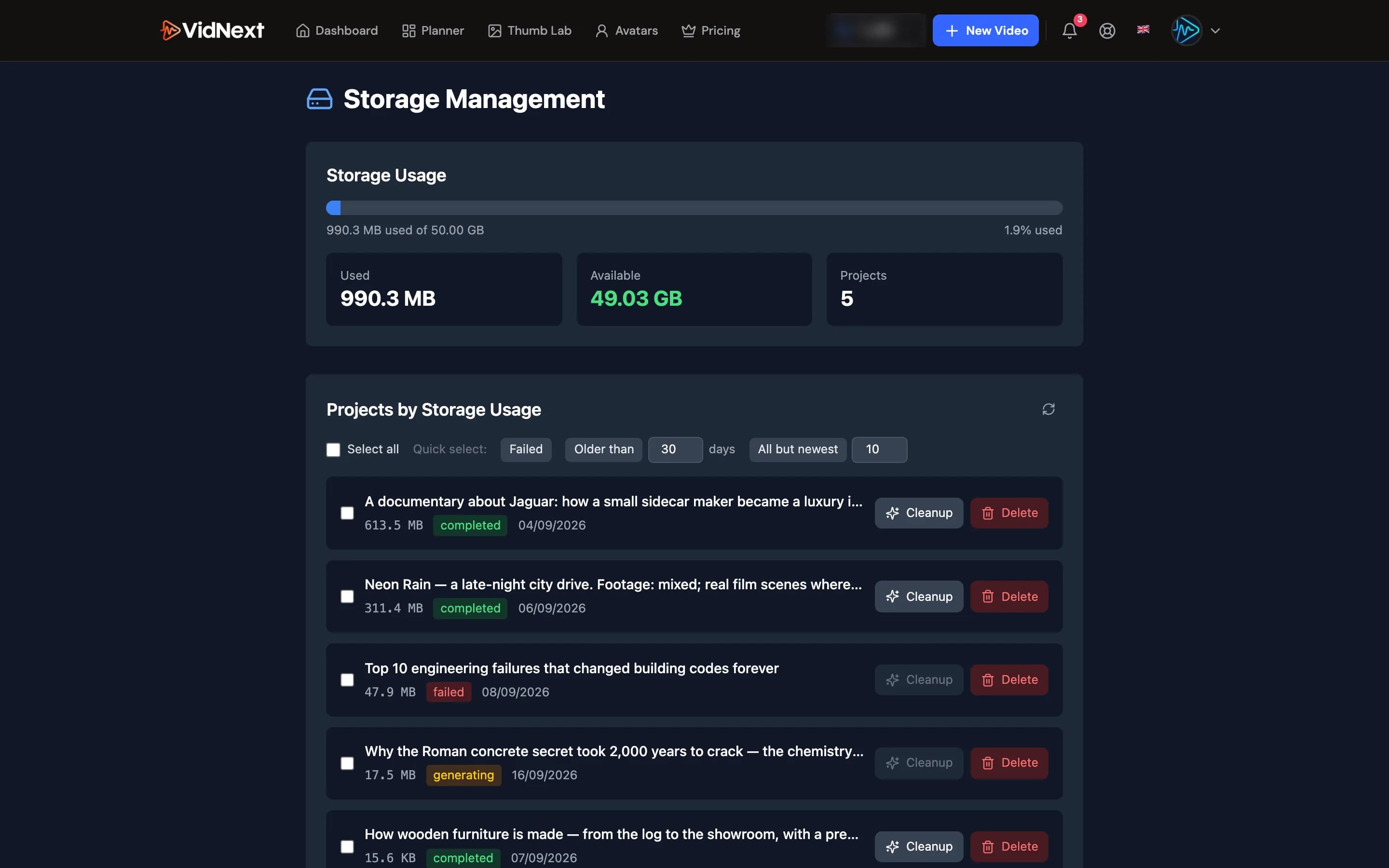
Every project keeps its files in your VidNext storage — the finished video, the narration, the clips and images it was built from, and the working files each render step leaves behind. The Storage page shows how much space that adds up to and lets you free some of it. Open the account menu in the top-right corner and pick Storage Show me in the app ↗ (the row with the usage bar), or go to vidnext.ai/storage directly.
Your usage
The bar at the top shows how much of your space is in use, with Used, Available and Projects underneath. It turns amber past 70% and red past 90%. Once you're over the limit, new videos can't start until you free space — or move to a plan with more storage (the pricing page lists each plan's storage).
How much space you have comes with your plan — from 10 GB on Starter to 400 GB on Enterprise. If your account existed before plans launched, you keep your 50 GB (a plan with more storage raises it), and team members have 50 GB each. If a card payment fails, your space stays while it is sorted out.Below it, Projects by Storage Usage lists every project, largest first, with its size, status and creation date.
Clean up vs. Delete
Every project row has the same two actions, and both are also available for a whole selection:
| Action | What it does | What stays |
|---|---|---|
| Clean up | Removes the working files a render leaves behind. Only finished projects have anything to clean — on the others the button is off. | The final video, the narration, the source clips and images. You can still open and re-export the project. |
| Delete | Removes the project entirely. If it's still generating, the generation is cancelled and the credits held for it are refunded. | Nothing — this cannot be undone. |
Working with several projects
Tick the checkboxes Show me in the app ↗ on the rows you want, or use the quick picks above the list:

- Select all Show me in the app ↗ — every project.
- Failed Show me in the app ↗ — projects whose generation failed or was cancelled.
- Older than N days Show me in the app ↗ — set the number of days, then click.
- All but newest N Show me in the app ↗ — everything except your N most recent projects.
The bar at the bottom of the list shows how many projects are selected and how much space they take, with Clean up selected Show me in the app ↗ and Delete selected. Both ask you to confirm once — and tell you if some of the selected projects are still generating (delete) or have nothing to clean (clean up) — then show a progress counter while they work. When they're done you get a summary of how many projects were processed and how much space was freed, and the usage figures update right away.

Large selections are processed in batches. If you close the page part-way, the projects that were already handled stay handled; open the page again and run the rest.
If a figure looks out of date — say, right after a clean-up finished in another tab — press the Refresh icon Show me in the app ↗ above the list.