DocsCreating videos
Scripts & prompting
How to get great scripts — prompting, writing styles, custom scripts, and video references.
The script drives everything: footage matching, pacing, overlays, and chapter structure. This page covers how to shape it.
Writing a good prompt
Be specific about the subject, the angle, and the format:
- Weak: "a video about space"
- Strong: "Top 10 most expensive space missions in history, ranked by inflation-adjusted cost, with a dramatic documentary tone"
Include the things you care about — the era, the people, the argument, what to skip. The full prompt travels through the entire pipeline, so details you mention influence scenes, not just the script text.
Not a text-to-video generator
VidNext doesn't render a shot you describe the way Veo, Sora or Runway do — a prompt like "static cinematic shot of a cabin in the rain, photorealistic, NO camera movement" has nothing to research or narrate. VidNext makes a narrated video about a topic, from real footage and images matched to the script. If your prompt reads like a shot description, a Prompt check explains this before generation and offers three topic prompts on the same theme plus the quick-start formats — pick one, edit your prompt, or Create anyway Show me in the app ↗ with your text as it is. A hint also appears under the prompt field as you type. When the stricter setting is in force, the dialog has no Create anyway: the Generate button stays off for that exact text Show me in the app ↗ until you rewrite the prompt or pick a suggestion — nothing is charged and nothing is created. In Music video and Upload my narration modes the same check reads your prompt as a visual brief and looks for footage that would have to be generated rather than found (see Music video mode).
Script style
-
Writing style Show me in the app ↗: how the narrator talks. Pick a format — Documentary (the default Show me in the app ↗), Explainer, News report, Opinion & commentary, Story & biography, Mystery & true crime, Dark stories, Countdown, Sports story, High stakes, Coach or Ad / Promo — or a presenter host made for videos with an AI avatar, who speaks in the first person: The Investigator, The Myth-buster, The Keeper of Secrets, The Insider or The Guide. Each style opens and ends its own way. Point at a style to see a line of how it sounds and what it suits (on a phone, the chosen style shows its line). Choose Custom Show me in the app ↗ to describe your own narrator in free text, up to 5,000 characters. Shorts are still written by the earlier script writer, which uses the closest of its styles.
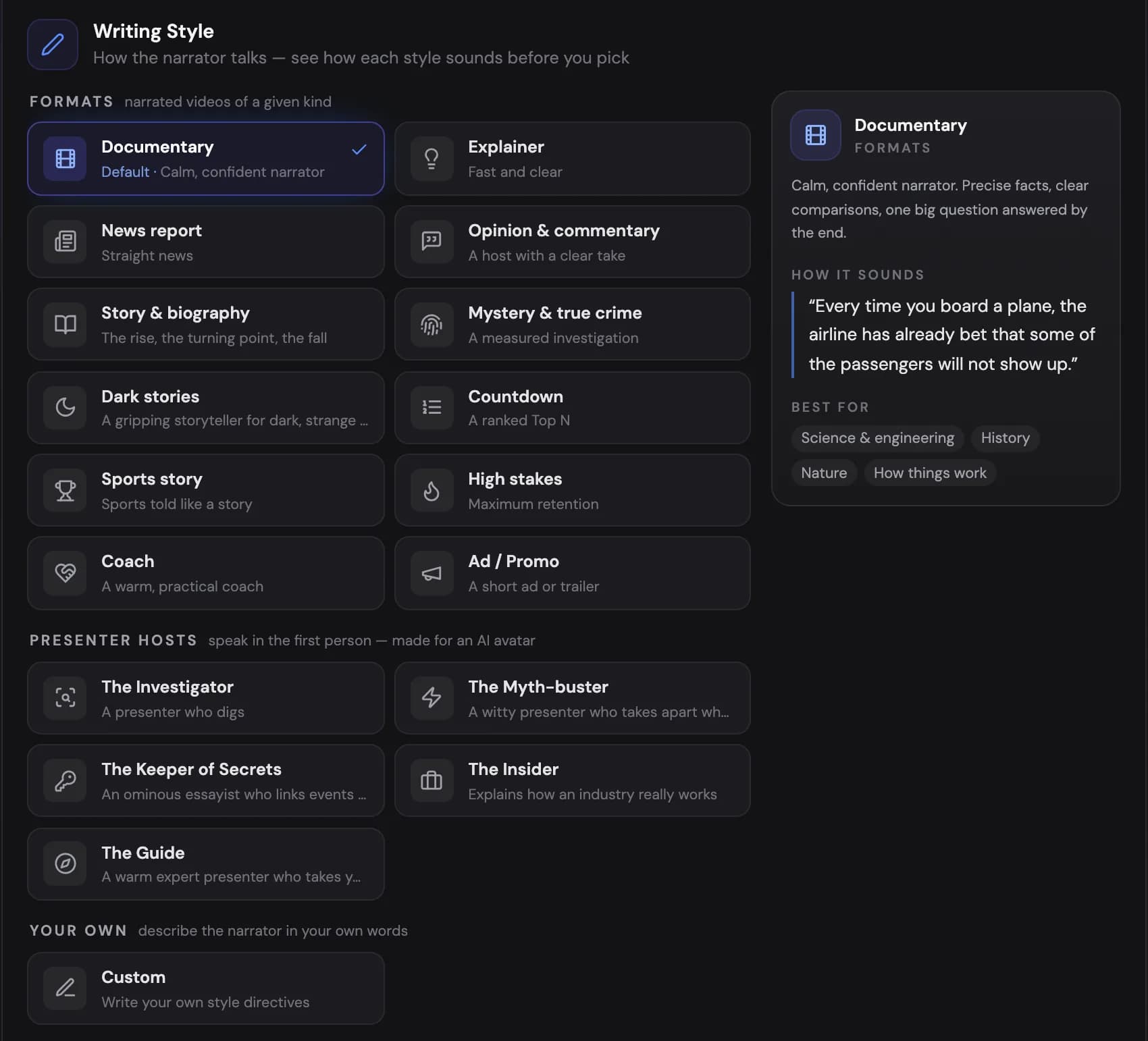
Writing style: formats, presenter hosts and your own, with a preview of how each one sounds. -
News or timeless: there is nothing to pick. News report always writes news: it leads with what happened and says who said what. Every other style works out from your prompt whether the topic is news or timeless.
-
Visual style: chosen automatically from your prompt — documentary, breaking news, video essay, true crime, sports, educational explainer, top-10 ranking, biography and more. The look of the video itself is set by the style pack in the Design & Background step.
-
Research: the topic is researched on the web before writing — real cases, numbers, common myths and what is still uncertain, more than one video needs, so the script uses the strongest material and retells it in plain spoken words. A result that comes back empty or about the wrong thing is discarded and fetched again; if no research is available, the script keeps to what is reliably known instead of inventing numbers, names or events.
-
Enhanced Fact-Check Show me in the app ↗: an optional toggle that verifies names, dates, and claims with web search. It adds two pipeline steps and makes the price per minute a little higher — the create page shows it before you generate.

Enhanced Fact-Check adds web verification and a small surcharge. -
CTA placements Show me in the app ↗: describe where and how calls-to-action ("subscribe", product mentions) should appear — tied to emotional beats works best. Leave it empty and the narrator places the asks itself, in its own voice: most styles ask for a subscription once the video has delivered something and close with a question for the comments; quieter styles such as News report keep the ask for the end.

Describe where calls-to-action should land; leave it empty and the narrator places them in its own voice.
Attachments: script, images, reference
The + menu Show me in the app ↗ on the create page attaches extra material to the generation:
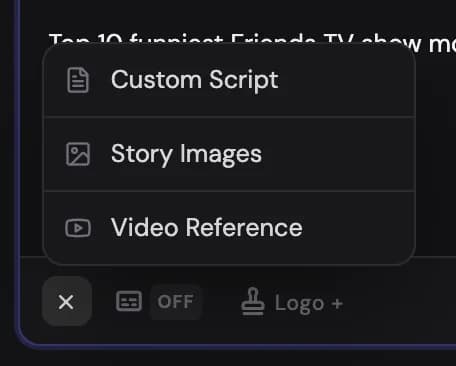
Copying a style with a video reference
Paste a public YouTube URL Show me in the app ↗ and VidNext analyzes up to 20 minutes of its narration, then writes your script in that writing style — sentence rhythm, vocabulary, energy. It never copies the reference's topic, names, or quotes. Analysis costs roughly 1 credit for short clips up to about 12 for a full hour.
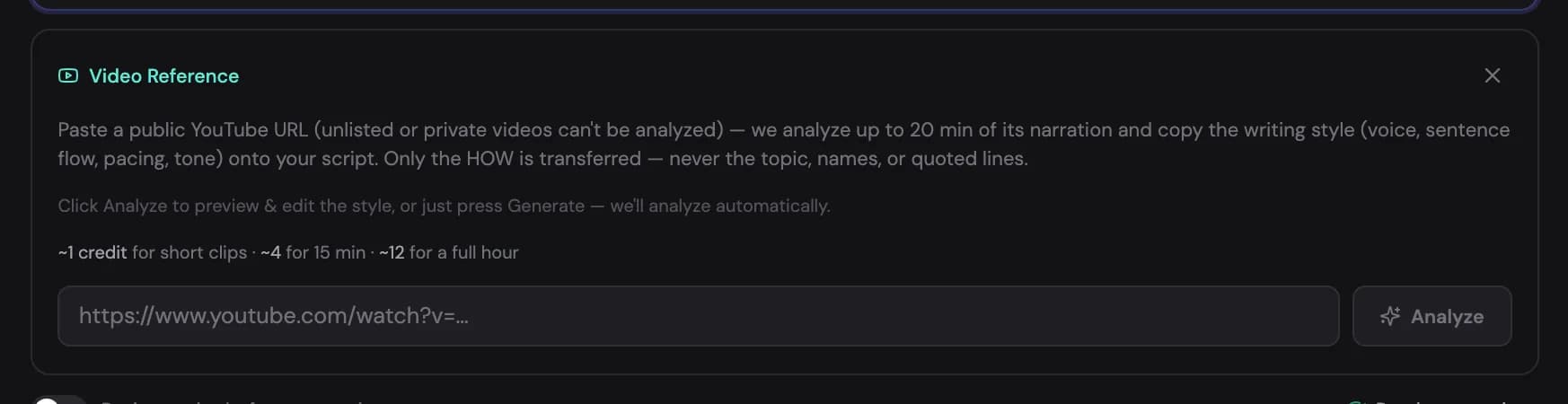
A video reference overrides the writing-style setting; detach it Show me in the app ↗ if you want to pick a style manually again.
If your team owner shares presets, the panel also lists the styles they analysed under Team library. Picking one reuses that style as it is, so there is no new analysis to pay for (see Teams).
Bringing your own script
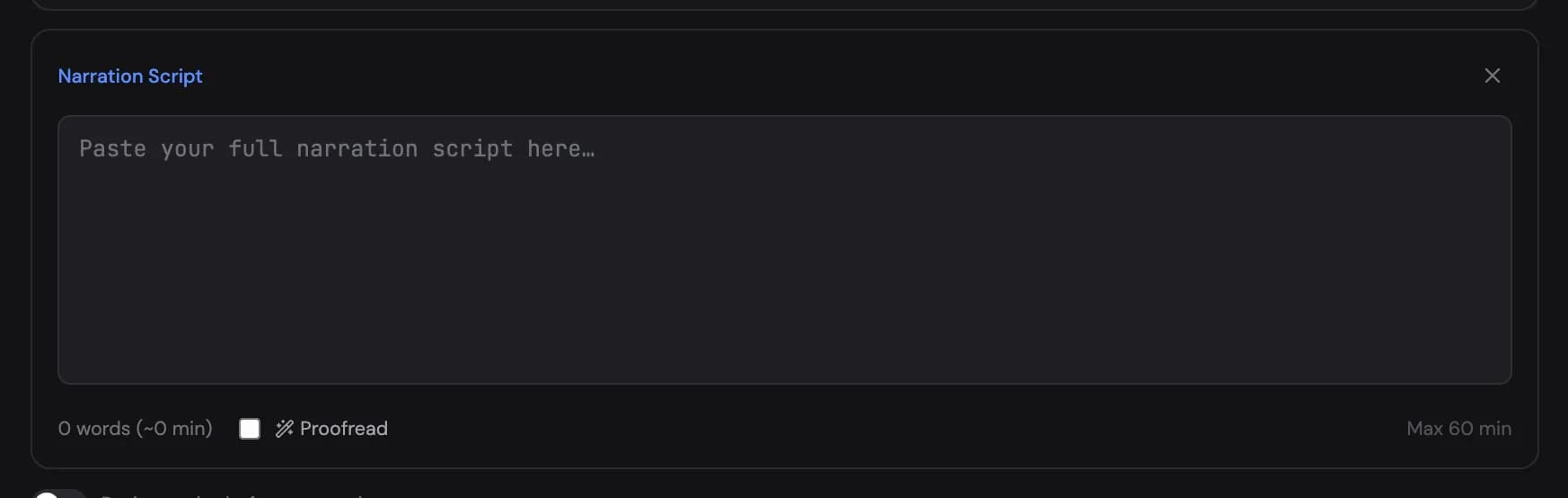
Attach a custom script Show me in the app ↗ and VidNext reads it verbatim — no rewriting. A script can run up to 60 minutes — about 54,000 characters in most languages, or about 23,000 in Japanese, Chinese or Korean. The panel shows a live word count and the estimated length, and tells you when a script is over the limit. A built-in Proofread action Show me in the app ↗ cleans up typos before generation.
You can also attach story images Show me in the app ↗ — up to 10 of your own pictures (JPG, PNG, GIF or WebP, up to 20 MB each) that become anchor points the script is written to flow through:
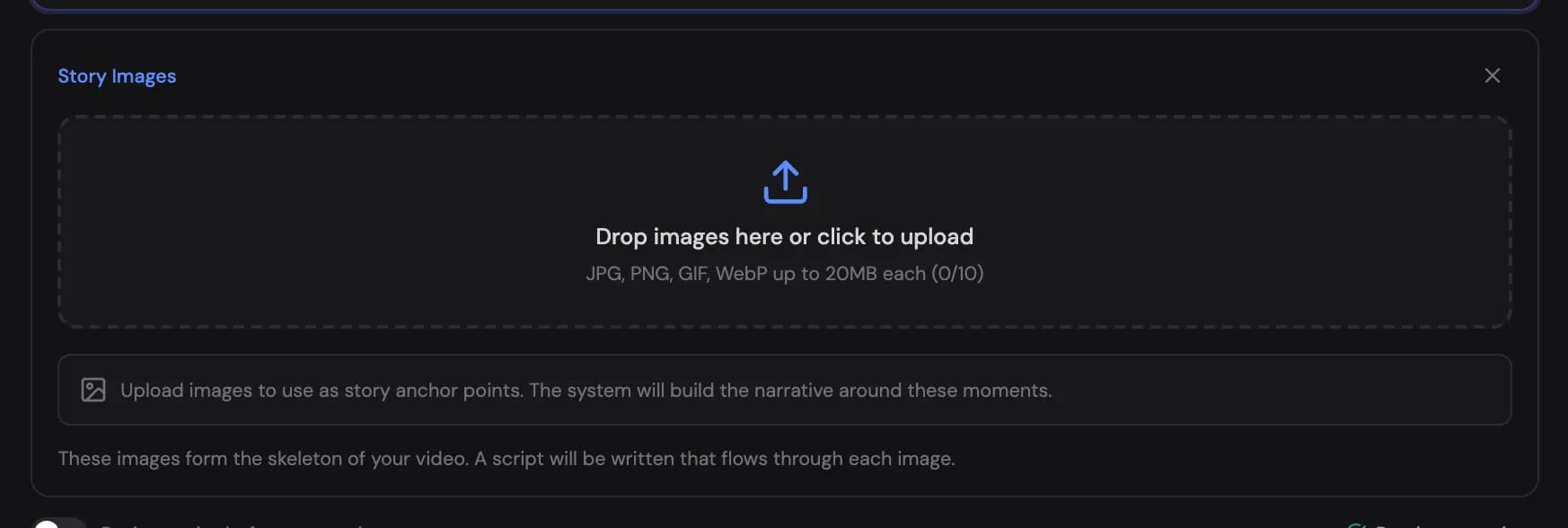
Each of your pictures stays on screen for the whole sentence about it, never cut over to another shot mid-sentence. When a short paragraph is about one picture alone (a product banner and its two lines, say), that picture holds the whole paragraph.
Save a preset while story images are attached and the preset keeps them, so the next video starts with the same pictures.
If your pasted text doesn't look like pure narration (say, it includes stage directions or an article layout), a script check dialog offers three options: use it as a prompt instead Show me in the app ↗, extract just the narrator text, or read every word verbatim anyway.
Supplying a custom script skips script generation entirely, which lowers the price per minute.
Reviewing before production
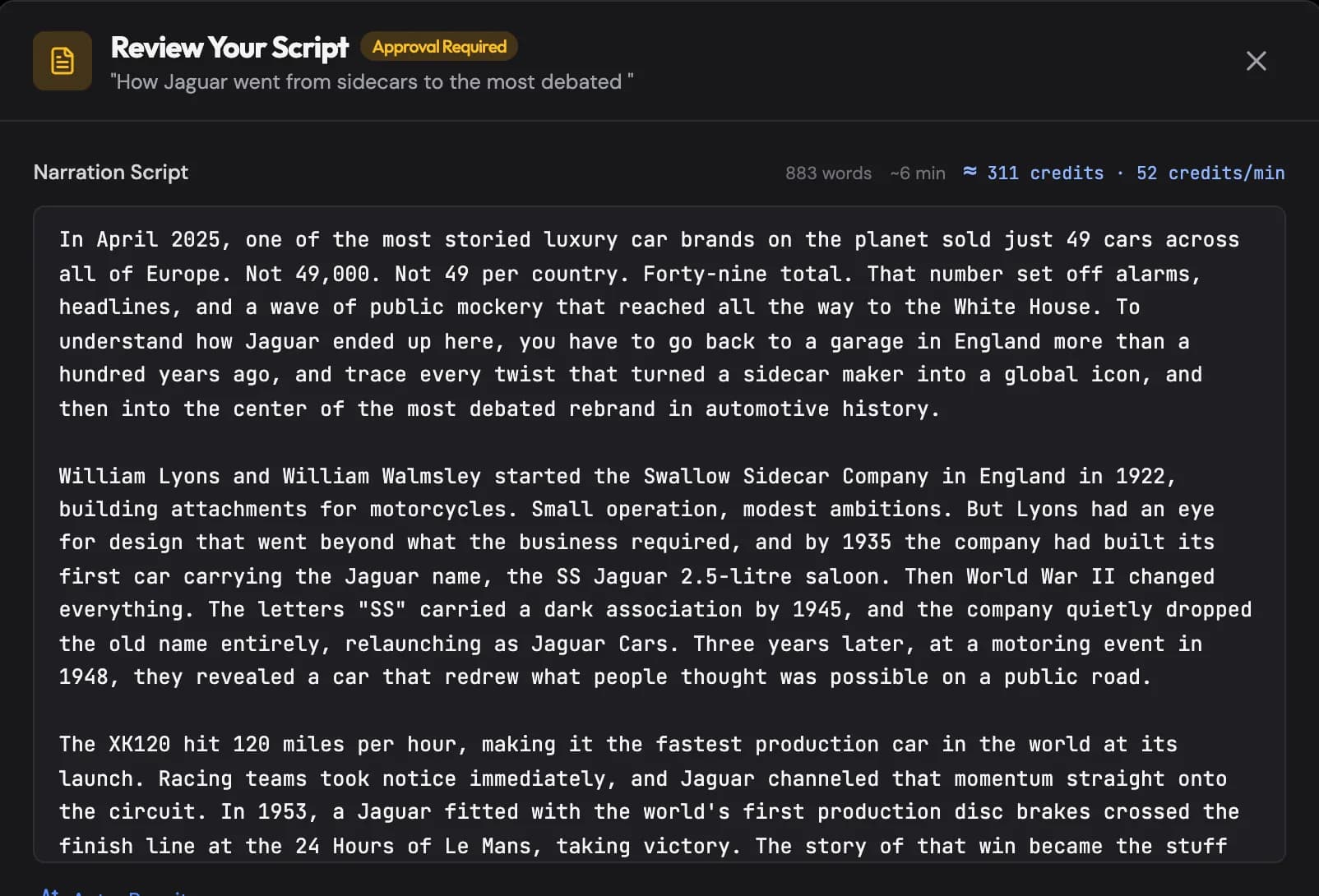
Enable "Review script before generating" Show me in the app ↗ on the create page and the project will pause at Awaiting Script Approval after the plan step. You can read the full script, make edits, and approve Show me in the app ↗ — only then does narration and footage work begin, so script changes at this stage cost nothing extra.
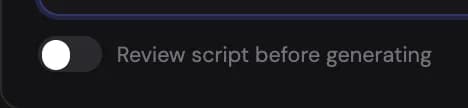
A script can wait for your approval as long as you like. After a day, though, the credits set aside for the video go back to your balance, so they aren't locked while you decide. Approving sets them aside again. If your balance is short at that point, the app tells you how many credits you need: top up, then approve again. The same applies if you're already running as many videos as your account allows: wait for one to finish, then approve.
The review also shows the price at the script's length Show me in the app ↗ next to the word count — approving a longer script sets more credits aside to cover it (How credits work).
Language
Narration, on-screen text, and graphics all use the selected output language Show me in the app ↗ — there are 27 to choose from. If your prompt, custom script, or chosen voice doesn't match the selected language, VidNext asks you to resolve the conflict before generating rather than guessing.