DocsCreating videos
Clips & footage sources
How VidNext finds footage, and how to control the scene mix and source types.
Every scene in the plan specifies what should be on screen. VidNext then fills those scenes from several kinds of visuals — and you control the mix.
Scene types
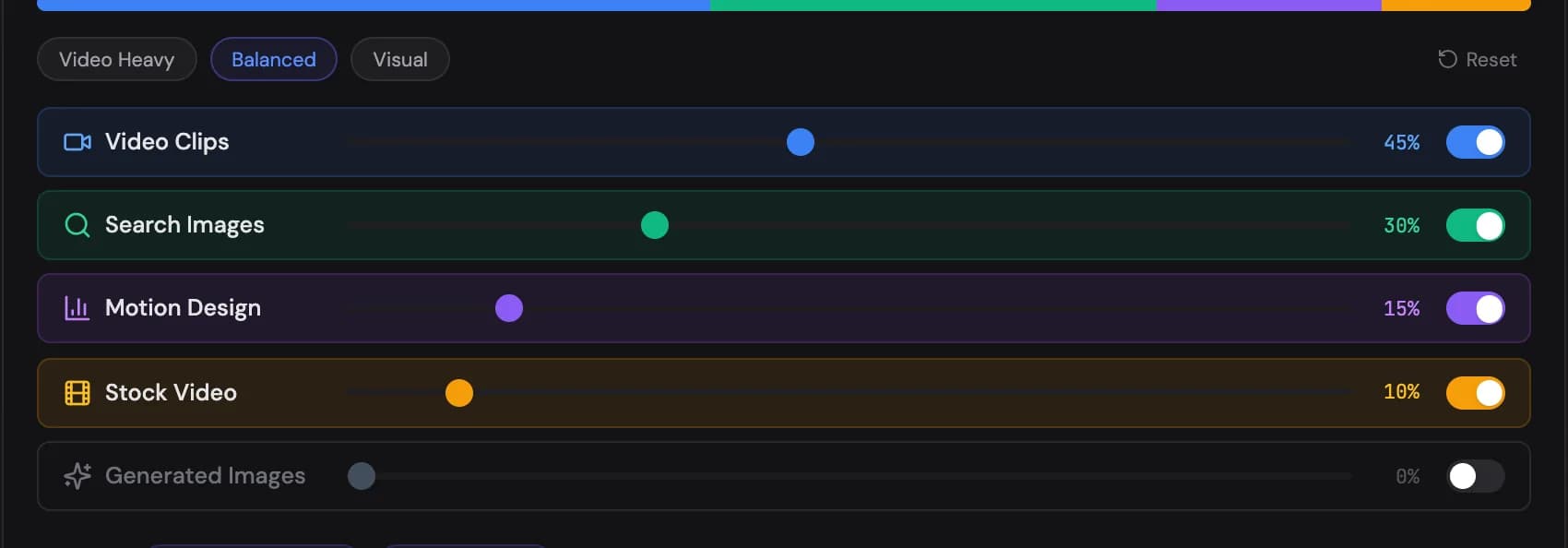
Five visual building blocks Show me in the app ↗ make up a video:
- Video Clips — real clips found and downloaded from the web, matched to what each scene describes
- Search Images — web and stock photos with motion applied (Ken Burns, pans, zooms)
- Motion Design — animated templates: chapter headings, ranking panels, quote cards, stat cards. The figures, names and sources they show come from your script
- Stock Video — licensed b-roll. Candidates are screened from their preview frames first; only the best few per scene are downloaded and scored as video, which keeps stock sections quick to source. In Shorts the Stock Video slider is an upper limit: stock is used where a generic picture really shows what is being said, and a line about a specific person, event or product gets a real clip or photo instead
- Generated Images — AI-generated imagery for scenes where no real footage exists
Three presets Show me in the app ↗ set the balance quickly — Video Heavy, Balanced, or Visual — or drag the per-type sliders yourself. You can also toggle individual features Show me in the app ↗ like chapter headings, movie/show clips, interviews, b-roll, news footage, charts, and maps. At least one scene type must stay active.
Interview clips appear only when they fit the story: on-camera speakers are shown when your narration names people who take part in it, and otherwise the video shows what the narration describes. Turn Interviews off to never use them.

Footage sources
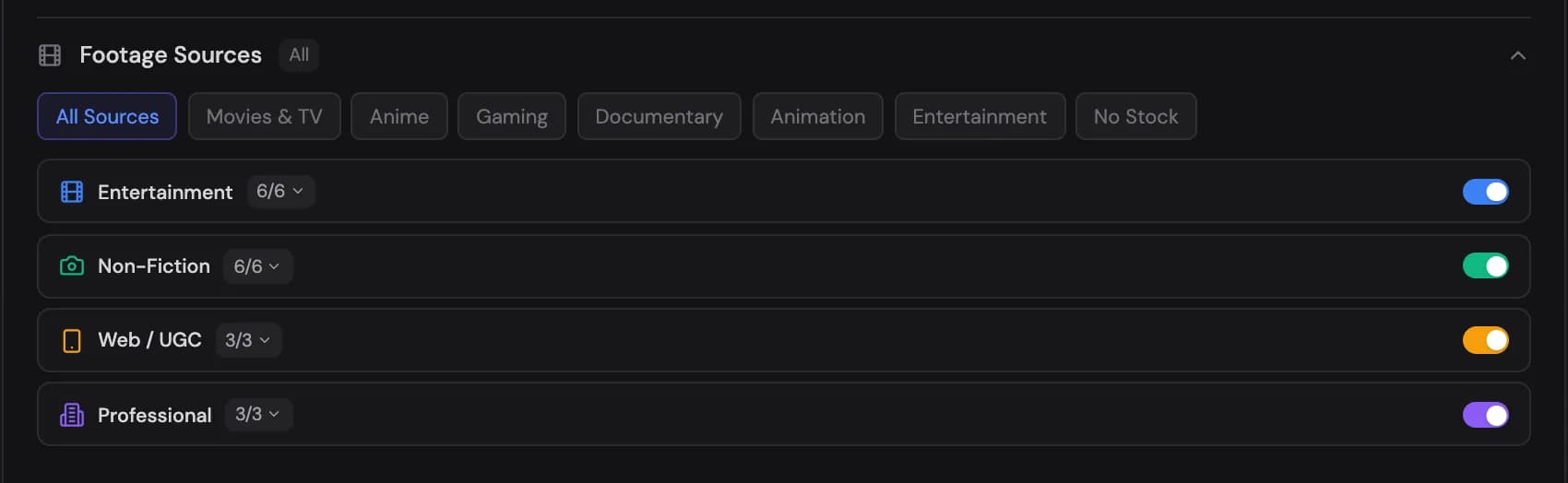
Control where video clips come from Show me in the app ↗. Categories Show me in the app ↗: Entertainment (movies, TV series, anime, cartoons, gaming, music videos), Non-Fiction (documentaries, archival, news, interviews, sports, nature), Web/UGC (vlogs, social, amateur), and Professional (stock, corporate, educational).
Presets Show me in the app ↗ like Movies & TV, Anime, Gaming, Documentary, or No Stock configure the whole set in one click. Narrowing sources makes footage more on-brand for your niche — a gaming channel can exclude corporate stock entirely.
How matching works
The video plan describes each scene's ideal footage. During the Video Search step, VidNext searches, scores candidates against the scene description, the line being spoken and the video's subject, filters out low-quality and watermarked sources, and picks the best match. Clips are then downloaded, trimmed to the scene, and quality-checked during Clip Download.
A candidate has to show the very thing the line is about, not just something of the same kind. A football for a line about a tennis ball, a different painting by the same artist, or a flower garden for a line about mowing a lawn is skipped, and the scene moves on to its next source. The same check applies to stock video and to web photos, including each picture of a before/after or side-by-side comparison, which is matched to its own label.
If a scene's footage can't be found, VidNext degrades gracefully — falling back to alternate clips, stock, images, or motion design rather than leaving a gap. When stock footage can't be fetched in time, those scenes look for matching video clips before settling for a photo. A clip that turns out to be nothing but an end screen, credits or a logo card is replaced with another clip of the scene before a photo is considered.
If you set both image search and AI images to 0 % in the content mix — or your prompt asks for moving footage only — a scene that loses its clip gets other footage from your video first; a web photo is used only when no footage is left, and no AI image is generated.
If your prompt forbids stock videos (for example, "no stock footage"), a long video uses no stock at all. The Stock Video share of your mix is split between your other types in the same proportions, and stock is never used as a fallback. A prompt that only limits stock, such as "minimal stock footage", keeps the mix you set.
Fixing a clip you don't like
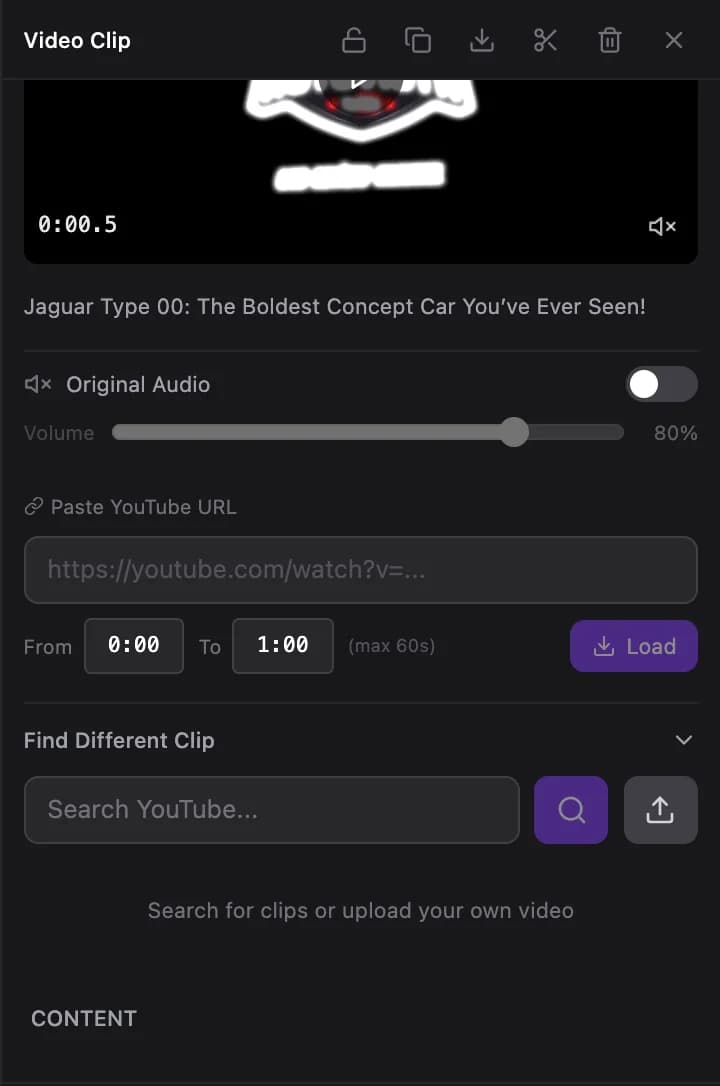
You don't need to regenerate anything to swap footage. In the editor, select the clip and use Find Different Clip Show me in the app ↗ — search the web, paste a specific URL, or pick from backup clips found during generation. You can also re-trim the source clip Show me in the app ↗ or upload your own file.
Transitions
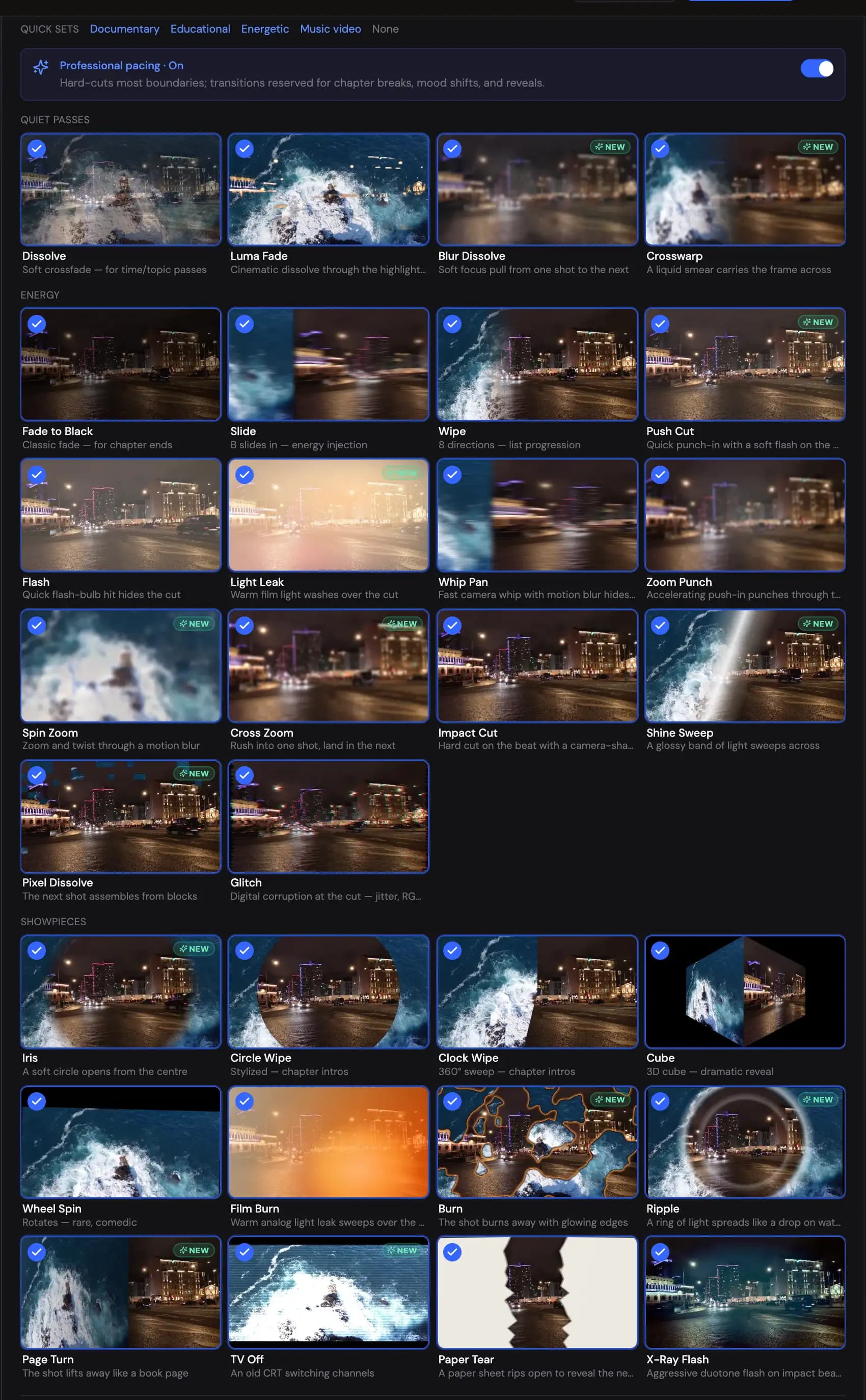
Scene transitions live in the Design & Background step, right under the style packs Show me in the app ↗. A style pack sets its transition set, and the block shows a preview of each transition your video will use — hover one to watch it move Show me in the app ↗.
Customize Show me in the app ↗ opens all 30 styles, each with a moving preview — hover a card to play it, the speaker button plays it with its sound — from dissolve and luma fade to burn, page turn and TV off. Click a card to switch it on or off, or start from a quick set Show me in the app ↗ for documentary, educational, energetic or music-video pacing; None keeps every cut hard. Changing the set keeps the pack's colours and fonts: the block says Custom set and offers Reset to the pack's set Show me in the app ↗.
The Professional pacing option Show me in the app ↗ uses hard cuts for most scene changes and saves transitions for chapter breaks and reveals, which is how most successful channels edit. When sound effects are available to you, a soft swoosh timed to each transition is switched on or off with Transition whooshes Show me in the app ↗ in the sound effects panel of the topic step.