DocsAccount
Blocked sources
Keep footage from chosen YouTube channels and videos out of your videos — for your whole account, for one planner channel, or for your whole team.
Some footage you never want in your videos: a competitor's uploads, a channel that re-uploads other people's work, or one particular video. Put them on a block list and VidNext never takes clips from them. Open the account menu in the top-right corner and pick Blocked sources Show me in the app ↗.
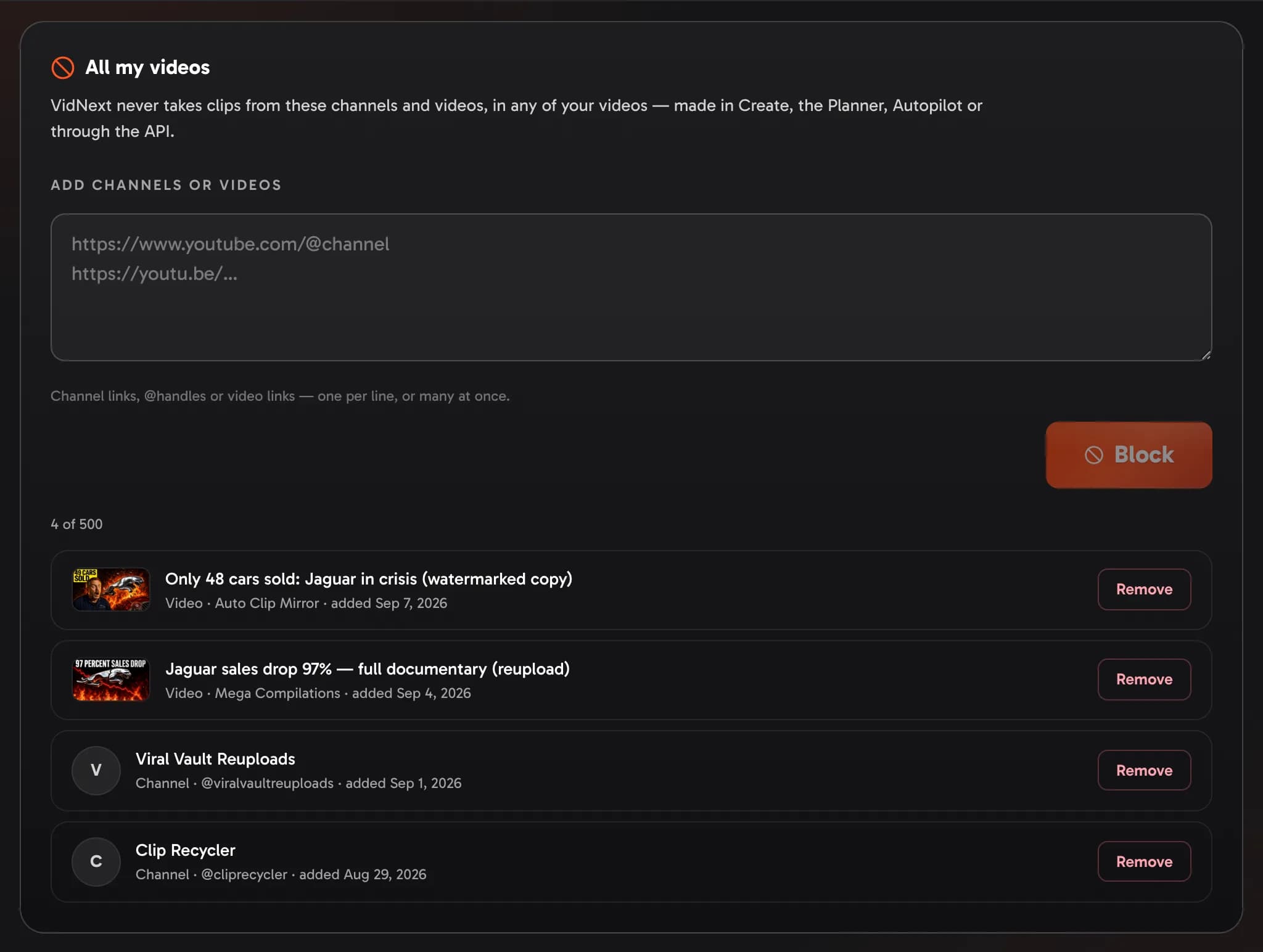
Block a channel or a video
All my videos Show me in the app ↗ is the list for your whole account. It applies to every video you make: on the create page, in the Planner, with Autopilot and through the API.
Paste one link or many Show me in the app ↗ — channel links, @handles or video links, one per line — and press Block Show me in the app ↗. A video link blocks just that video. To block the whole channel that uploaded it, set Video links block Show me in the app ↗ to Its whole channel. VidNext looks each channel up on YouTube, so the list shows its name and picture. A line it can't read stays in the box with the reason, so you can fix it and press Block again.
A list holds up to 500 channels and videos. Remove Show me in the app ↗ takes one off the list, and Undo puts it back.
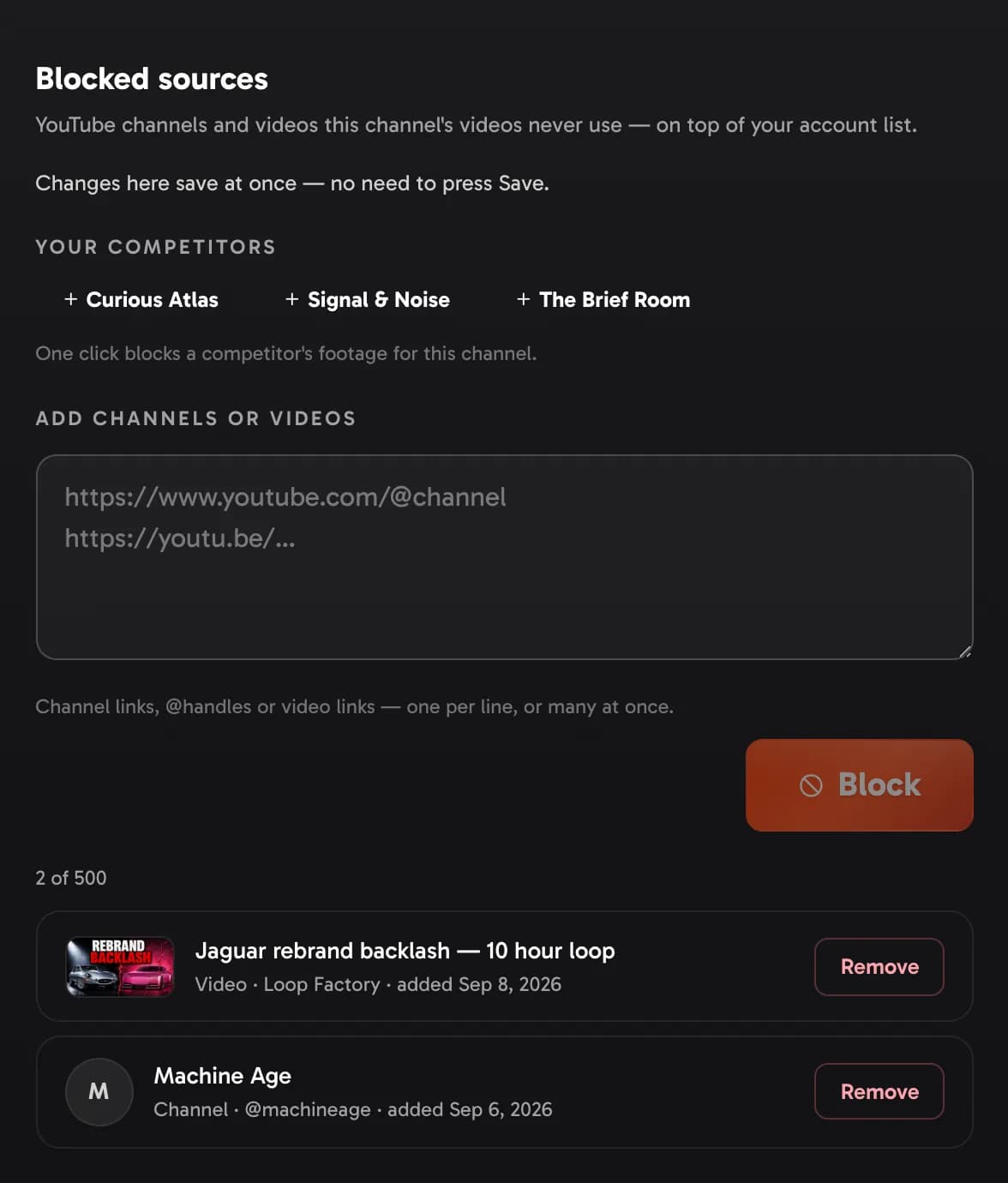
A list for one channel
A planner channel can have its own list too, for footage that's wrong for that channel only. Open the channel's Settings and go to Blocked sources Show me in the app ↗. It works like the account list and saves as soon as you add or remove something. The channel's competitors are listed above the box: one click blocks a competitor's footage Show me in the app ↗ for this channel.
A video made for the channel skips both lists: the channel's own and your account list. Planner channels Show me in the app ↗ on the Blocked sources page shows how big each channel's list is, with a link to it.
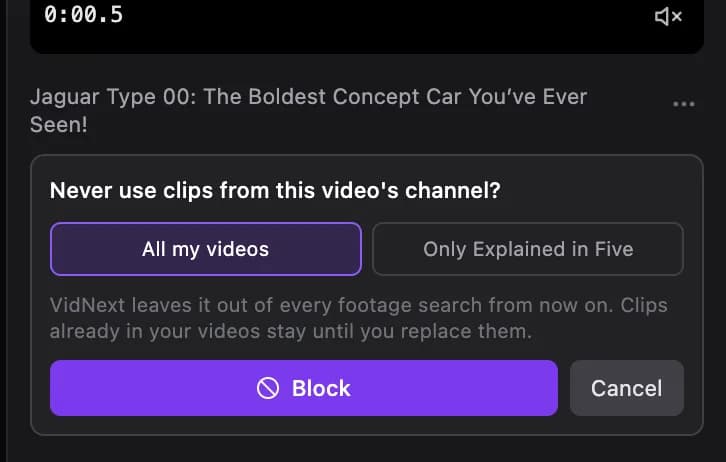
Block a clip from the editor
In the editor, select a clip: under its preview you see the video it comes from — and its channel, when VidNext knows it. The ⋯ menu next to them Show me in the app ↗ has Never use clips from this channel and Never use this video. Choose All my videos or — for a video of one of your planner channels — just that channel, then press Block Show me in the app ↗. The clip itself stays until you swap it, and Find a different clip opens right there.
Your team
A team owner can share their account list with the team: turn on Blocked sources Show me in the app ↗ in Team → Sharing, and the list applies to every member's videos as well. Members see it on their own Blocked sources page under From your team Show me in the app ↗, but only the owner can change it.
How it works
- VidNext skips blocked channels and videos whenever it looks for YouTube footage: for a new video, when you redo a step, and when you search for a clip in the editor.
- A change counts from the next search. Clips already in a finished video stay until you swap them in the editor.
- A link you paste yourself in the editor is always used. If it comes from a channel on one of your lists, the editor says so.
- The lists cover YouTube footage only. Stock video and your own uploads aren't affected.
- The same footage uploaded again by another channel isn't caught. Block that channel too.